
Lost your phone or locked out: reset your 2FA or MFA
import { Aside } from ‘@astrojs/starlight/components’;
If you use multi-factor authentication (MFA, also called 2FA) and can no longer get a code from your authenticator app, you have two ways back in: a backup code, or an account recovery request to Koordinates Support. This page applies to Koordinates ID accounts, on koordinates.com and on customer sites.
To set up MFA in the first place, see Create & Use Multi-Factor Authentication (MFA).
Option 1: sign in with a backup code
Section titled “Option 1: sign in with a backup code”If you generated backup codes when you set up MFA, you can use one in place of the authenticator code.
- Enter your email address and password as usual.
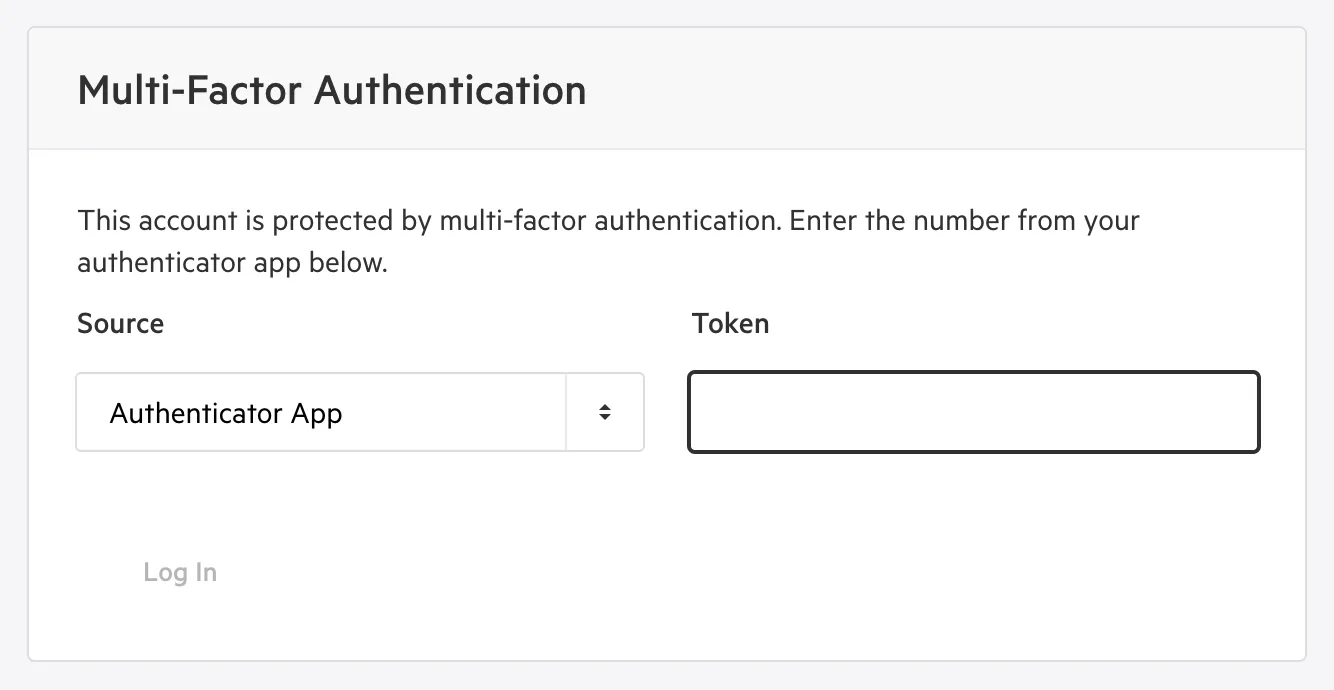
- On the Multi-Factor Authentication screen, open the Source list and choose Backup Token. The list shows Authenticator App and Backup Token.
- Enter one of your backup codes in the Token field and select Log In.
Each backup code works once. When you’re in, go to your Profile, open the Security tab and select Show Backup Codes. From there you can see how many you have left, and Regenerate New Codes makes a new set; only the newest set is valid. If you’ve changed phone, disable MFA and set it up again on the new device. You can disable it from the same tab.
Option 2: you have no backup codes
Section titled “Option 2: you have no backup codes”If you have neither your authenticator app nor a backup code, you can’t sign in yourself. Email support@koordinates.com from the address on the account and say you need an MFA reset.
Include the email address you sign in with and, if you use a customer site, the site’s address.
Your account is managed by your organisation
Section titled “Your account is managed by your organisation”If your organisation signs you in with its own identity provider (for example Okta), Koordinates doesn’t manage your security settings. Your Profile shows that the security policy is managed by your organisation, and you need to contact your administrator. See Okta integration with Koordinates ID.
Avoid getting locked out again
Section titled “Avoid getting locked out again”- Generate backup codes when you enable MFA, print them, and store them away from your phone.
- Before you replace or reset a phone, either move your authenticator app to the new phone or disable MFA first, then enable it again.
- Regenerate your backup codes if you’ve used most of them.