Manage Group Data and Quality Assurance using drafts
During the import process, you have the option of making data live immediately, or publishing as a draft. Drafts enable you to import updates and edit data details without making them available to your users.
This ‘draft’ step enables colleagues and collaborators to perform quality-assurance checks.
Edit dataset details using drafts
Section titled “Edit dataset details using drafts”1. Select ‘Manage’ from the top navigation menu
Section titled “1. Select ‘Manage’ from the top navigation menu”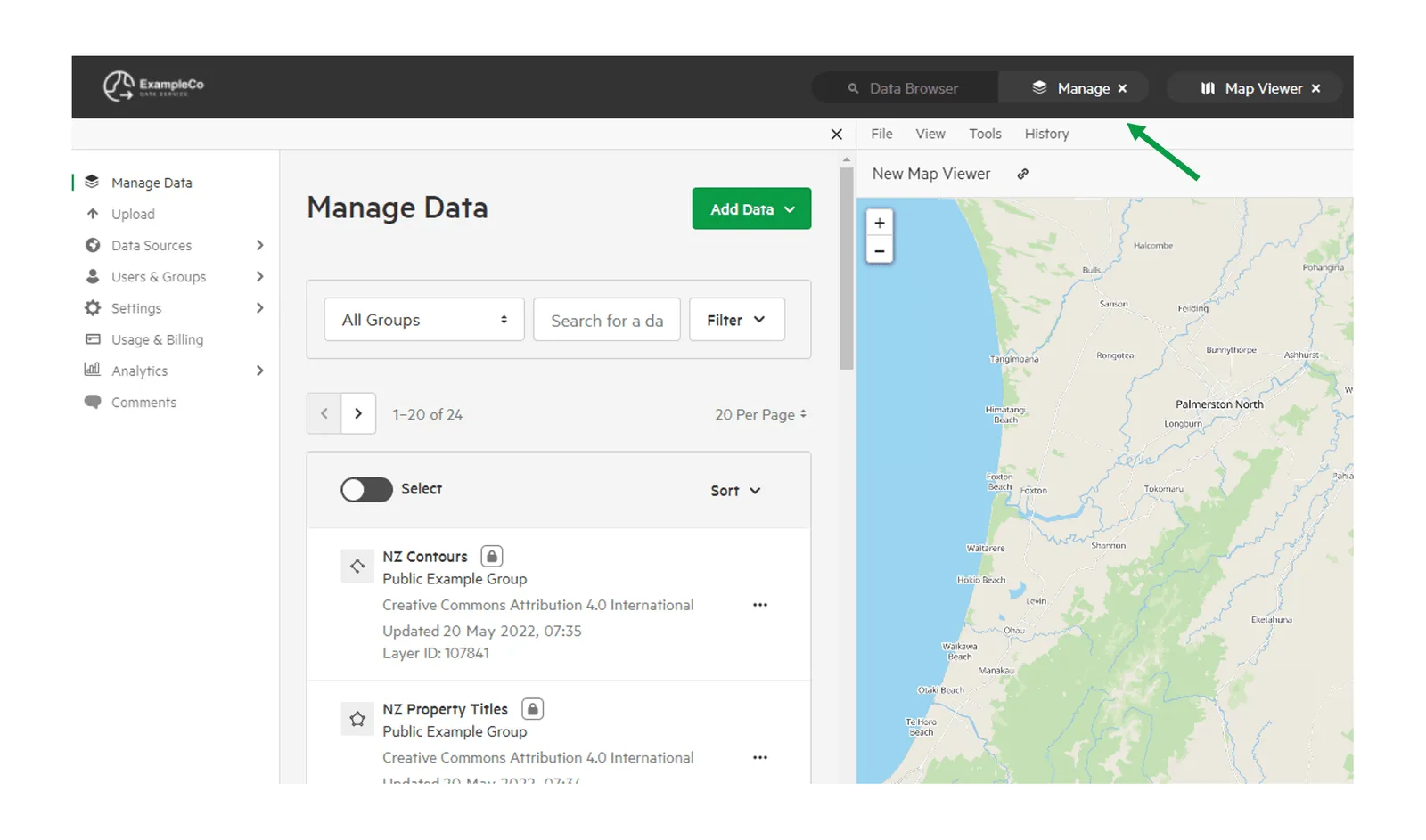
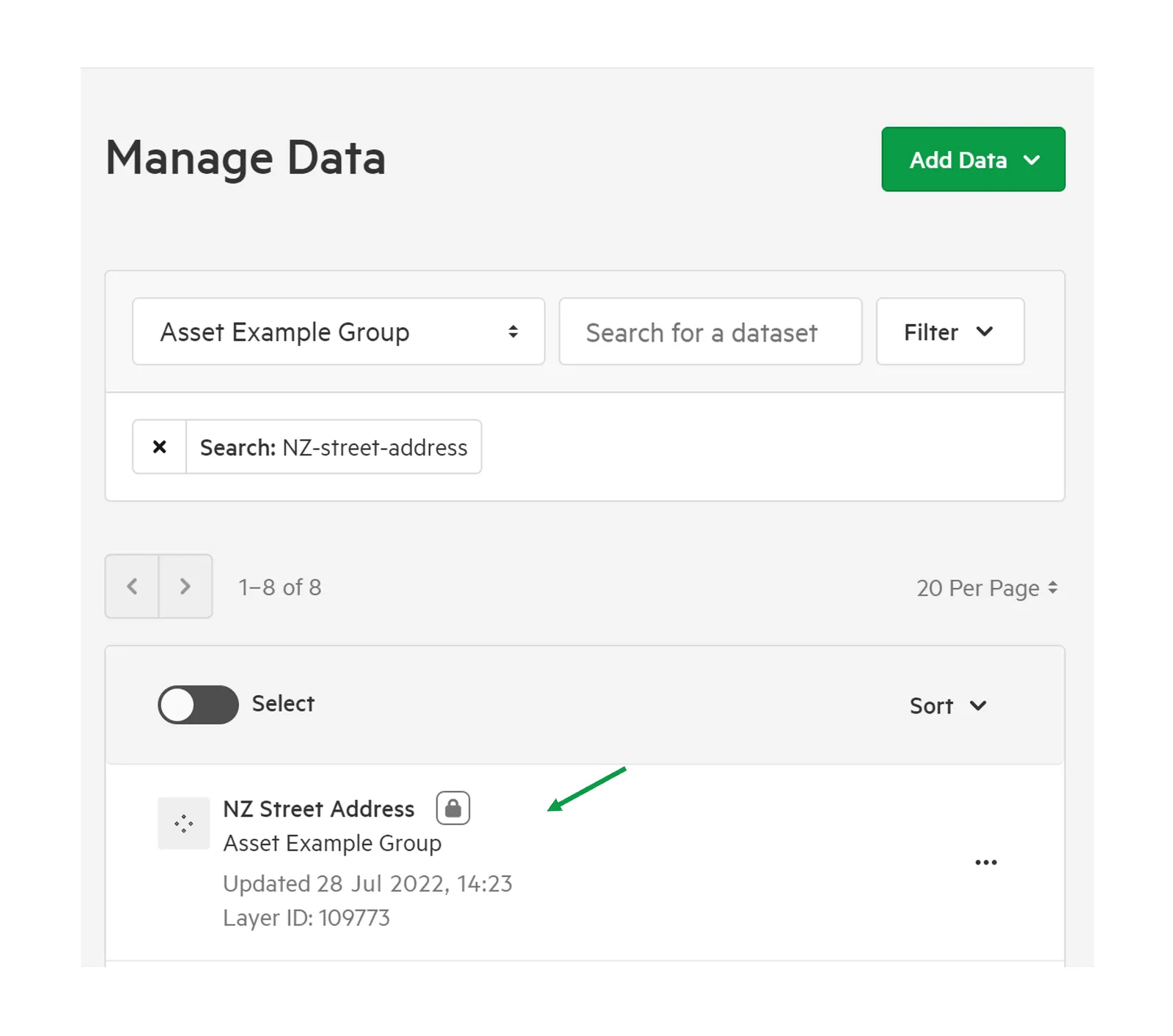
2. Select the dataset you wish to edit.
Section titled “2. Select the dataset you wish to edit.”You can locate your dataset by entering a search term and filtering by group, date created, data type, status, and last update.
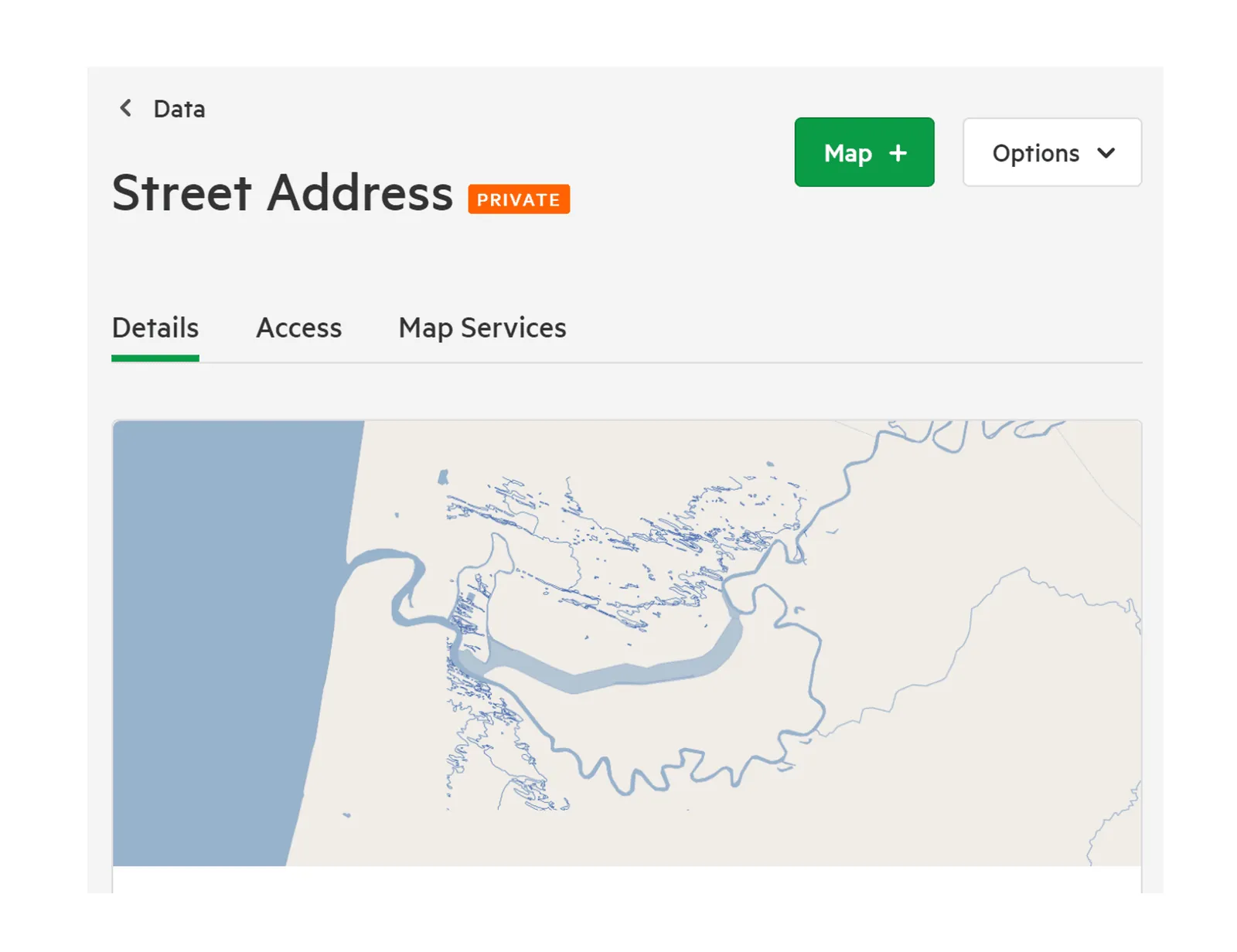
3. Edit the details and select ‘Save Draft’
Section titled “3. Edit the details and select ‘Save Draft’”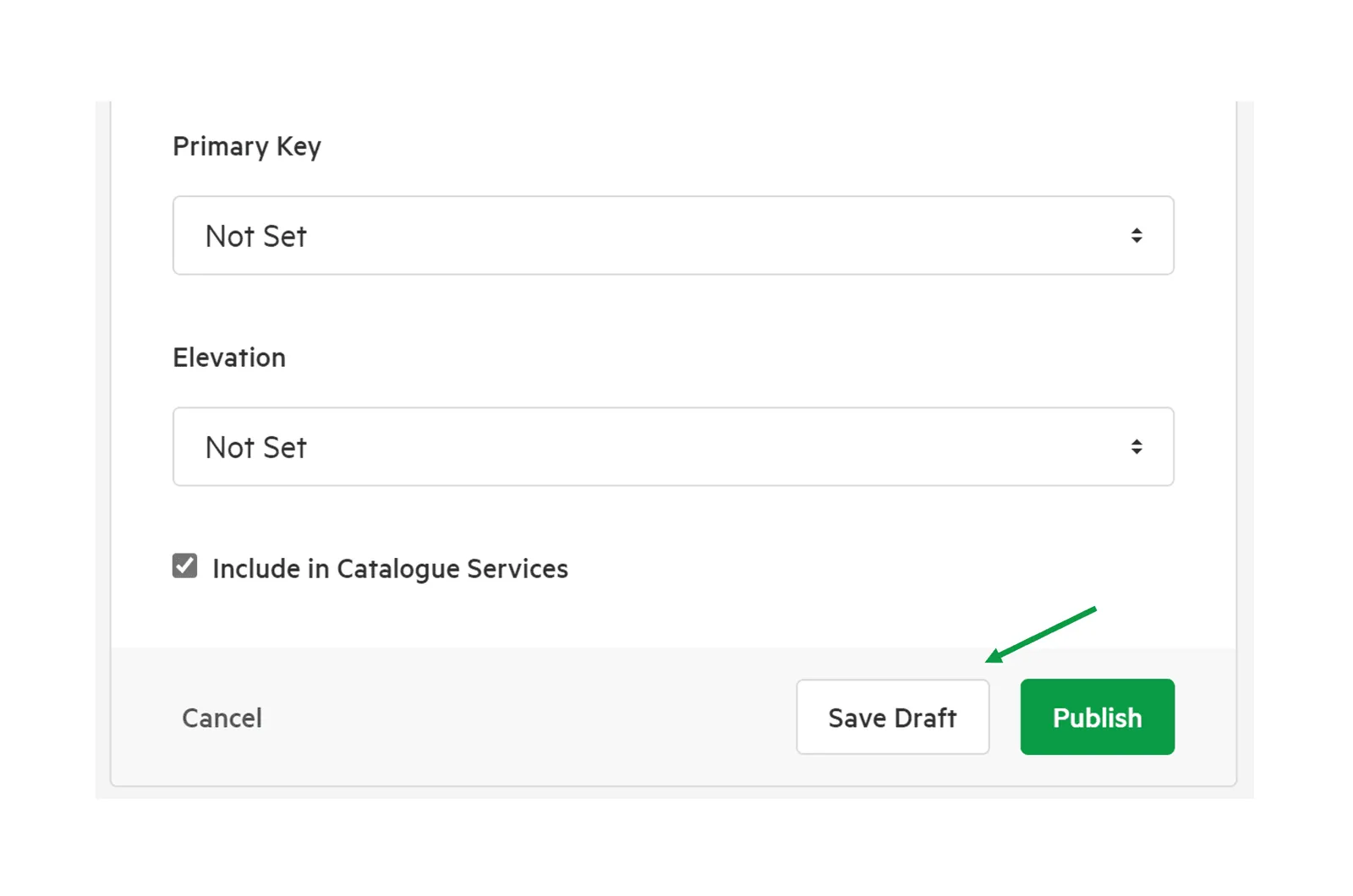
Compare Draft and Published Datasets
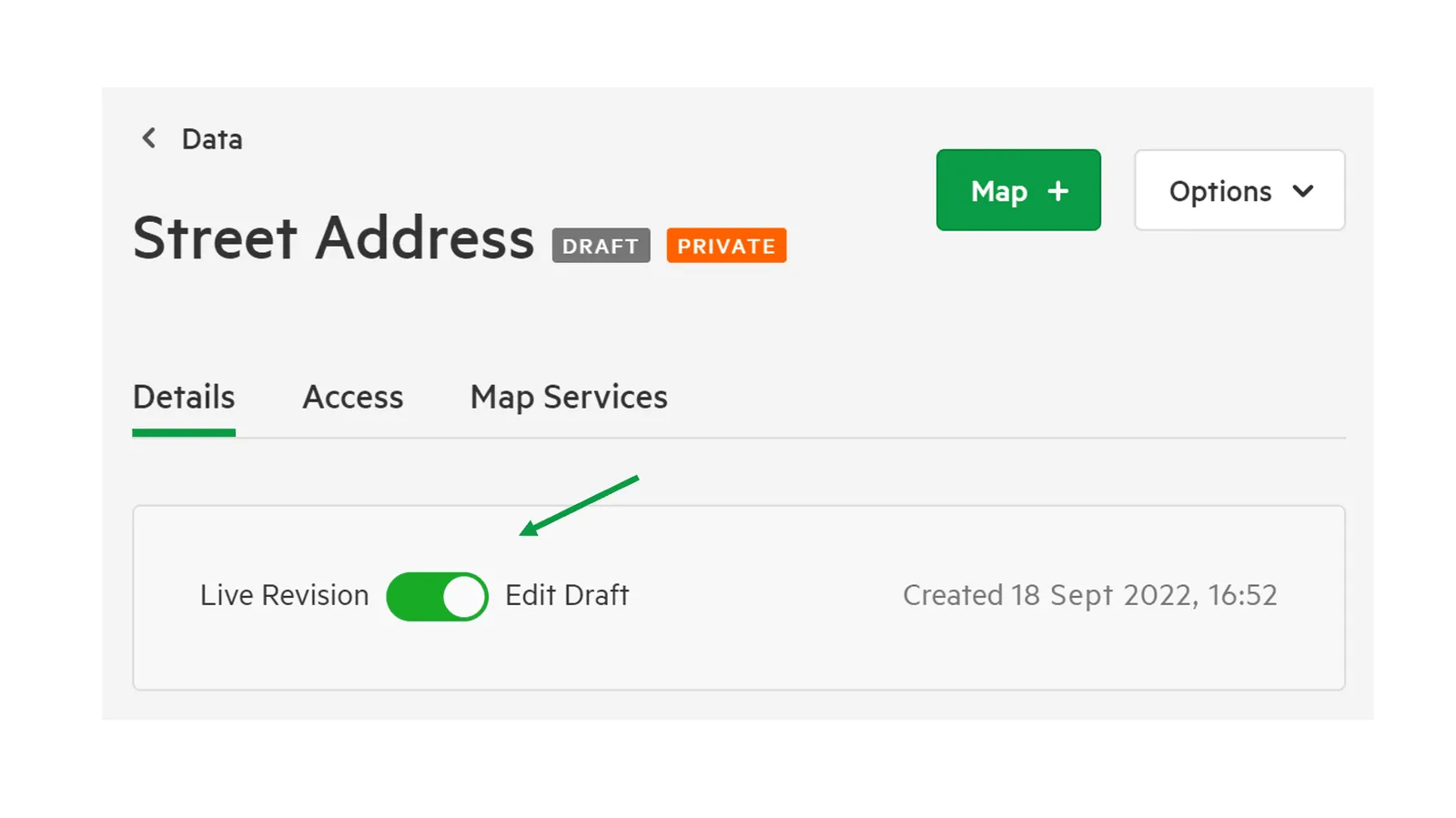
Section titled “Compare Draft and Published Datasets”Use the toggle at the top of your screen to compare draft and published versions.
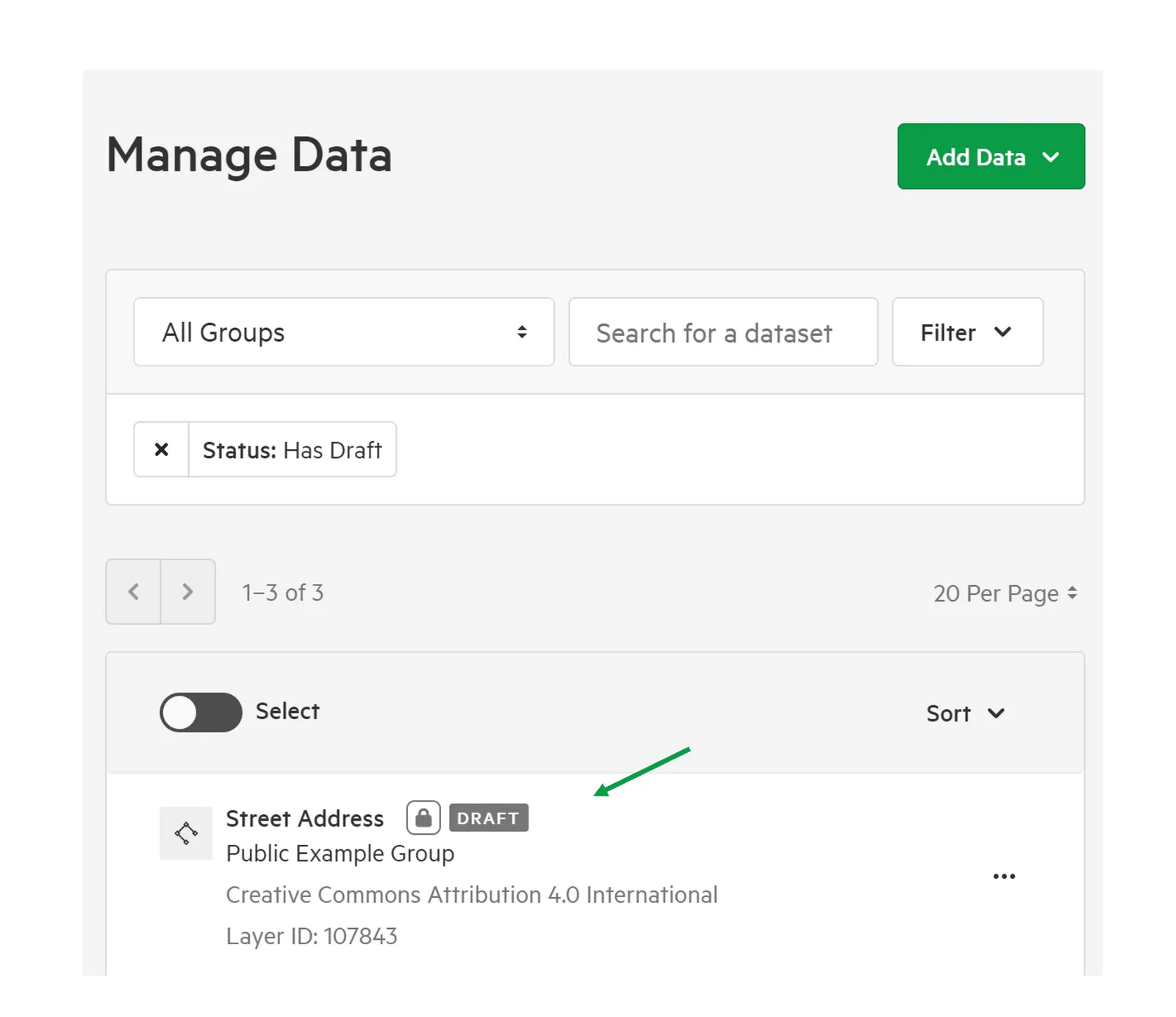
Filter for Draft Datasets
Section titled “Filter for Draft Datasets”1. From Manage Data, Click ‘Filter’ and select ‘Status’
Section titled “1. From Manage Data, Click ‘Filter’ and select ‘Status’”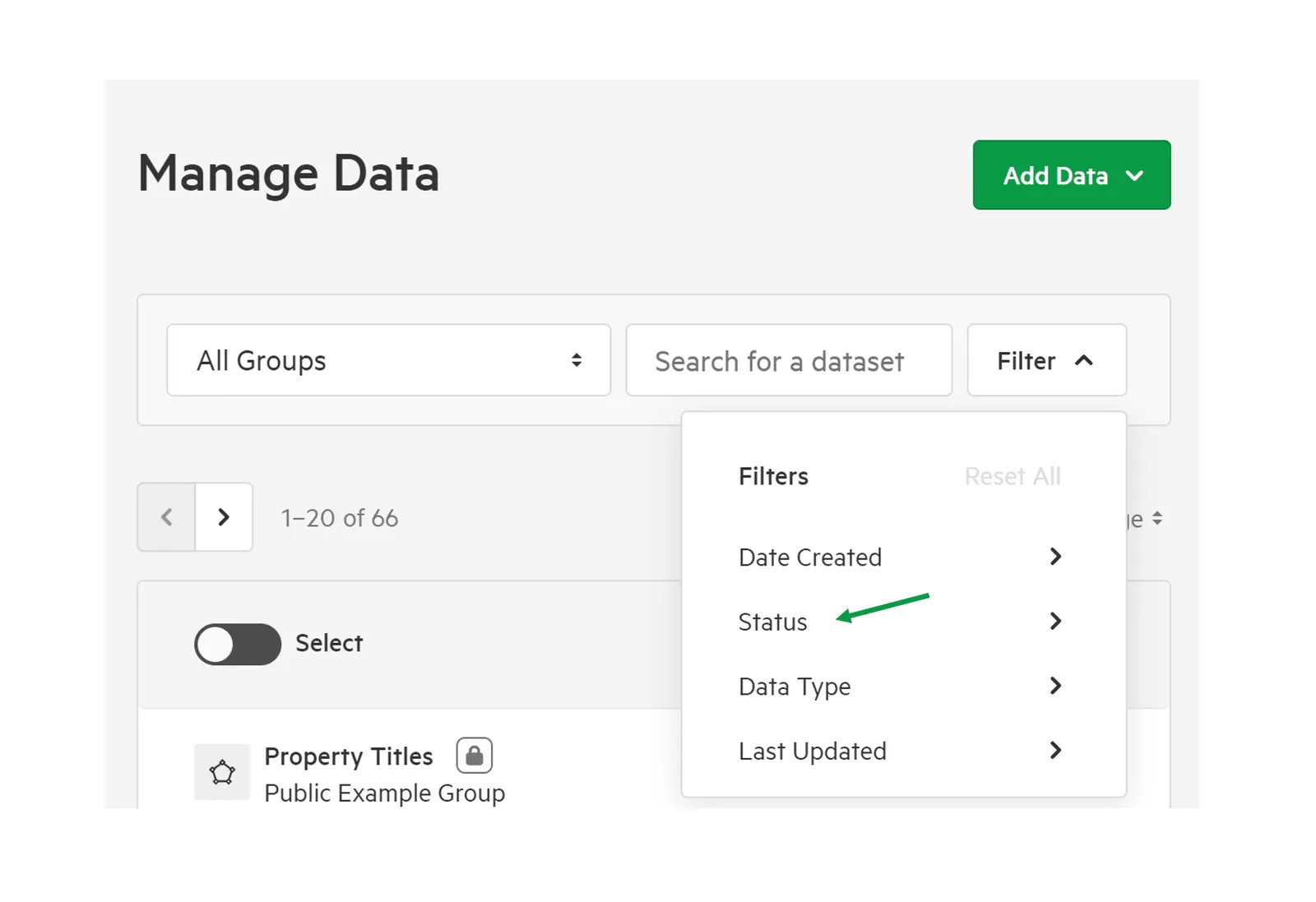
2. Select ‘Has Draft’
Section titled “2. Select ‘Has Draft’”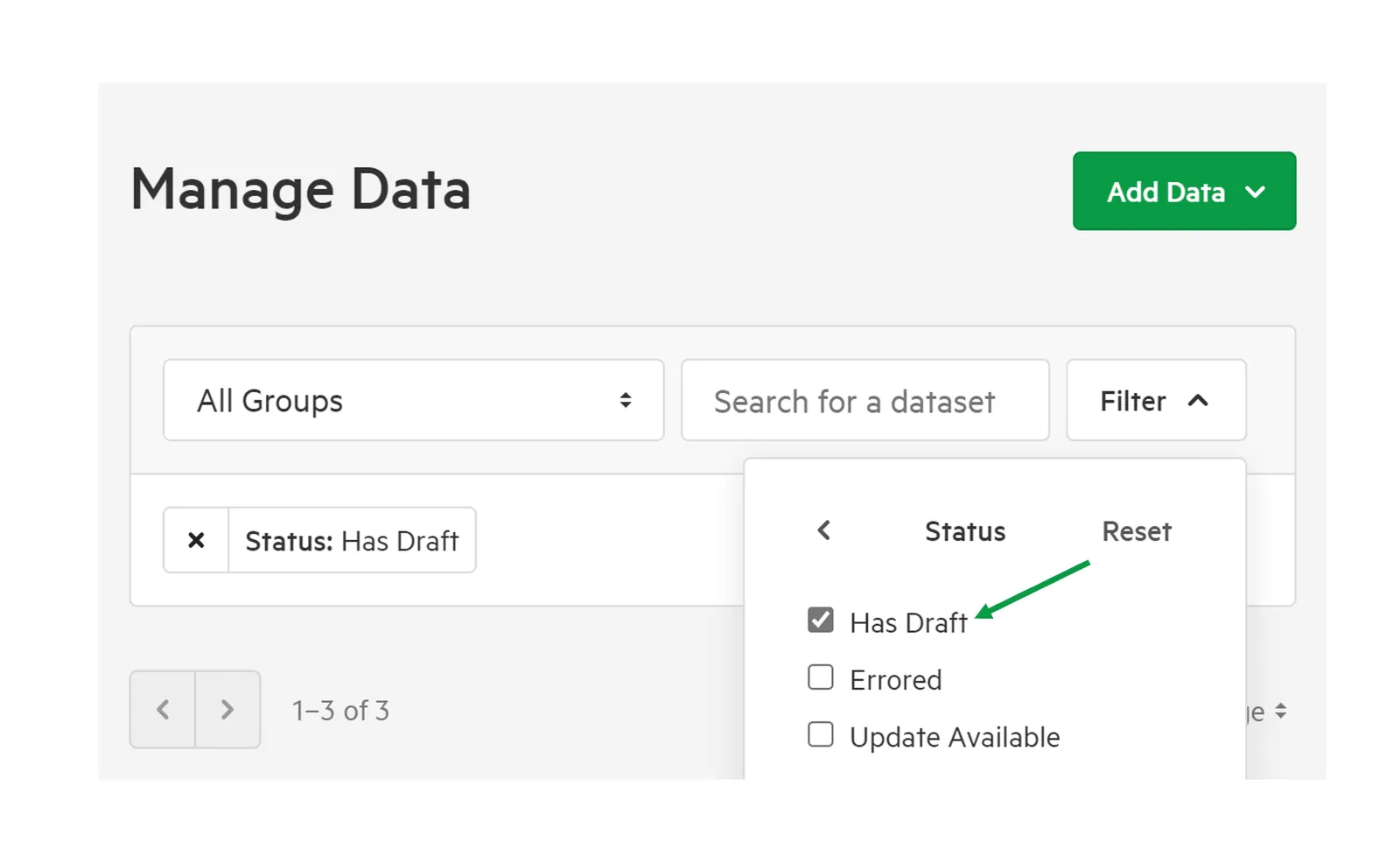
This will give you a filtered view of all the drafts available in your data service.
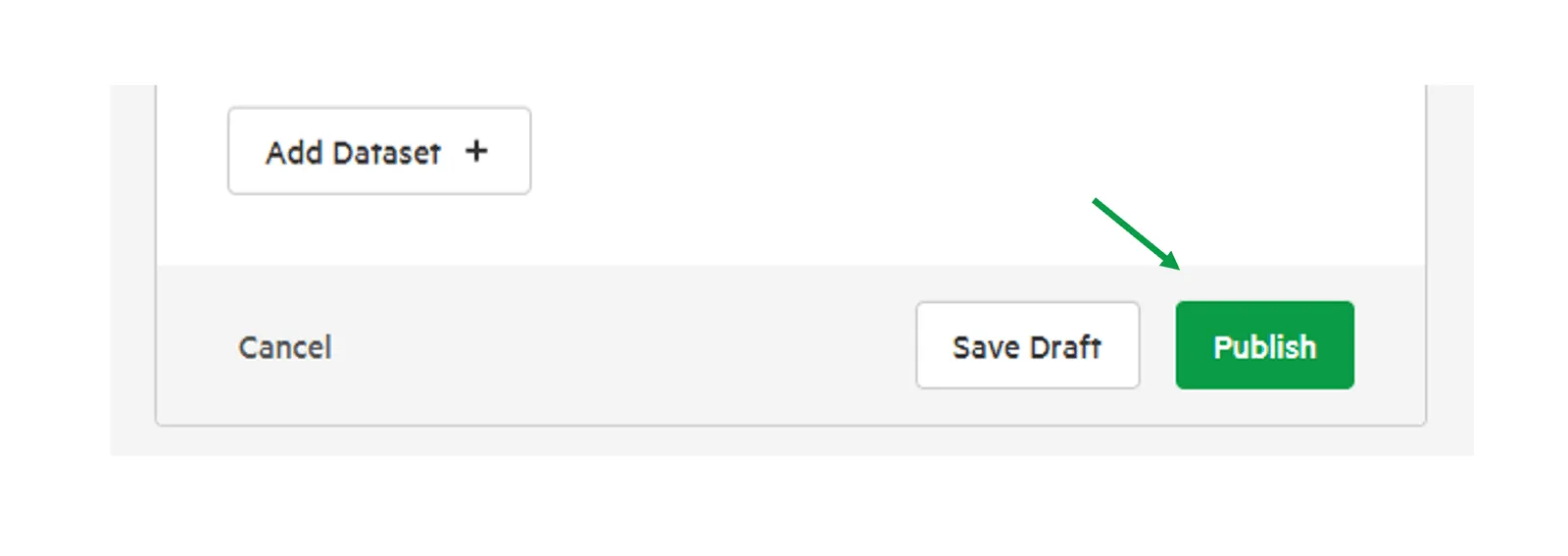
3. Once reviewed, Publish the data.
Section titled “3. Once reviewed, Publish the data.”