
Review and delete unused raster tiles
Identify and remove unused or replaced raster tiles to reclaim storage.
In this guide, we give step-by-step instructions on how to review the tiles in a raster or grid layer and permanently delete any that are unused, to reclaim storage on your site.
When a raster or grid layer is updated, tiles that have been replaced or are no longer used in the current published revision can remain in storage. The ‘Review unused raster tiles’ tool identifies these tiles so you can remove them.
1. In the Data Manager, click ‘New +’ and go to ‘Data management’
Section titled “1. In the Data Manager, click ‘New +’ and go to ‘Data management’”From the top right of the Data Manager, click the ‘New +’ button to open the tools wizard, then select ‘Data management’.
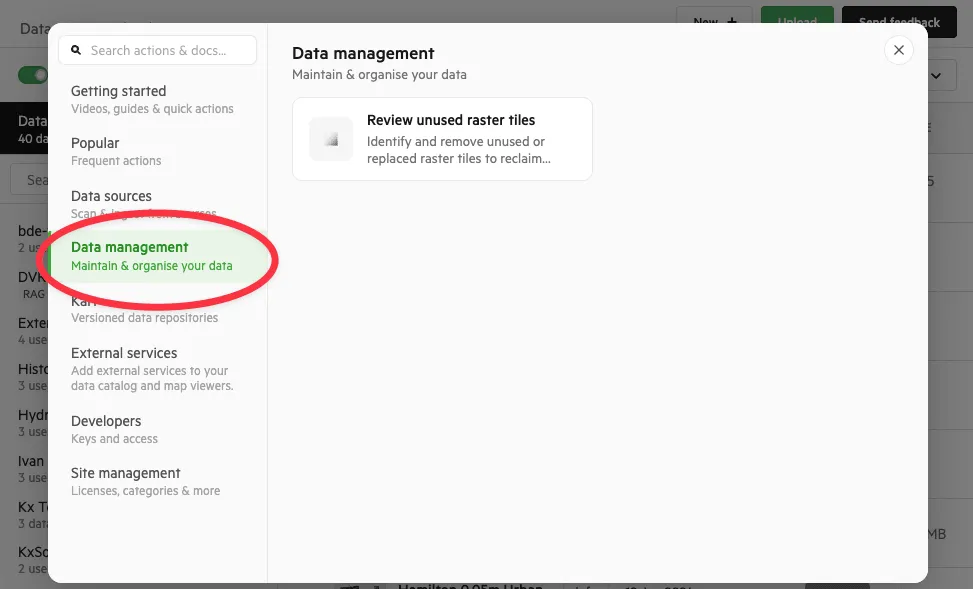
2. Click ‘Review unused raster tiles’ and select a layer
Section titled “2. Click ‘Review unused raster tiles’ and select a layer”Choose the raster or grid layer you want to review. The dataset opens on the ‘Contents’ tab.
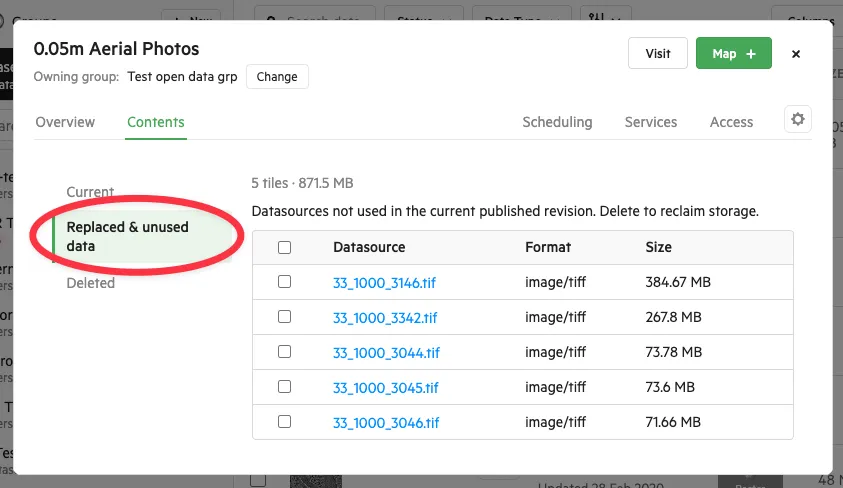
3. Review the ‘Replaced & unused data’ section
Section titled “3. Review the ‘Replaced & unused data’ section”The Contents tab is split into three sections:
- Current — tiles used in the current published revision
- Replaced & unused data — datasources not used in the current published revision. These can be deleted to reclaim storage.
- Deleted — a record of tiles that have already been deleted
Select ‘Replaced & unused data’ to see the tiles that can be removed, along with their format and size.
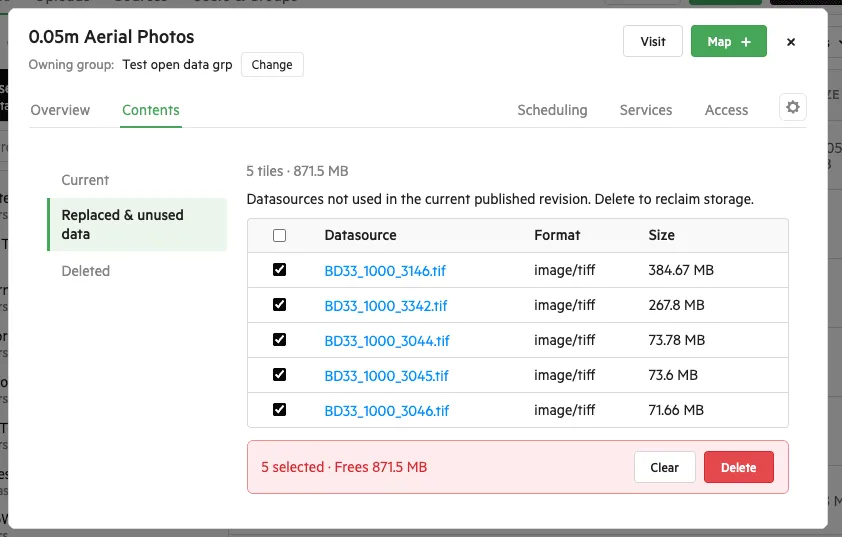
4. Select the tiles to remove and click ‘Delete’
Section titled “4. Select the tiles to remove and click ‘Delete’”Tick the datasources you want to remove. A summary at the bottom shows how many are selected and how much storage will be freed. Click ‘Delete’.
5. Confirm the deletion
Section titled “5. Confirm the deletion”A confirmation dialog shows the number of tiles and the storage that will be reclaimed. Click ‘Delete permanently’ to finish.
Additional notes
Section titled “Additional notes”- Deletion cannot be undone. The data is permanently removed and the storage reclaimed.
- A record of each deletion is retained in the ‘Deleted’ section for audit purposes.
- Any past revisions that reference deleted tiles will become invalid.