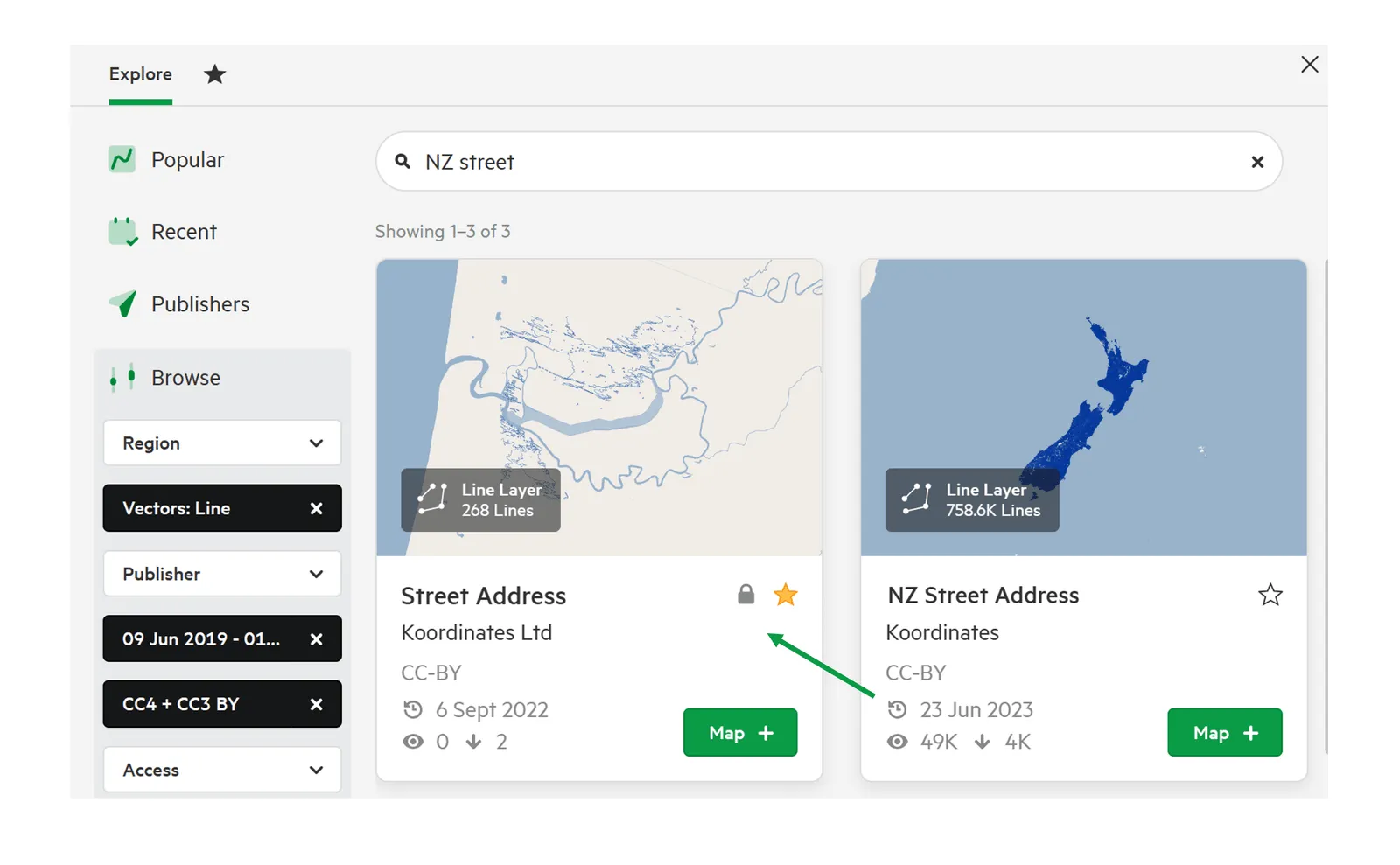
Find data using the search bar
1. Input your search term
Section titled “1. Input your search term”Using the search bar, enter the keywords for the data you are looking for.
This can be:
- Data layer names “NZ Street Address”
- Locations “Foxton”
- Layer ID Numbers: “107843”
- Publisher: “Koordinates”
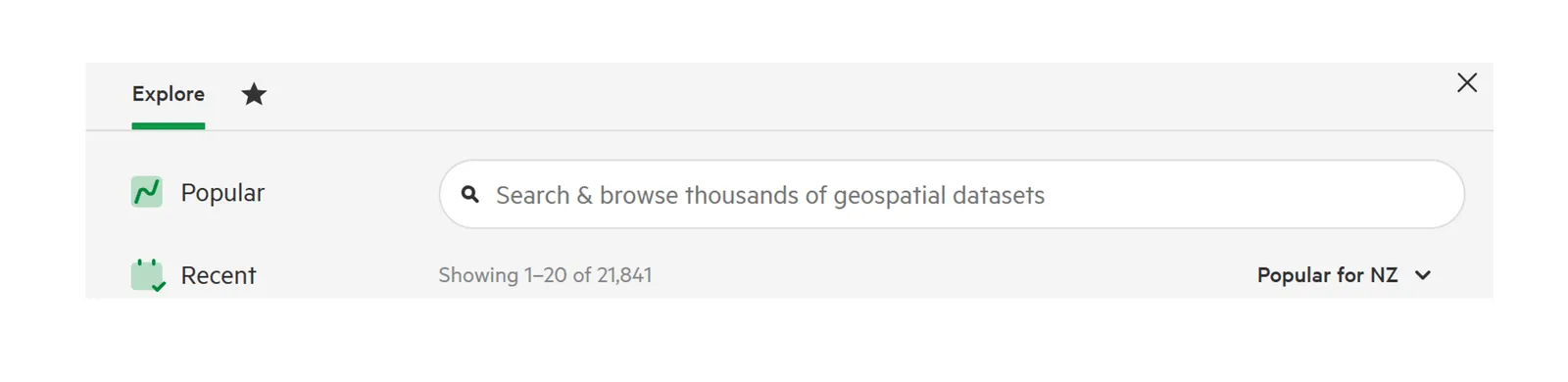
The Data Browser results will automatically update as you input the keywords.
Note: Koordinates search does not search within datasets. For example, a tabular dataset containing a row with the word ‘Pukeko’ will not appear in the list of search results if ‘Pukeko’ is used as the search term.
2. Refine your search
Section titled “2. Refine your search”There are 2 ways to refine your search results, if needed:
- Filter
- Sort
- Publisher
Filter
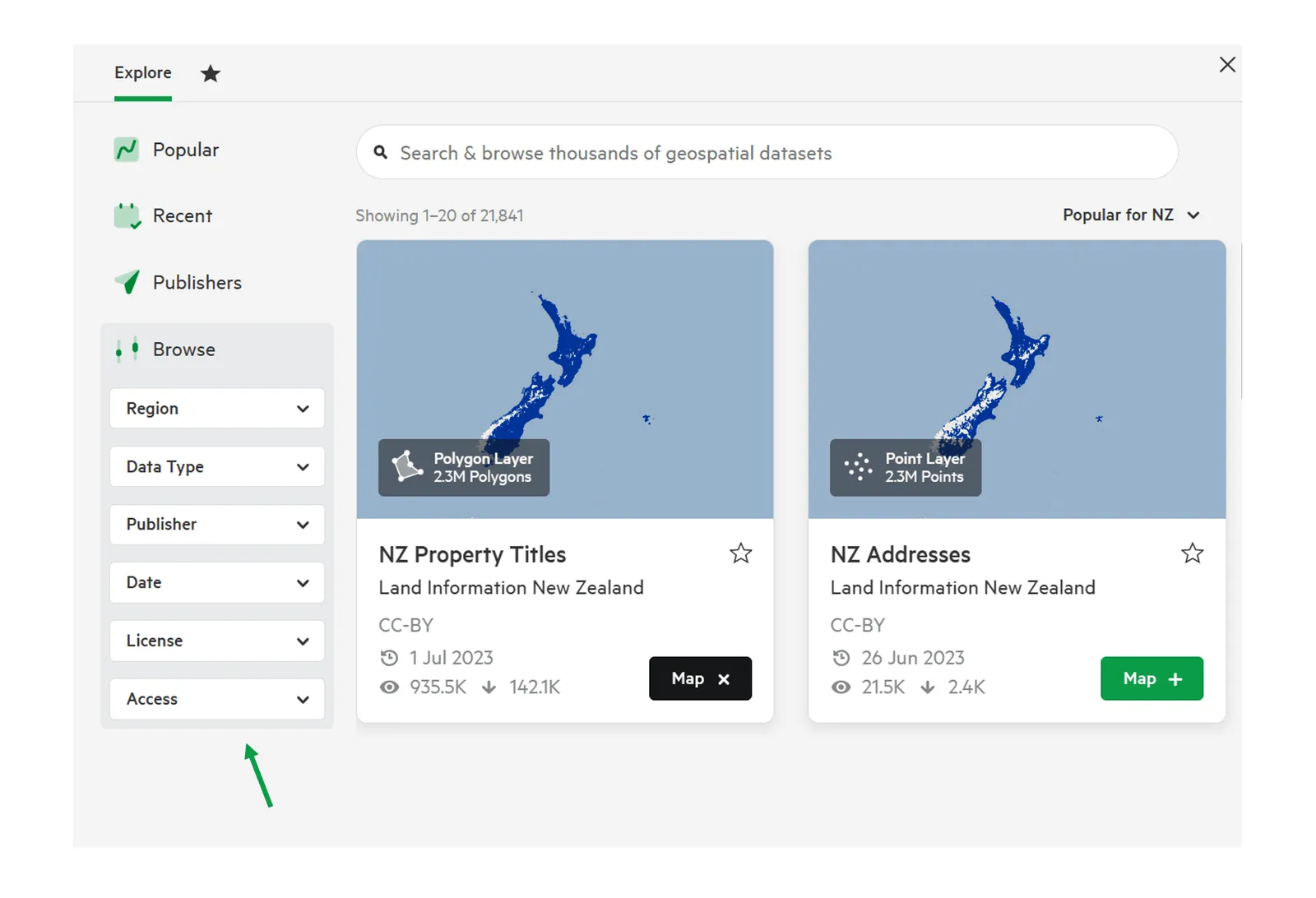
Section titled “Filter”There are several filters available to refine your results:
- Region
- Category (if enabled)
- Data Type
- License
- Group
- Access
Region
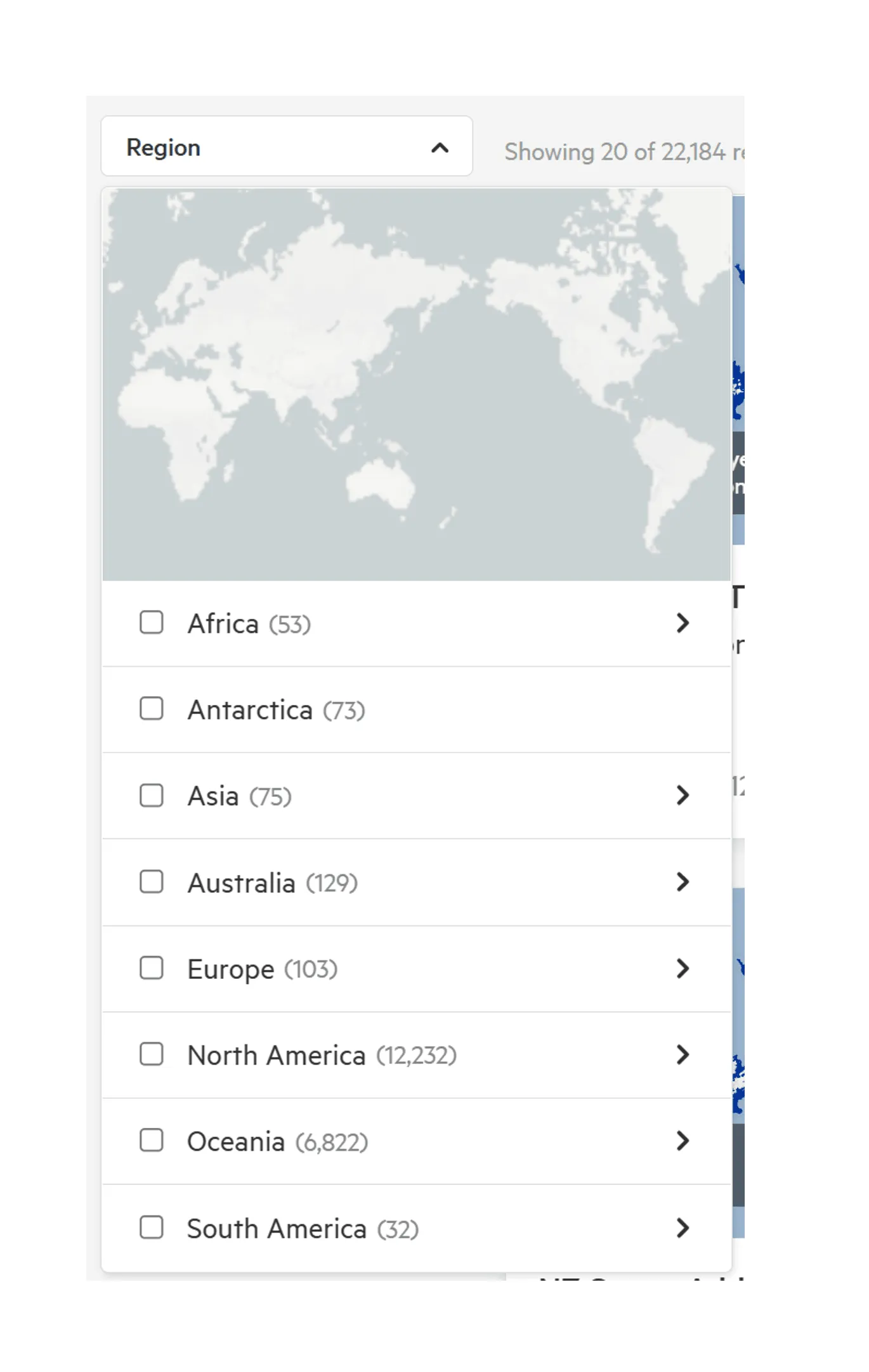
Section titled “Region”This filter allows you to restrict the results to the country associated with your Koordinates ID, globally, or apply a particular country or region of your choice.
Category
Section titled “Category”This feature can be enabled by Site Administrators, to provide Enterprise users with the option to show only results from data within a defined Category.
Data Type
Section titled “Data Type”Choose the data type you want to filter by.
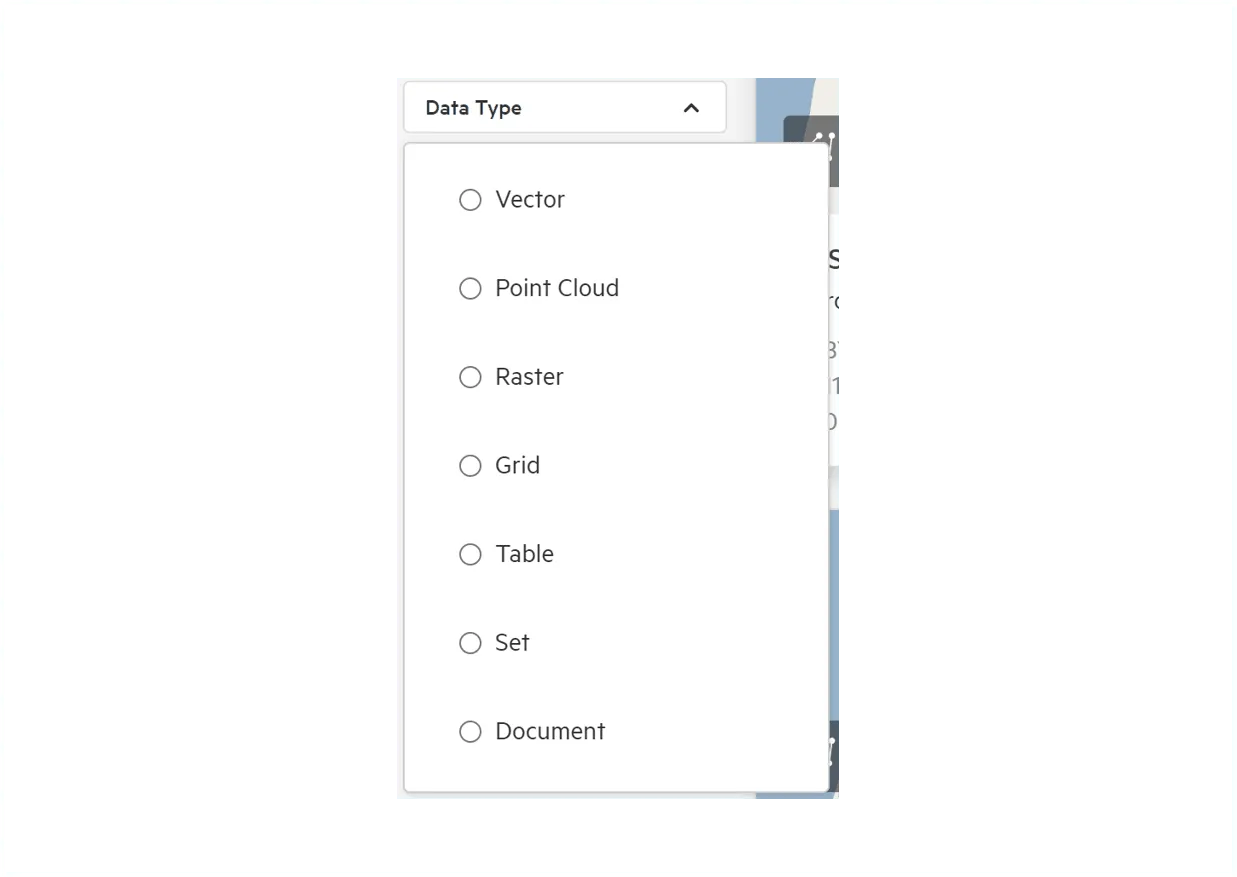
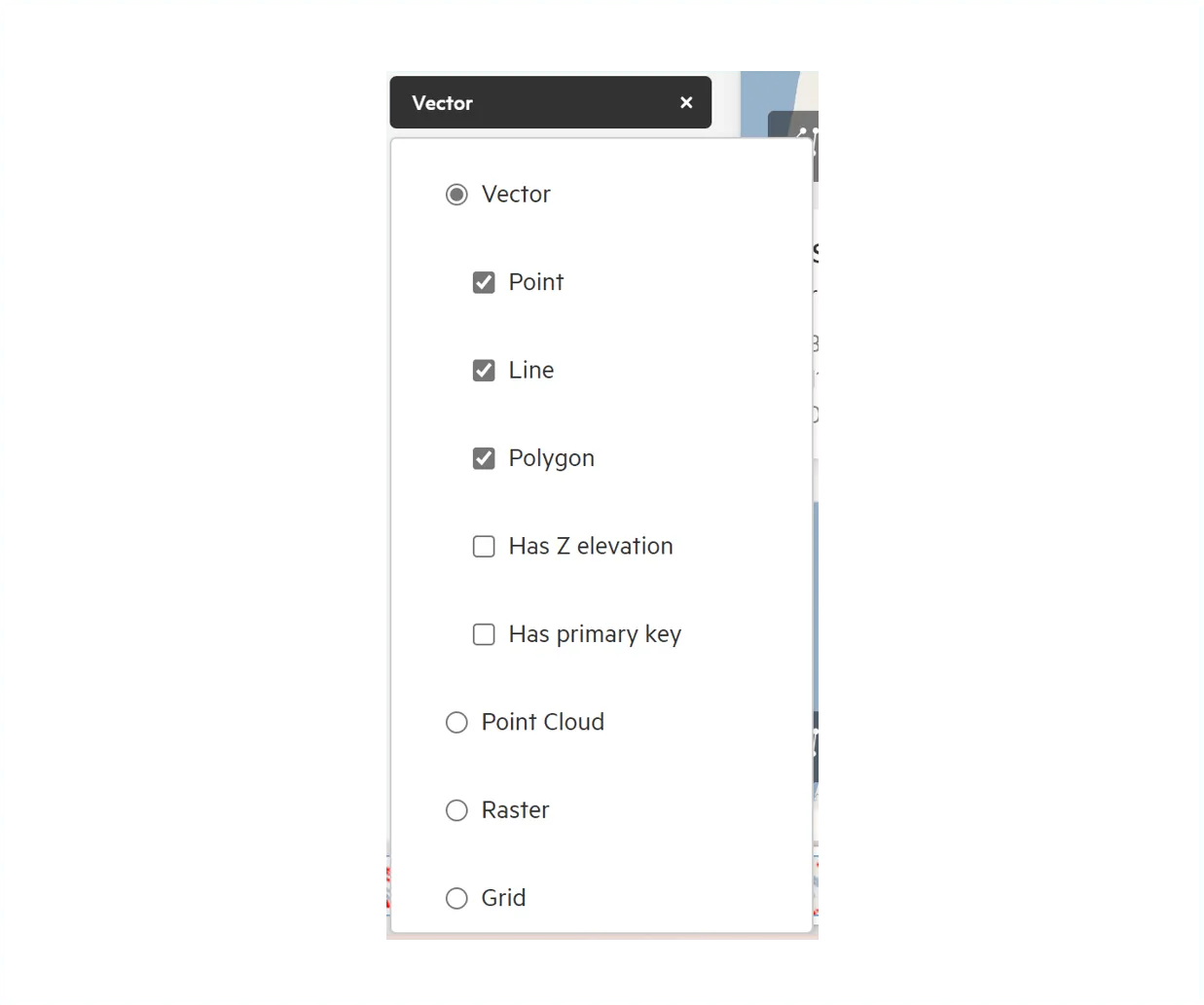
Selecting a type, will display additional sub-type options, to further refine your results.
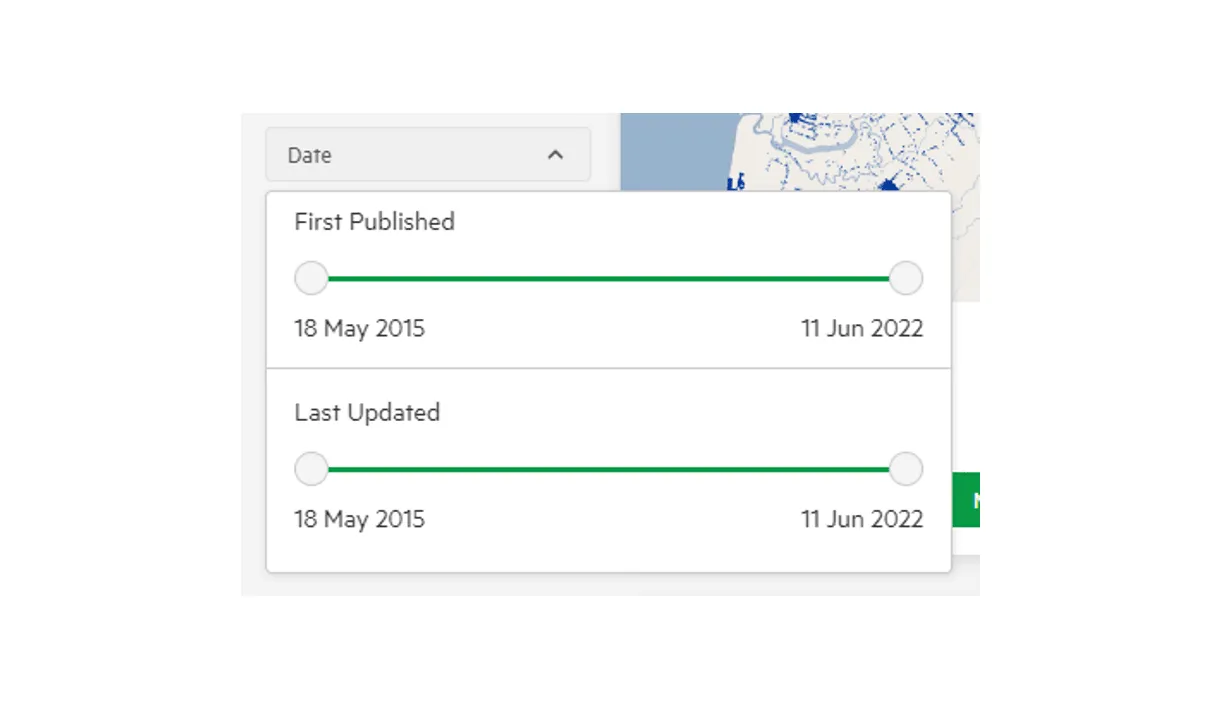
Using the sliders, you can choose to filter by the First Published date, or by Last Updated date.
License
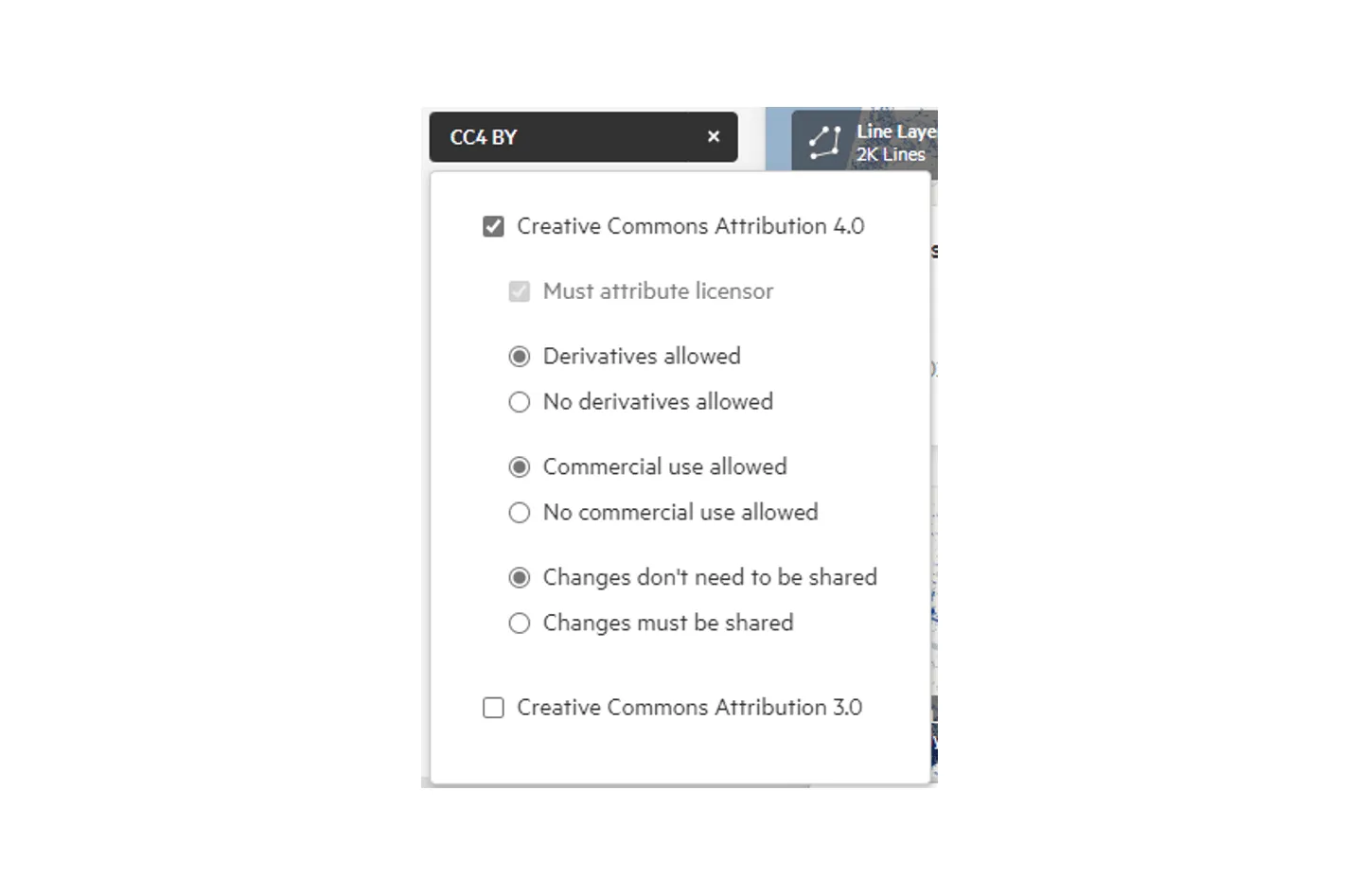
Section titled “License”Choose to filter by the different licenses.
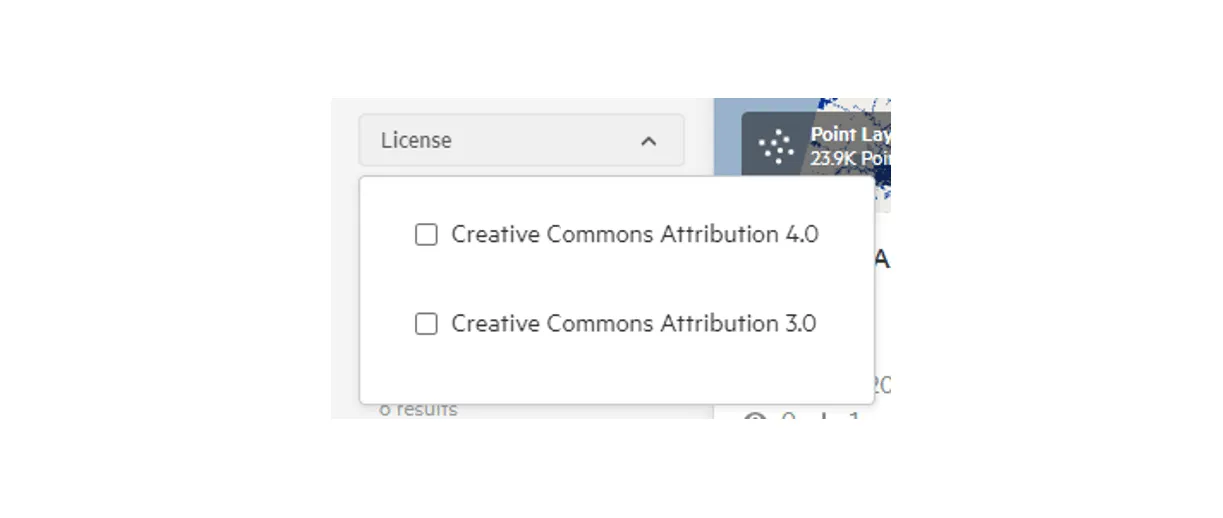
Selecting a license, will provide further customisation, to ensure the relevant license details are selected.
Similar to Categories, you can restrict to view data that’s only available to certain Groups that you are a part of.

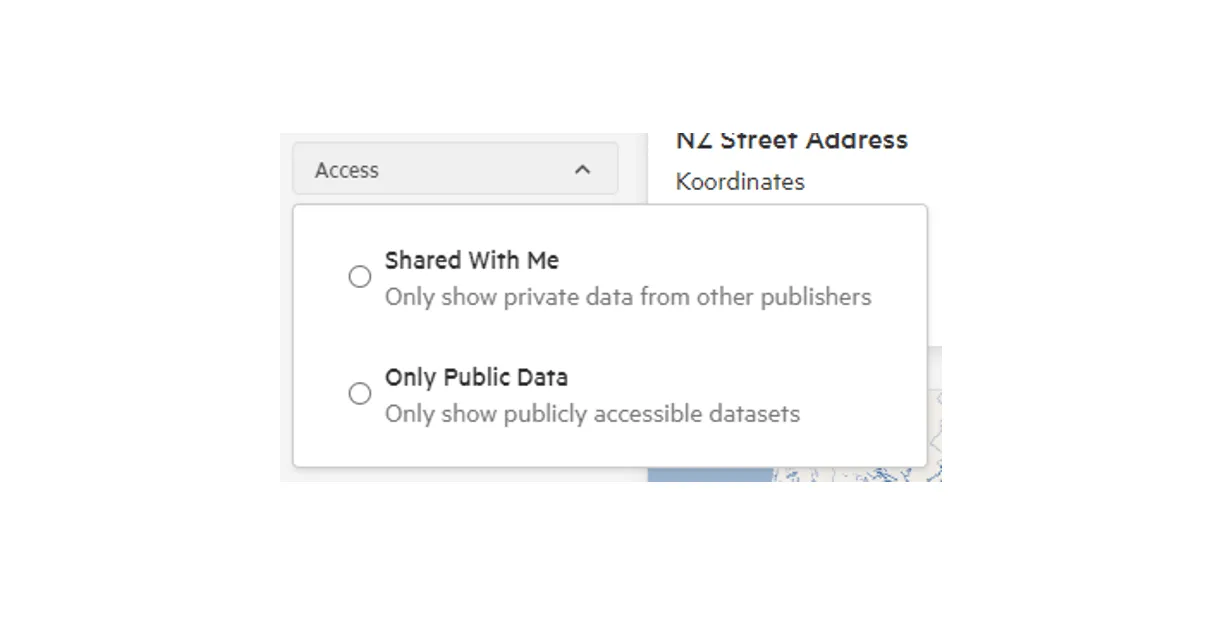
Access
Section titled “Access”The final filter, is whether to view data that is publicly available, or that has been shared only with you.
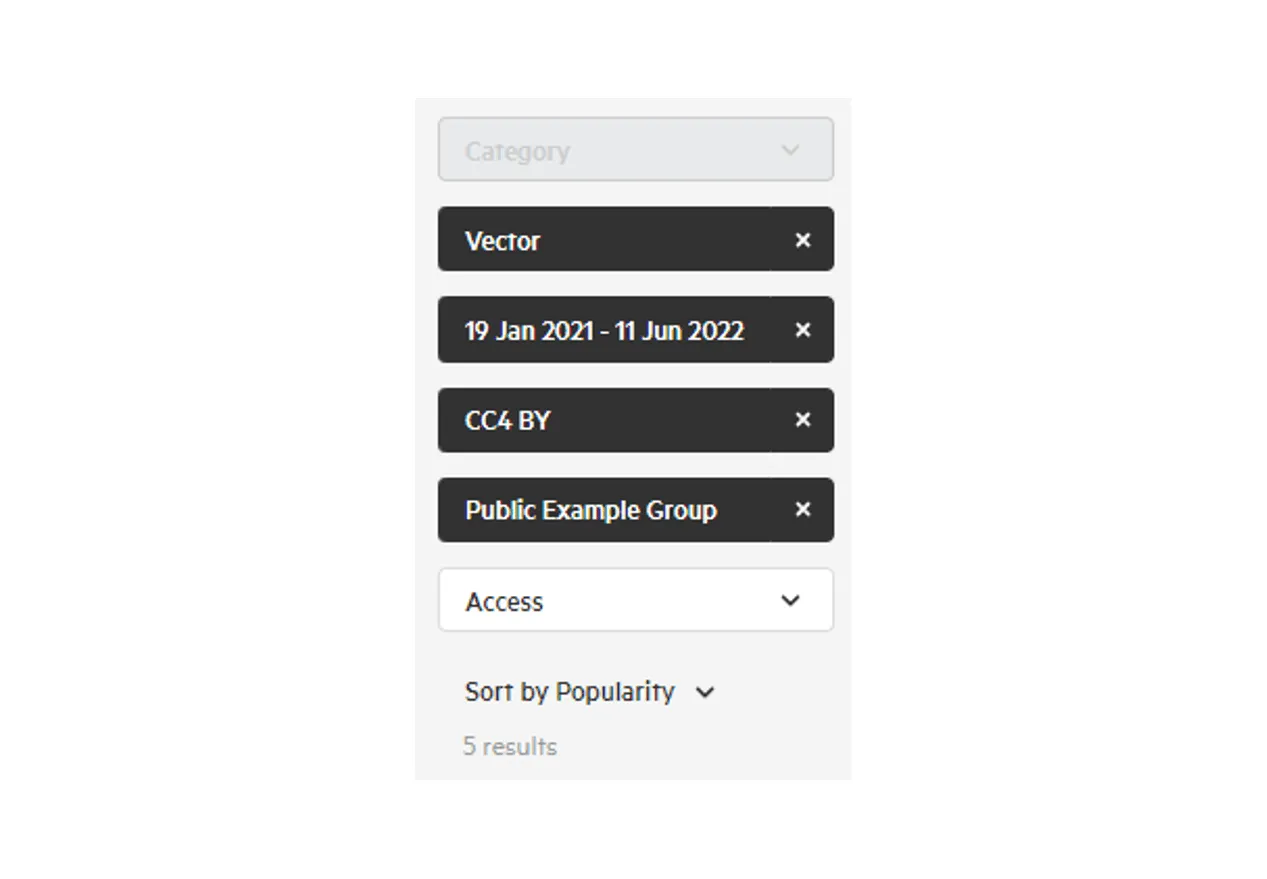
Note: As you apply filters, these will be displayed in the Filter Menu.
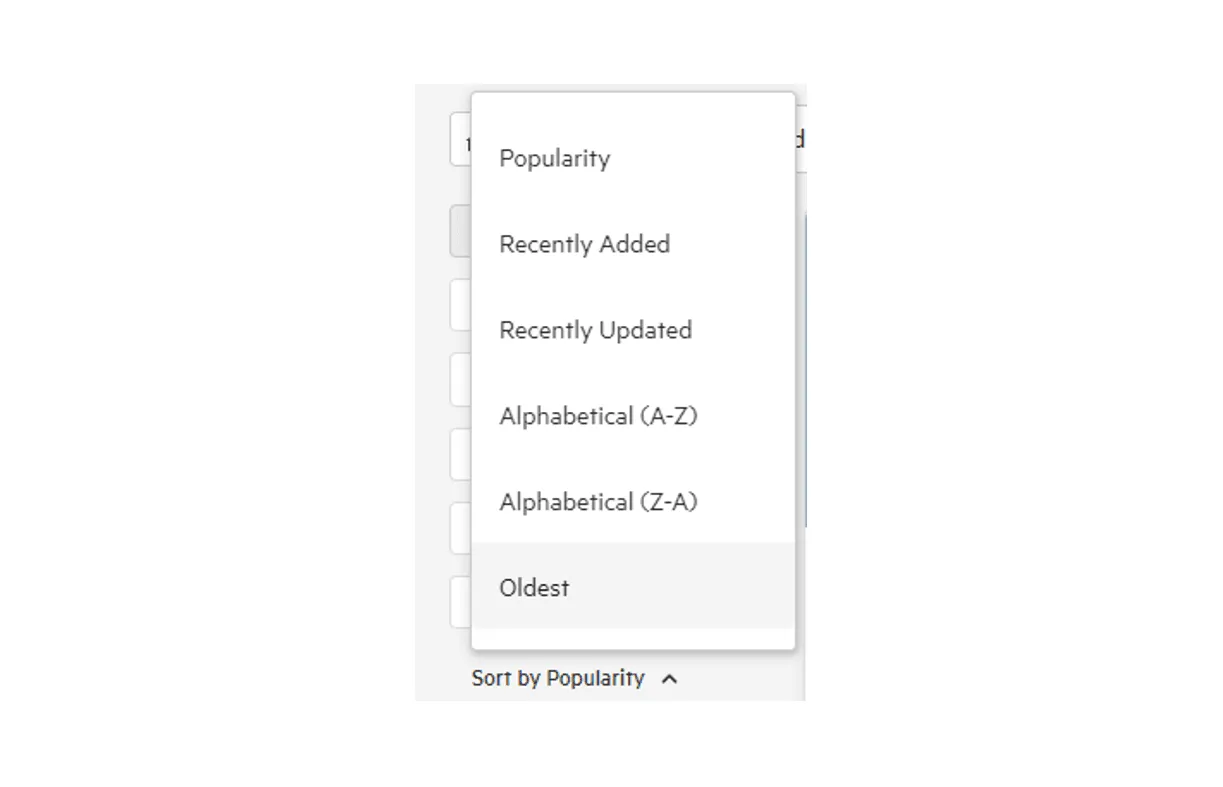
Once the filters have been applied, you have the ability to sort the remaining results by:
- Popularity
- Recently Added or Updated
- Alphabetical (A-Z or Z-A)
- Oldest
Publisher
Section titled “Publisher”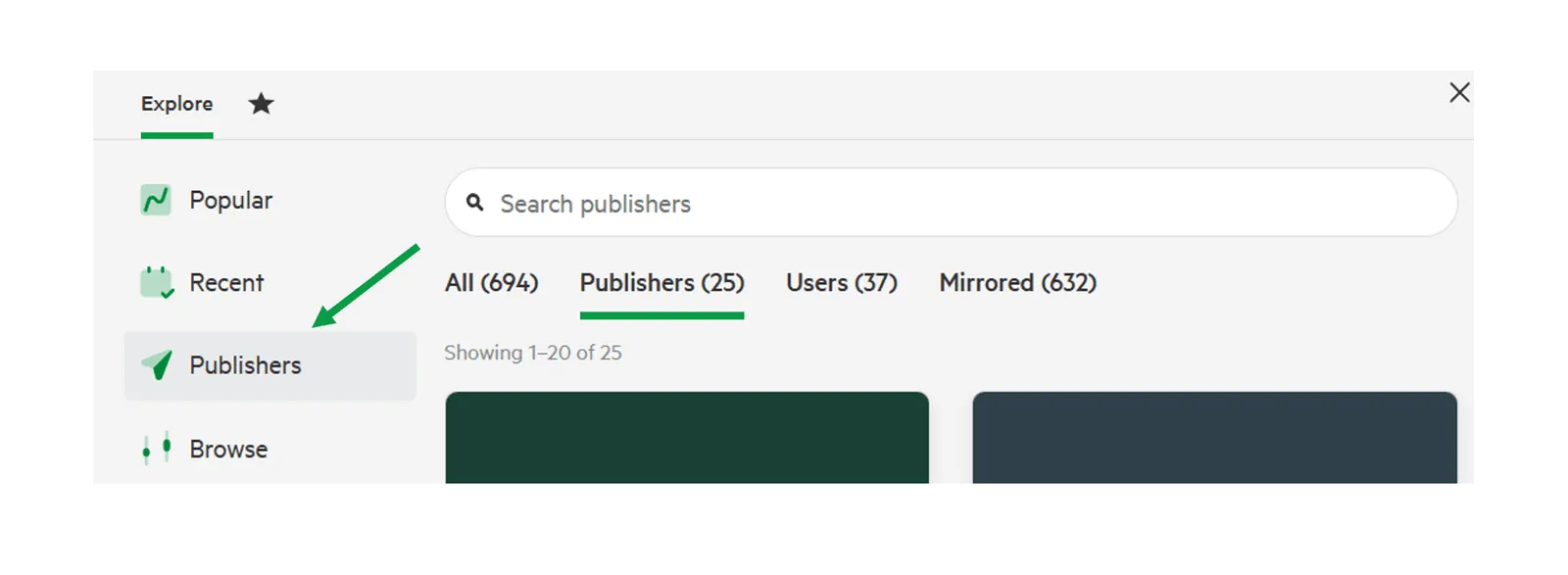
Organisations that have published datasets you have access to (including public datasets), will be available to search.
Selecting a Publisher will filter to only show the datasets published by that organisation. You can then apply additional filters and sorting. For more information refer to Finding data by Publisher
3. Select the data.
Section titled “3. Select the data.”The data that applies to the filters and sorting, can be viewed as data cards in the Data Browser.