
Manage Paid Seats
A Paid Seat lets a user manage data: add, edit and publish datasets, or run a group. A Group member doesn’t need one. How many seats your plan includes, and what an extra one costs, depends on your subscription.
Who takes a Paid Seat
Section titled “Who takes a Paid Seat”| User | Takes a Paid Seat? |
|---|---|
| Has Manage datasets or Manage group in at least one group | Yes, one seat however many groups they manage |
| Is a Site Administrator | Yes. Site Administrator includes a Paid Seat |
| Is a Group member in every group | No |
| Is blocked | No |
| Is a Koordinates staff account | No. Their details say “This user doesn’t use a Paid Seat.” |
A user only ever takes one Paid Seat. Giving them Manage roles in more groups doesn’t use another seat.
To see who has a seat, go to Manage > Users and open a user’s details. The Paid Seat switch sits under Site Administrator, with the KxAI Seat and MCP Seat switches below it. Users with a seat show a Paid Seat badge in the list of users and in their details.
Give a user a Paid Seat
Section titled “Give a user a Paid Seat”Turn on Paid Seat, choose the groups the user will manage data in, then save.
-
Turn on Paid Seat
Go to Manage > Users, select the user and turn on Paid Seat. The Give name a Paid Seat window opens.
-
Choose the groups
Under Groups, tick each group the user should manage data in. The list shows the groups they’re already in.
To add a group they’re not in, select + Choose from other groups and pick it. The row says “Adds name to this group”.
-
Choose their role
Under Role in the chosen groups, pick one:
- Manage datasets: add, edit and publish datasets in the group.
- Manage group: everything in Manage datasets, plus adding and removing members and changing their roles.
-
Select Confirm
Confirm stays greyed out until you tick at least one group.
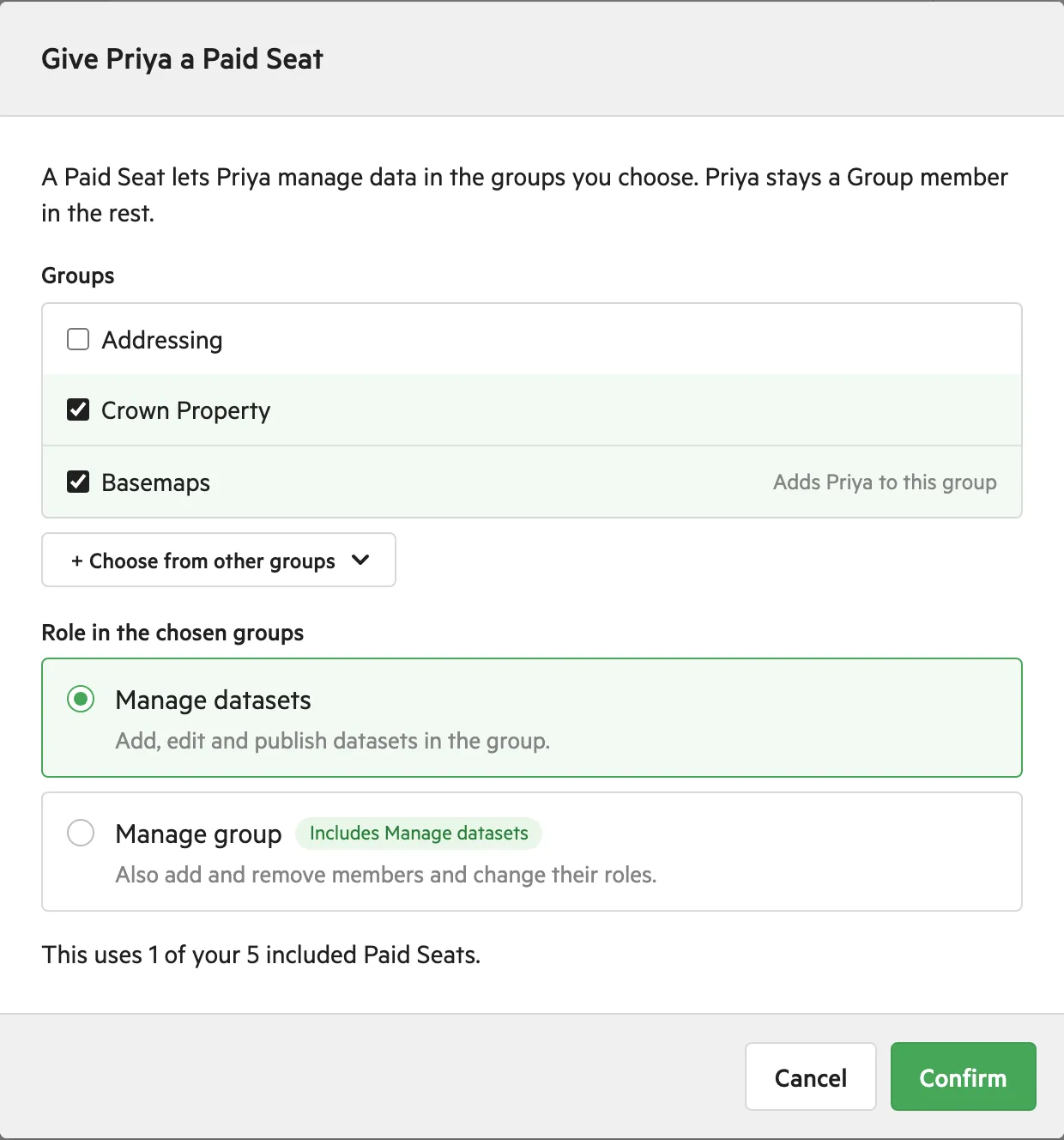
The window, with one group ticked and one added from the dropdown. -
Check and save
The switch is on, the Paid Seat row says “Manages data in groups”, and each changed group has a blue dot. The footer reads Assigns a Paid Seat.
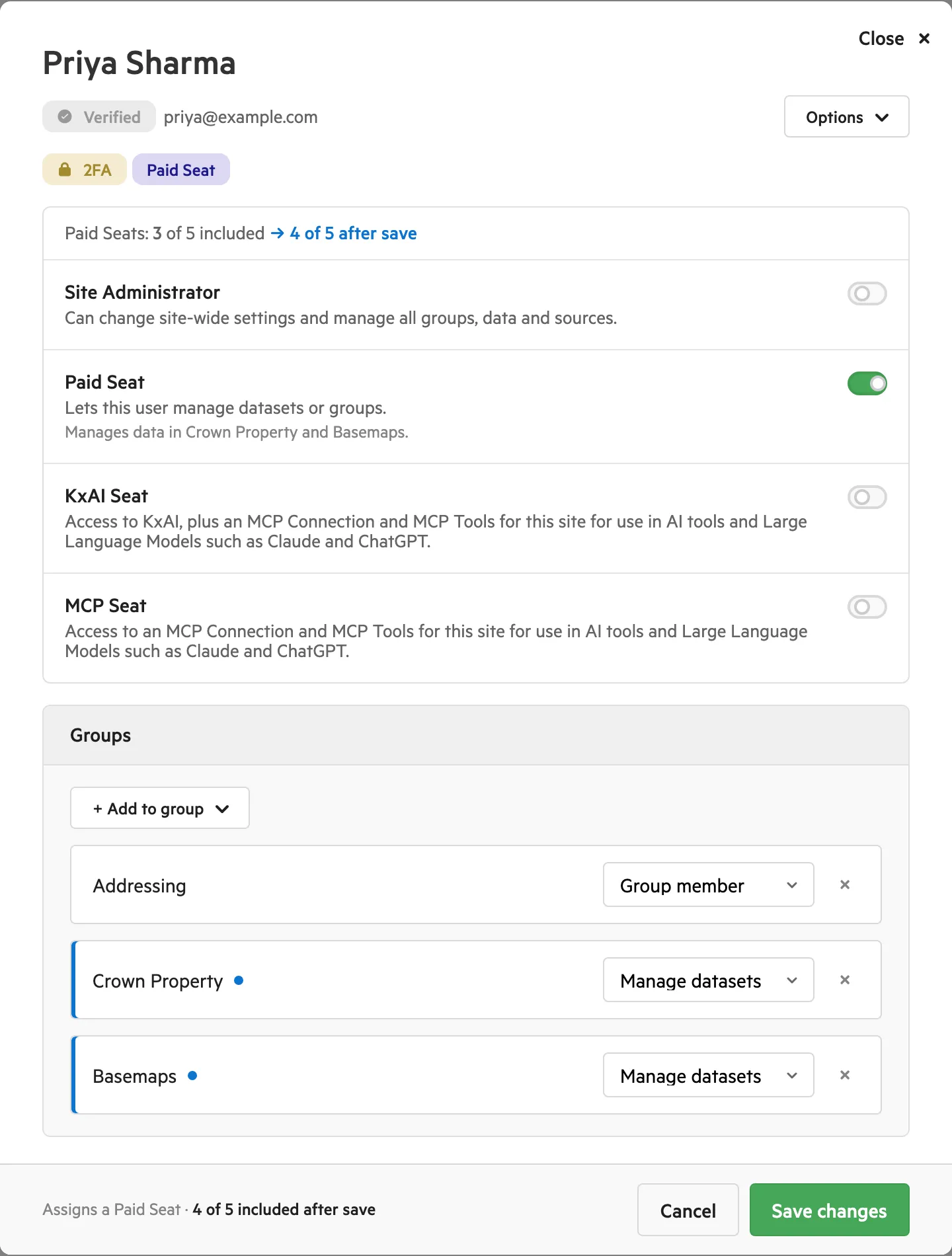
The user’s details after Confirm, before saving. Select Save changes. You’ll see “Changes saved. Paid Seat assigned.”
The user stays a Group member in any group you didn’t tick.
You can also give a seat from the user’s Groups list. Change a group’s role to Manage datasets or Manage group, and the Paid Seat switch turns on by itself.
Remove a Paid Seat
Section titled “Remove a Paid Seat”Turn off Paid Seat and save. The user stays in all their groups, but their Manage roles become Group member.
-
Open the user’s details
Go to Manage > Users and select the user.
-
Turn off Paid Seat
If the user manages data in any group, a red confirmation appears under the switch: “Removing the Paid Seat makes name a Group member in groups”. Select Confirm, or Cancel to keep the seat.
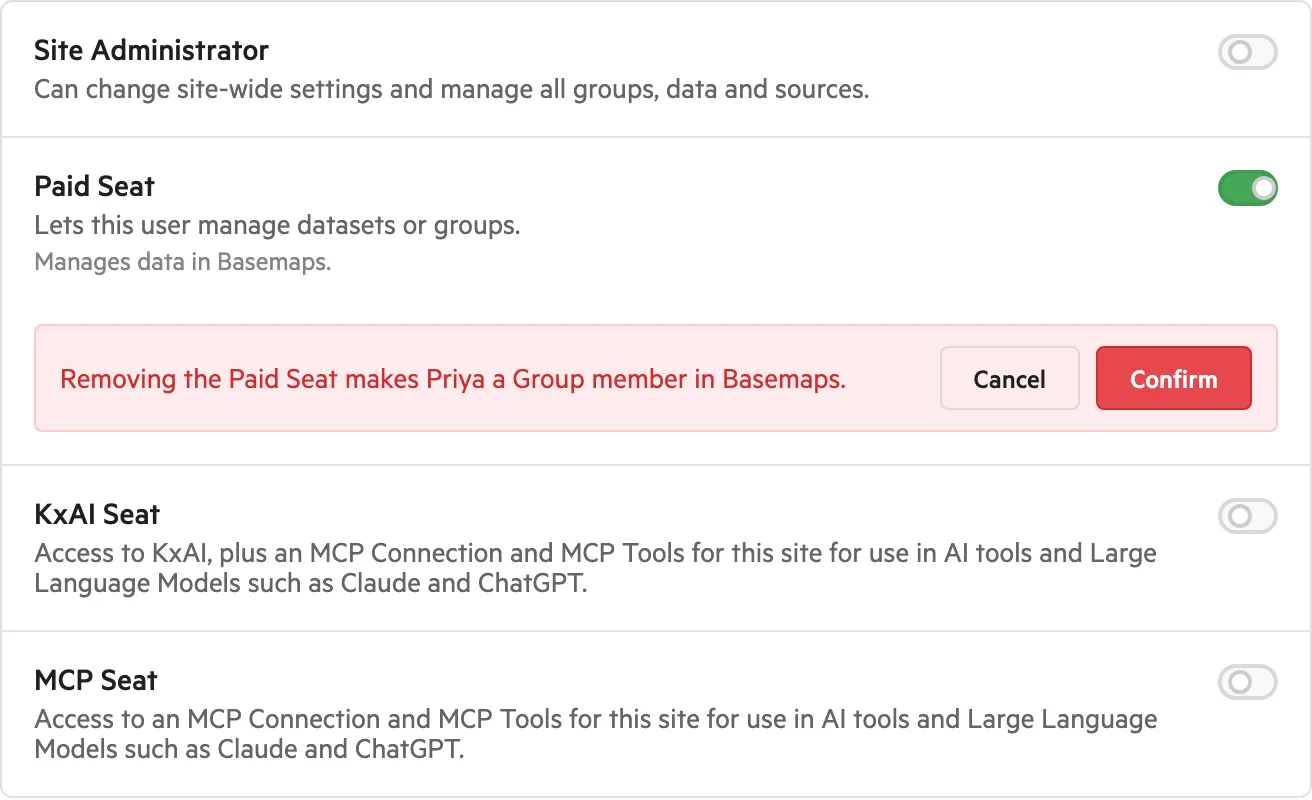
The confirmation under the Paid Seat switch. -
Check the user’s details
In the Groups list, each group that changed shows Group member and a blue dot. The footer reads Releases a Paid Seat.
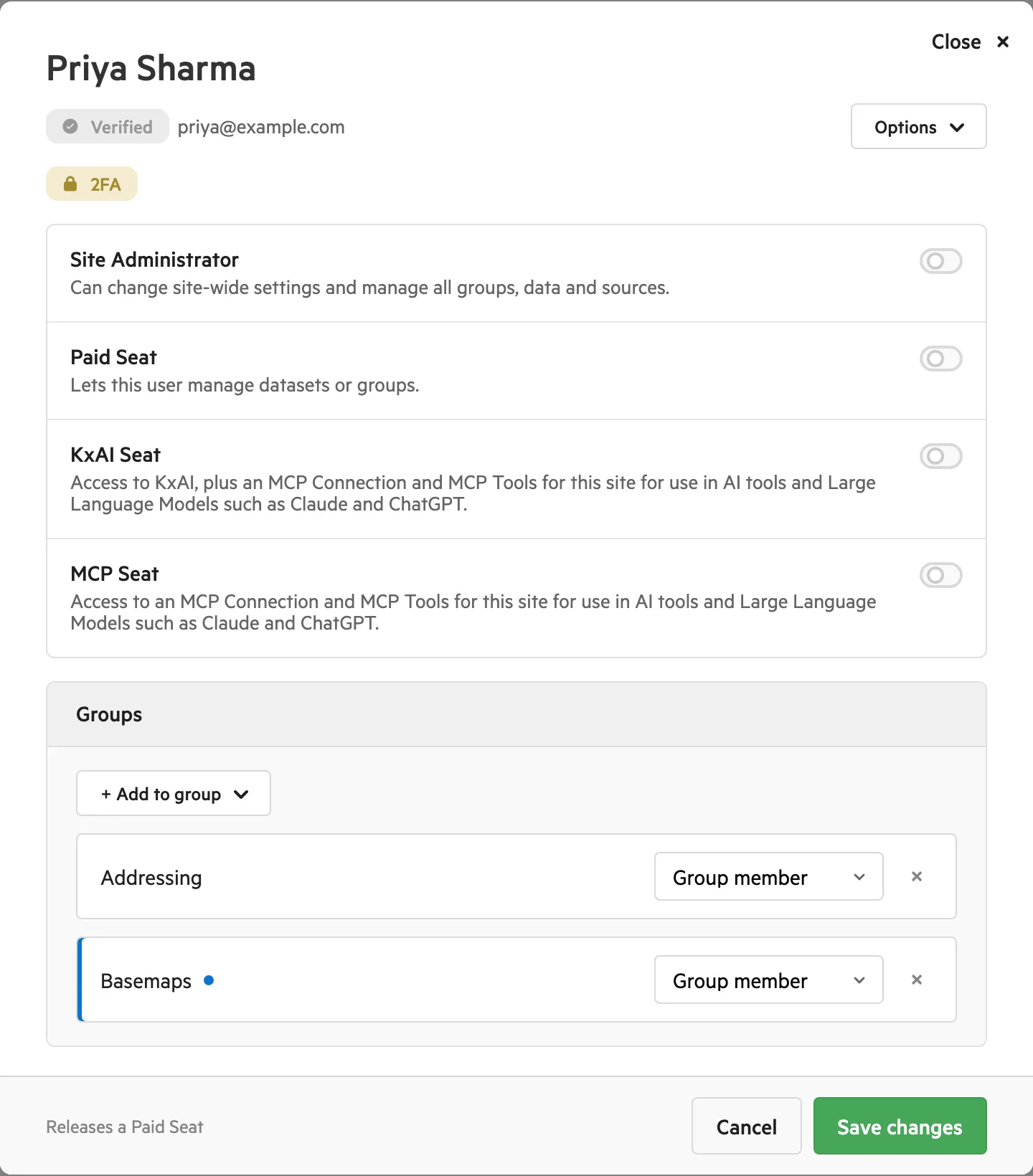
The user’s details after Confirm, before saving. -
Save
Select Save changes. You’ll see “Changes saved. Paid Seat released. The seat count can take a minute to catch up.”
Site Administrators
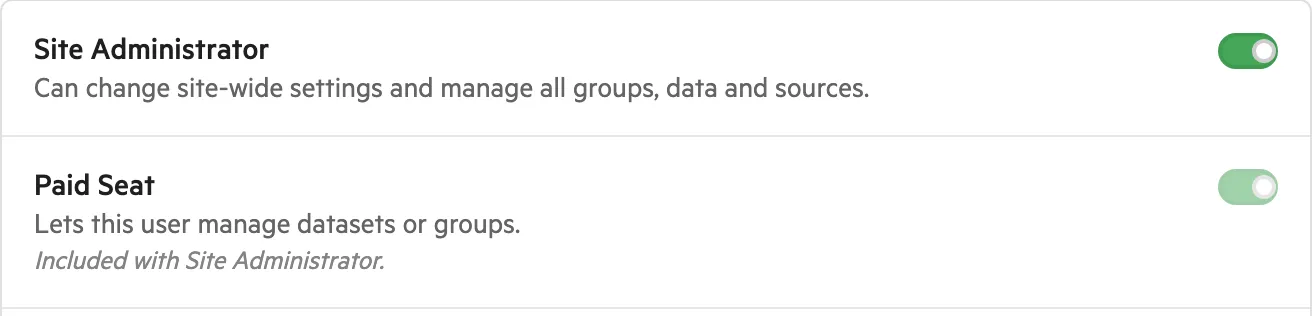
Section titled “Site Administrators”A Site Administrator’s Paid Seat is locked on, with the note “Included with Site Administrator.” To remove the seat, turn off Site Administrator first.
Your Paid Seat allowance
Section titled “Your Paid Seat allowance”Your plan includes a number of Paid Seats. Before you save, the user’s details show how many you’ve used, and the Give name a Paid Seat window says whether the new seat is included or billed as an extra.
The seat counter
Section titled “The seat counter”On plans with included seats, a counter sits above the switches. With an unsaved change, it shows where you’ll be after saving:
| When | The counter reads |
|---|---|
| No change to save | Paid Seats: 4 of 5 included |
| The change uses an included seat | Paid Seats: 4 of 5 included → 5 of 5 after save |
| The change goes over your included seats | Paid Seats: 5 of 5 included → 6 after save · 1 extra, billed monthly |
What the window tells you
Section titled “What the window tells you”The line under Role in the chosen groups depends on your plan:
| Your plan | The window says | Can you confirm? |
|---|---|---|
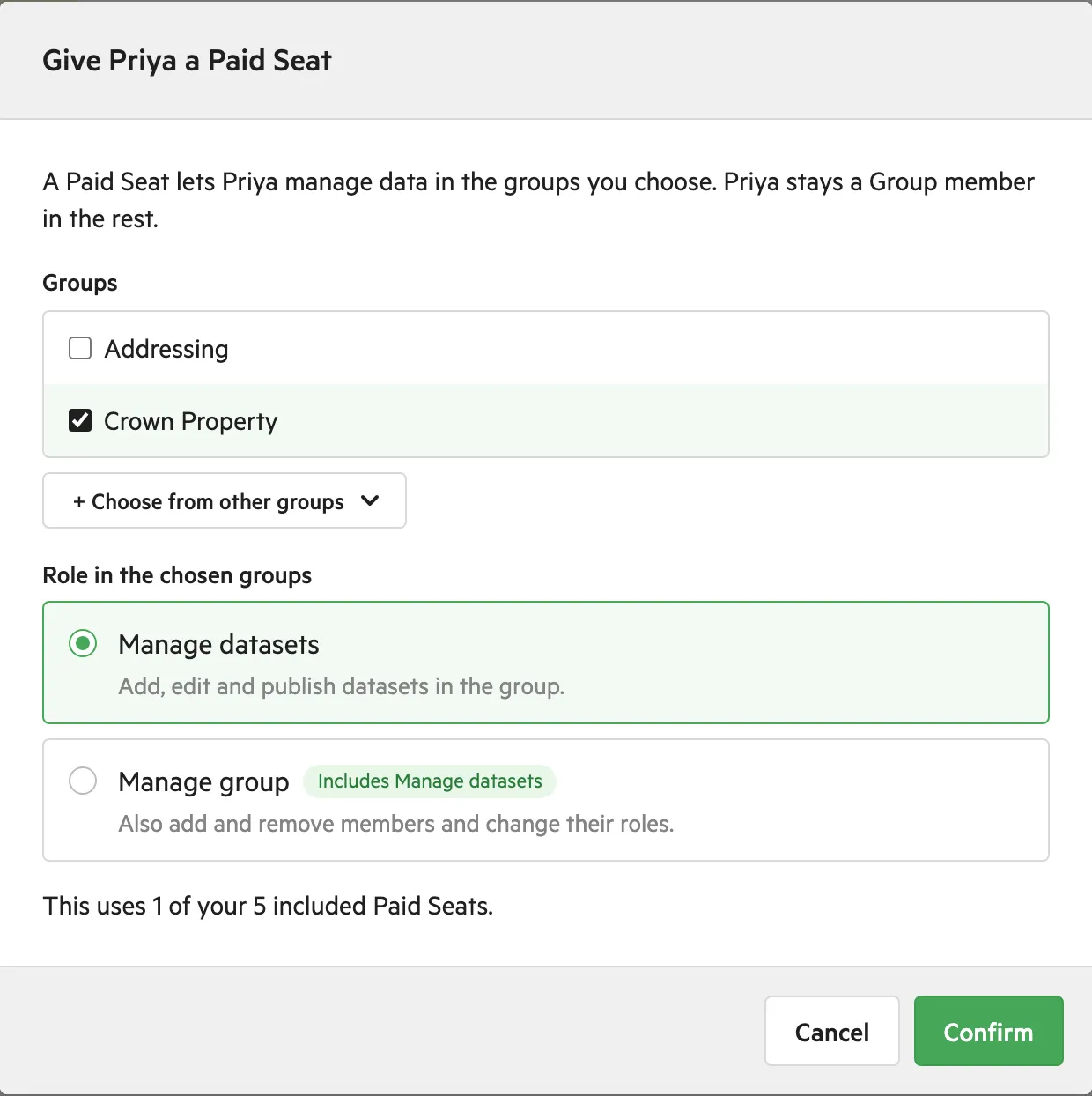
| Has included seats free | “This uses 1 of your 5 included Paid Seats.” | Yes |
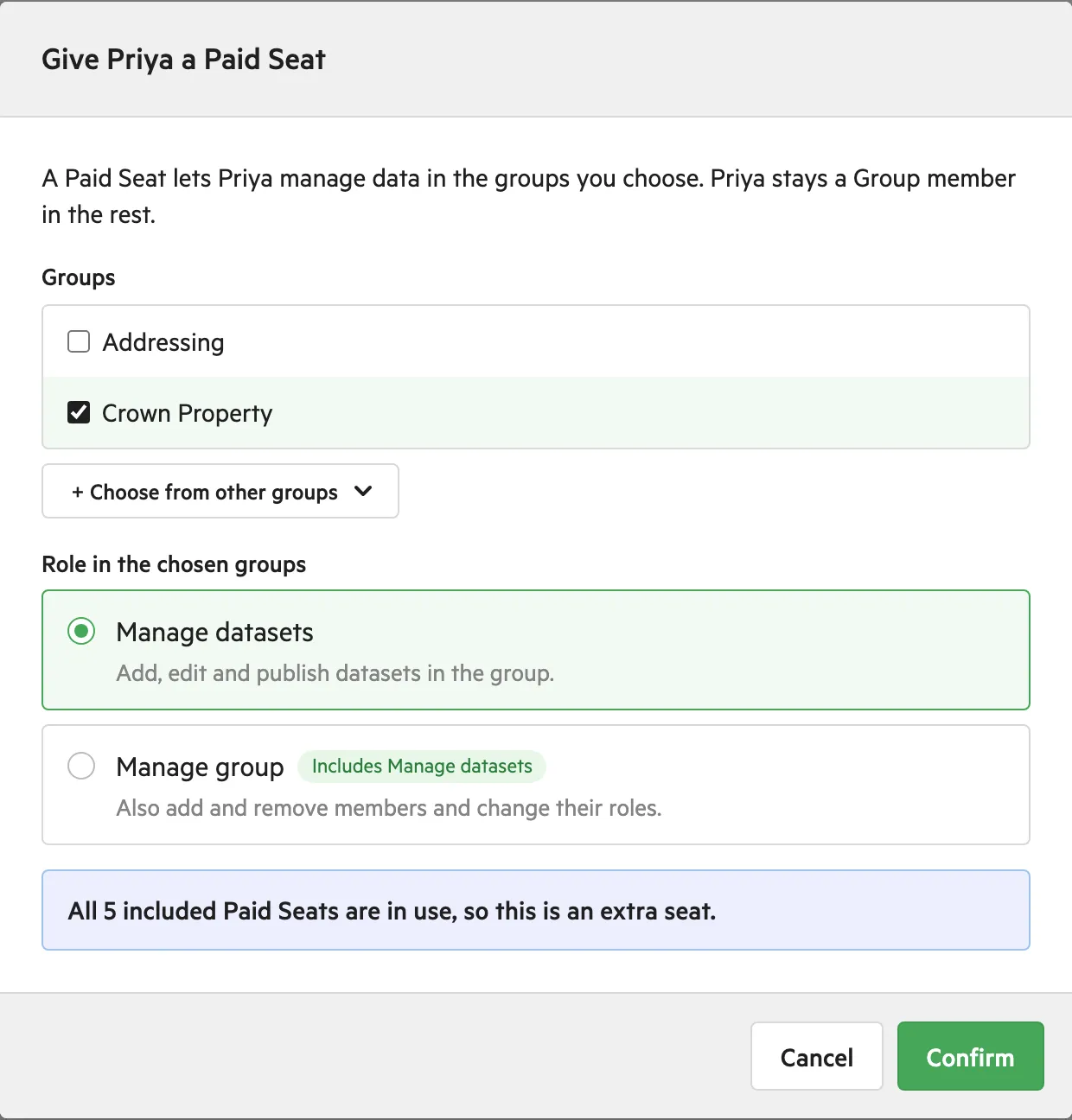
| All included seats in use, extras allowed | “All 5 included Paid Seats are in use, so this is an extra seat”, and what each extra seat adds to your monthly billing | Yes |
| Includes no seats | “Your plan doesn’t include any Paid Seats”, and what each seat adds to your monthly billing | Yes |
| Has a fixed number of seats, all in use | “All 5 Paid Seats are in use.” | No |
| Still loading your plan | “Checking your plan’s Paid Seats…” | Not yet |
| Pricing couldn’t be loaded | “Paid Seat pricing couldn’t be loaded.” | Yes |
| Not on subscription billing | Nothing | Yes |
When the seat will be an extra, the footer reads Assigns an extra Paid Seat and shows the monthly cost before you save.
When all your seats are in use
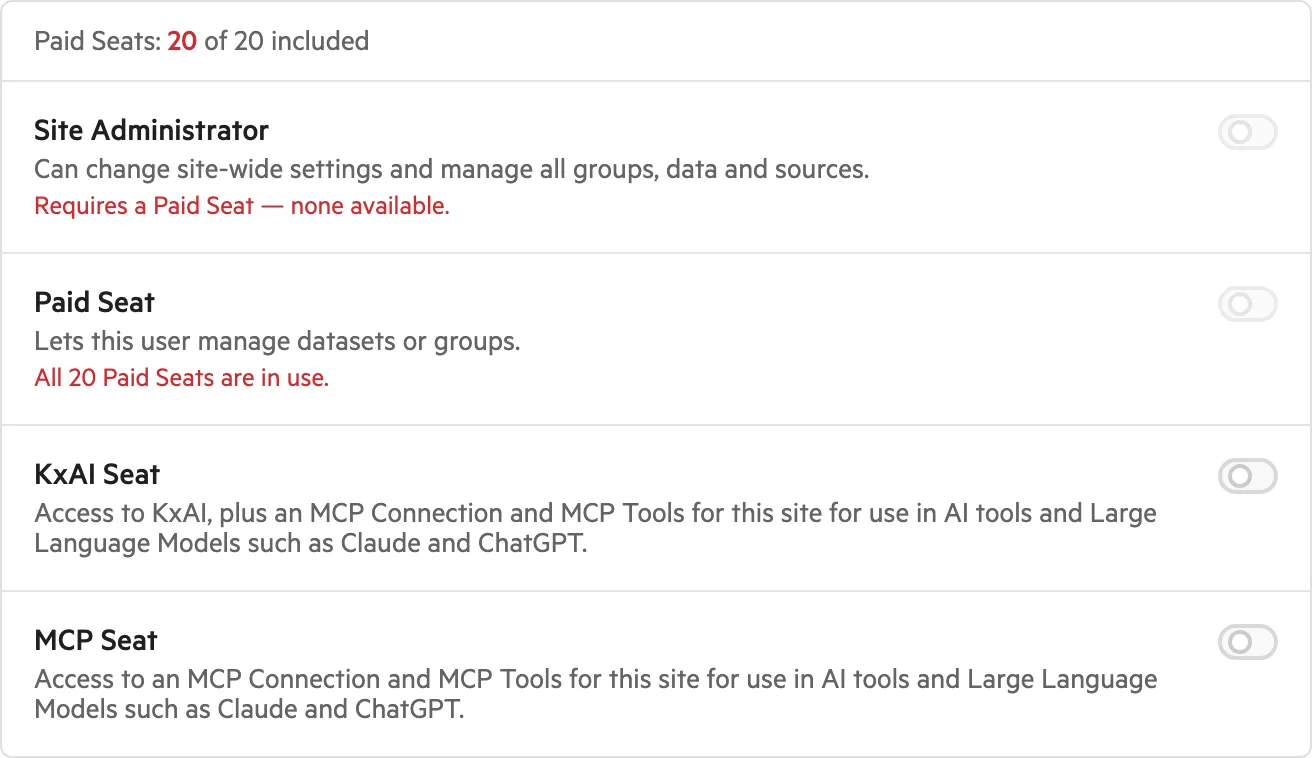
Section titled “When all your seats are in use”On a plan with a fixed number of Paid Seats, once they’re all taken:
- The Paid Seat switch is greyed out, with “All 20 Paid Seats are in use.”
- Site Administrator says “Requires a Paid Seat — none available.”
- In the Groups list, Manage roles show “(requires Paid Seat)” and can’t be picked.
To free a seat, remove one from another user. To add seats, contact us to upgrade your plan. A user who already has a seat keeps it, and you can still change their groups.
Troubleshooting
Section titled “Troubleshooting”Most Paid Seat problems come from a role that already includes a seat, or a plan with no seats left.
| What you see | Why | What to do |
|---|---|---|
| The Paid Seat switch is locked on: “Included with Site Administrator.” | Site Administrator includes a Paid Seat | Turn off Site Administrator first |
| The switch is greyed out: “All 20 Paid Seats are in use.” | Your plan’s fixed number of seats are all taken | Remove a seat from another user, or contact us to upgrade |
| Every switch is greyed out: “This user is blocked.” | A blocked user can’t hold a seat | Select Unblock user. See Block a user from your site |
| “This user doesn’t use a Paid Seat.” | It’s a Koordinates staff account | Nothing. Their Manage roles don’t use your seats |
| Confirm is greyed out in the Give name a Paid Seat window | No group is ticked, your plan is still loading, or your plan’s fixed number of seats are all taken (“All 5 Paid Seats are in use.”) | Tick a group, or wait for “Checking your plan’s Paid Seats…” to clear. If all seats are taken, remove a seat from another user, or contact us to upgrade |
| You saved, but the seat count hasn’t changed | The count takes a moment to update | Wait a minute, then reload the page |