
KxAI: chat in the map viewer, credits, top-ups and AI Pro
KxAI is Koordinates’ AI assistant. In the map viewer you can ask it about the data on your map and the data you can access, and have it build and change the map for you. It works on koordinates.com and on customer sites.
To use KxAI in your own AI tool, such as Claude or ChatGPT, see Connect Claude, ChatGPT and other AI tools (MCP).
Who can use KxAI
Section titled “Who can use KxAI”- On koordinates.com, you need an AI Pro subscription. Without one, the map viewer shows a bar that says KxAI chat requires a KxAI Pro plan; select it to see the upgrade options.
- On a customer site, you need a KxAI Seat. If you don’t have one, the map viewer points you to AI & MCP Tools, where you can request a seat. A site administrator reviews the request. See Connect Claude, ChatGPT and other AI tools. Site administrators give out seats in Users & Groups.
An AI Pro subscription includes KxAI and an MCP connection. Its price, monthly credits and storage allowances are on the Koordinates pricing page.
An AI Pro User has no organisation site. Help pages about Site Settings, Users & Groups or site administrators are for customer sites. An AI Pro account doesn’t have these. See Features by plan.
Chat with KxAI in the map viewer
Section titled “Chat with KxAI in the map viewer”- Open a map viewer.
- Select the bar at the bottom of the map, which reads Ask KxAI about this map…, and type your question. You can also use the Open KxAI button.
- KxAI answers in a chat panel beside the map. Use Hide KxAI pane to close it, and Show KxAI to bring it back.
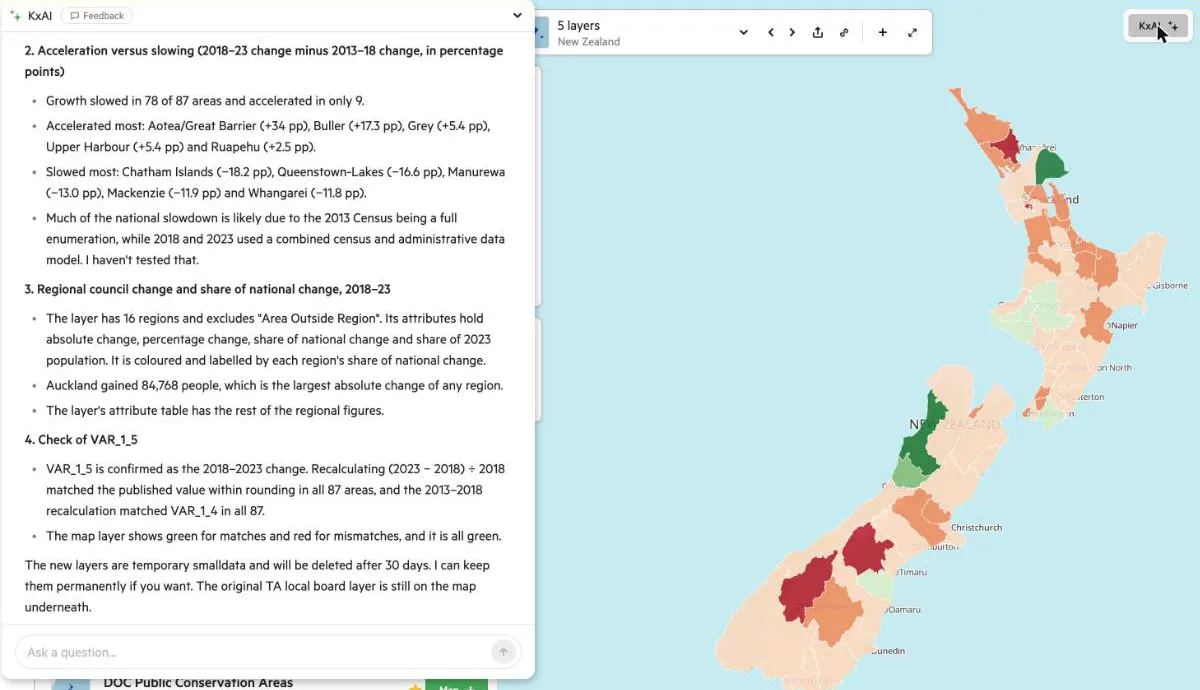
Things to know:
- Scope. On a customer site, site administrators can choose what KxAI chats with, using the Chatting with menu: Scoped to this map viewer, or Full site — everything you can access. For other users the scope is fixed to the map viewer they have open.
- Popout. If you opened the chat from the Ask KxAI about this map… bar, select Popout to move it into a window you can drag around. Select Shrink to chat bar to put it away again. Popout isn’t offered on narrow screens.
- Feedback. If you’re signed in, select Feedback at the top of the chat to tell Koordinates how KxAI did.
- Chats expire. A chat more than two days old can’t be continued. Select New chat to start again.
- Chats have a usage limit. If you see Chat usage limit reached, select New chat to keep going.
- Shared map viewers. If a map viewer has been shared, its visitors who are allowed to use KxAI can chat there too. A shared map viewer can also reach a shared AI usage limit, in which case you’ll see AI usage limit reached. Try again later.
Credits
Section titled “Credits”Each response from KxAI uses credits. Simple prompts, such as finding a specific dataset, use the fewest. Longer conversations, analysis and data processing use more. Your credit balance is shown in the chat.
AI Pro on koordinates.com
Section titled “AI Pro on koordinates.com”- Your monthly allowance is added on each renewal. Unused credits expire at the end of the month and don’t roll over.
- Credits you buy as top-ups are used after the monthly allowance runs out, and they don’t expire at the end of the month.
Customer sites
Section titled “Customer sites”- On sites that use pooled credits, each KxAI seat adds credits to a pool that every seated member draws on. Unused monthly credits expire at the end of the period.
- Site administrators can set a Monthly credit cap per user, which is the most one member can spend from the pool each month. Set the site-wide default in Usage & Billing, or override it for one person from their page in Users & Groups. Leave it blank for no cap.
When you run out of credits
Section titled “When you run out of credits”The chat tells you what happened.
| Message | What it means | What to do |
|---|---|---|
| You’re out of credits | An AI Pro User has used their credits. | Buy more credits, or wait for the monthly renewal date shown in the message. |
| You’ve reached your AI credit cap | You’ve spent your monthly cap from the site’s pool. | Ask a site administrator to raise your cap. It resets on the date shown. |
| Your site is out of AI credits | The whole site’s pool is used up. | Ask a site administrator to buy more credits in Usage & Billing. |
If you’re a seated member and not an administrator, you can select Request more in the chat. It sends a request to your site administrators. The chat then shows that your request was sent, and tells you if you’ve already asked.
Buy more credits
Section titled “Buy more credits”AI Pro Users, and site administrators for their site, can buy credit packs.
- Open the Manage menu and select Usage & Billing.
- In the KxAI credits panel, select Buy more credits (Buy credits on a customer site) and choose a pack. You can also do this from the chat when you’re out of credits.
- The pack is charged to the card saved on the account and the credits are available straight away. If the card is declined, no credits are added and nothing is charged, and you can try again or update your card.
You can also set up a Recurring credit pack. Starting one charges a pro-rata fee for the rest of the current cycle, or for 7 days if fewer than 8 days remain. From the next renewal, the full pack is charged with your subscription, and each month’s recurring credits expire at the end of that billing period. Select Cancel recurring to stop it. Credits you have already bought stay on the account.
If a payment fails, the panel shows Payment failed — KxAI credits paused or Recurring credit pack not renewed, with a Retry payment button.
Cancel AI Pro
Section titled “Cancel AI Pro”See Close your account or cancel a subscription. Cancelling AI Pro deletes your data at the end of the paid period.