Find and organise data in the Data Manager, and remove a group or user
This page applies to customer sites. It covers the dataset list in the Data Manager, and what to do when you want to remove a group or a user.
Find datasets in the Data Manager
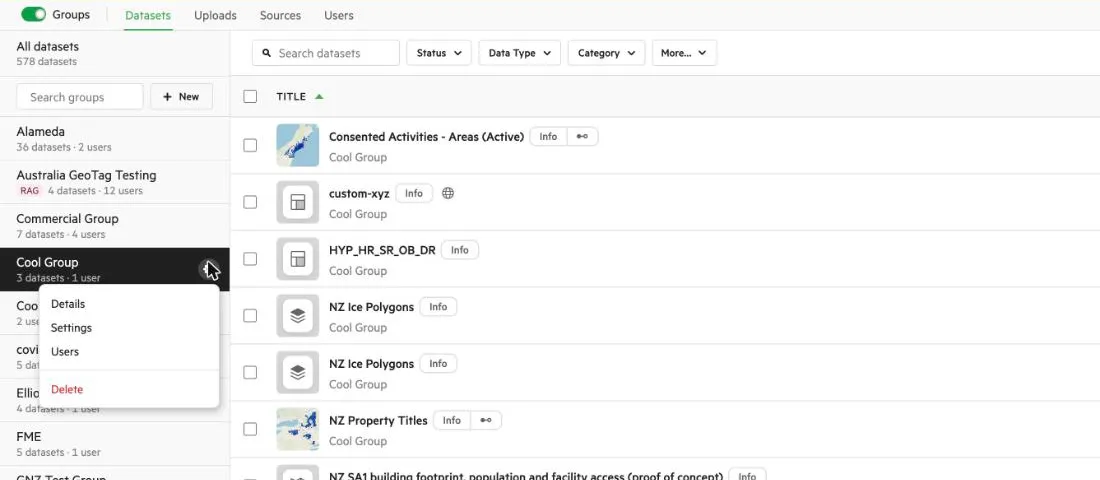
Section titled “Find datasets in the Data Manager”Select Manage in the navigation menu. The Data Manager opens on the Datasets tab. Groups are listed on the left, and the datasets of the selected group or groups are listed on the right.
- Search. Type in Search datasets to find datasets by keyword.
- Filter. Use the filter buttons above the list. The choices include Status, Type, Category, License and Region. If the window is narrow, some filters move into a Filters menu.
- Sort. Select a column heading such as Title or Size to sort by it. Added and Updated, and Views and Downloads, share a heading that you can sort by either.
- Share a view. The filters you set appear in the address of the page. Copy the address to share the same filtered list.
Filter by status
Section titled “Filter by status”The Status filter has these choices: Public, Private, Has draft, Update available, Schedule set, Importing, Updating, Publishing, No errors and Errored. Use Errored to find datasets with a failed import or update, and Has draft to find unpublished drafts. See Troubleshoot an import or update that is slow, stuck or failed.
Choose the columns
Section titled “Choose the columns”Select Columns to open Pick columns. You can show or hide columns such as Dataset ID, Date, Type, Size, License, Native CRS, Features/Tiles, Views & downloads and XML Metadata. Select Reset to default to go back to the standard set. A column marked Can’t fit is switched on but hidden because the window is too narrow.
Create a set from datasets
Section titled “Create a set from datasets”Tick the datasets you want, using the box at the start of each row (or the box in the heading to select all). A bar appears with Create set, if you’re allowed to create sets. See Create and edit sets.
Remove a group
Section titled “Remove a group”-
Check what the group owns
In the group list on the left of the Datasets tab, each group shows how many datasets it owns. Also check the Sources tab for sources the group owns.
-
Move or delete its data and sources
To keep a dataset, move it to another group: see Change the owning group of a dataset. To get rid of one, see Delete published data. Change a source’s owning group in its Settings.
-
Open the group’s menu and select Delete
Select the … menu beside the group. It lists Details, Settings, Users and Delete. Select Delete and confirm. Users will no longer have access to this group.
If you see Group can’t be removed while it has existing data or sources, the group still owns a dataset or a source. Check both.
Removing a group doesn’t remove its users from your site.
Remove or block a user
Section titled “Remove or block a user”The Users & Groups page doesn’t have a way to delete a user. You can:
- Remove them from a group. In the user’s details, select the × beside the group’s name. See Find and manage registered users.
- Block them. A blocked user can’t sign in to your site, and their API keys stop working. Blocking also frees their Paid Seat. See Block a user from your site.
Before you block or remove someone who looks after data, check which datasets and sources their group owns, and make sure someone else can manage them.
If a person needs their whole Koordinates account closed, that’s a request to support: raise a ticket.