
Vector tile (MVT) services and endpoints
Vector tile services let a web map or GIS draw a vector layer from tiles, instead of downloading the features or asking for a rendered image. They are for customer sites. If you can’t see these services on a layer, read If you can’t see vector tile services below.
The services
Section titled “The services”A vector layer can offer these vector tile services. Each one gives access to the same data, in a different form:
| Service | What you get | Typical use |
|---|---|---|
| Vector tiles: MVT | A tile URL ending in {z}/{x}/{y}.mvt, and a TileJSON URL that describes it |
Web maps such as MapLibre GL JS or Mapbox GL JS |
| Vector tiles: PMTiles | A URL to a PMTiles file | Clients that read PMTiles |
| Vector tiles: ArcGIS Vector Tile Services | An Esri REST URL ending in /VectorTileServer |
ArcGIS clients |
| Vector tiles: MBTiles | A URL to an MBTiles file | Software that reads MBTiles |
| Vector tiles in the map viewer | Not a URL. Lets the map viewer draw the layer from its vector tiles | Viewing the layer on your site |
The tile data is built from the layer’s published version.
Find the endpoint
Section titled “Find the endpoint”- Open the layer and select the Services and APIs tab.
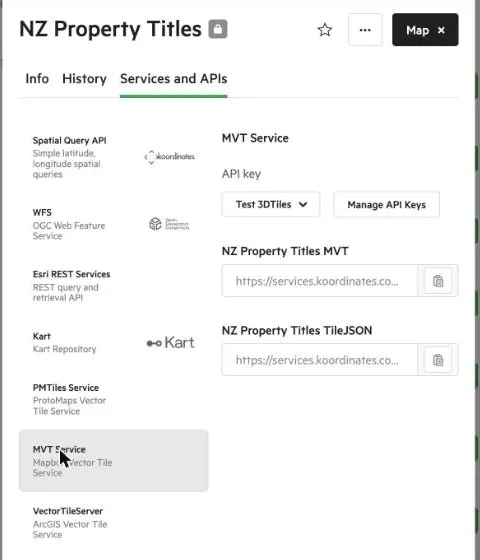
- Choose the vector tile service you want from the list on the left, such as MVT Service (the service called Vector tiles: MVT in the table above). The panel shows a tile URL and a TileJSON URL.
- If you’re asked for an API key, select Create API Key and choose it from the list. The URL is then filled in with your key.
- Copy the URL into your map or GIS. For MVT, use the TileJSON URL if your client accepts one, or the tile URL template.
The services use API keys with the tiles scope. See Set scopes for an API token.
Turn the services on
Section titled “Turn the services on”Services are set per dataset by administrators, and can be limited site-wide.
- Open Manage, find the layer and select it.
- Select the Services tab. Under Vector Tiles, each service shows whether it’s on or off.
- Choose Off or On for all users from the … menu, then select Save.
See Manage service permissions for the details, and Manage site services and APIs for the site-wide switches, including Vector tiles in the map viewer.
If you can’t see vector tile services
Section titled “If you can’t see vector tile services”Vector tile services are available for private sites. For public sites, get in touch: contact Koordinates Support and include the layer’s ID. The same applies if a vector layer on a private site has no vector tile services, or its tiles are out of date.
Some layers can’t be turned into vector tiles. Reasons include:
- the layer is too big or complex. The default limits are 500,000 features and 250 million points per layer;
- the layer’s coordinate reference system is a custom or compound one that can’t be resolved;
- the site is public, or vector tile generation isn’t turned on for it.
Only vector layers are tiled. Rasters, grids and tables aren’t.
If you add a vector tile service you host elsewhere, such as an external PMTiles basemap, to your site, see Create a catalog item.