
Add an external service template
Create reusable external service templates and enable them on your datasets.
In this guide, we give step-by-step instructions on how to create an external service template, enable it on a dataset, and view the result on your published layer.
External service templates let Site Administrators set up a custom service once — for example, a link to an external map viewer — and then enable it on individual datasets. Once enabled, the service appears on the published layer’s Services and APIs tab, alongside the standard Koordinates services.
1. Create a service template
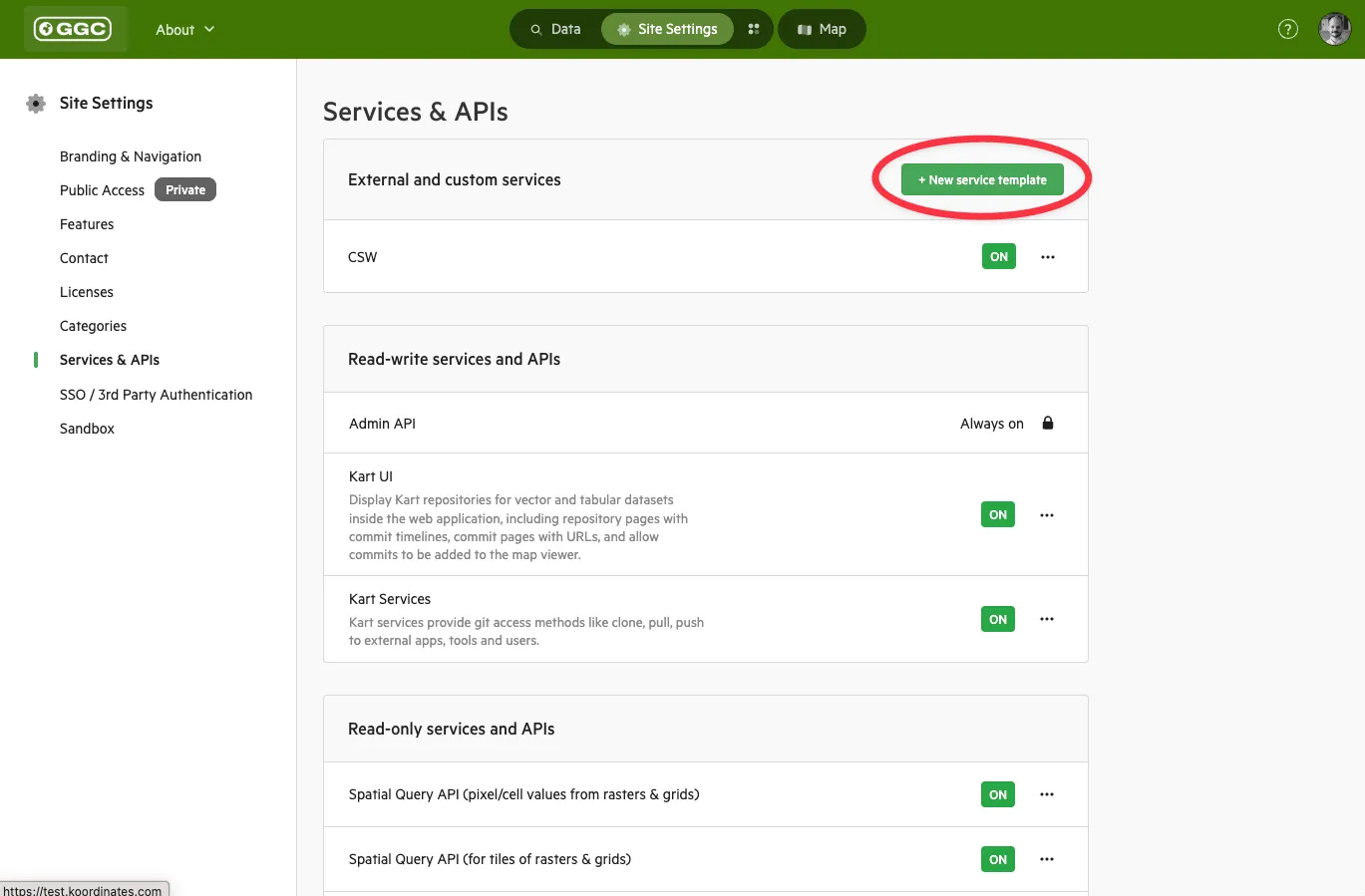
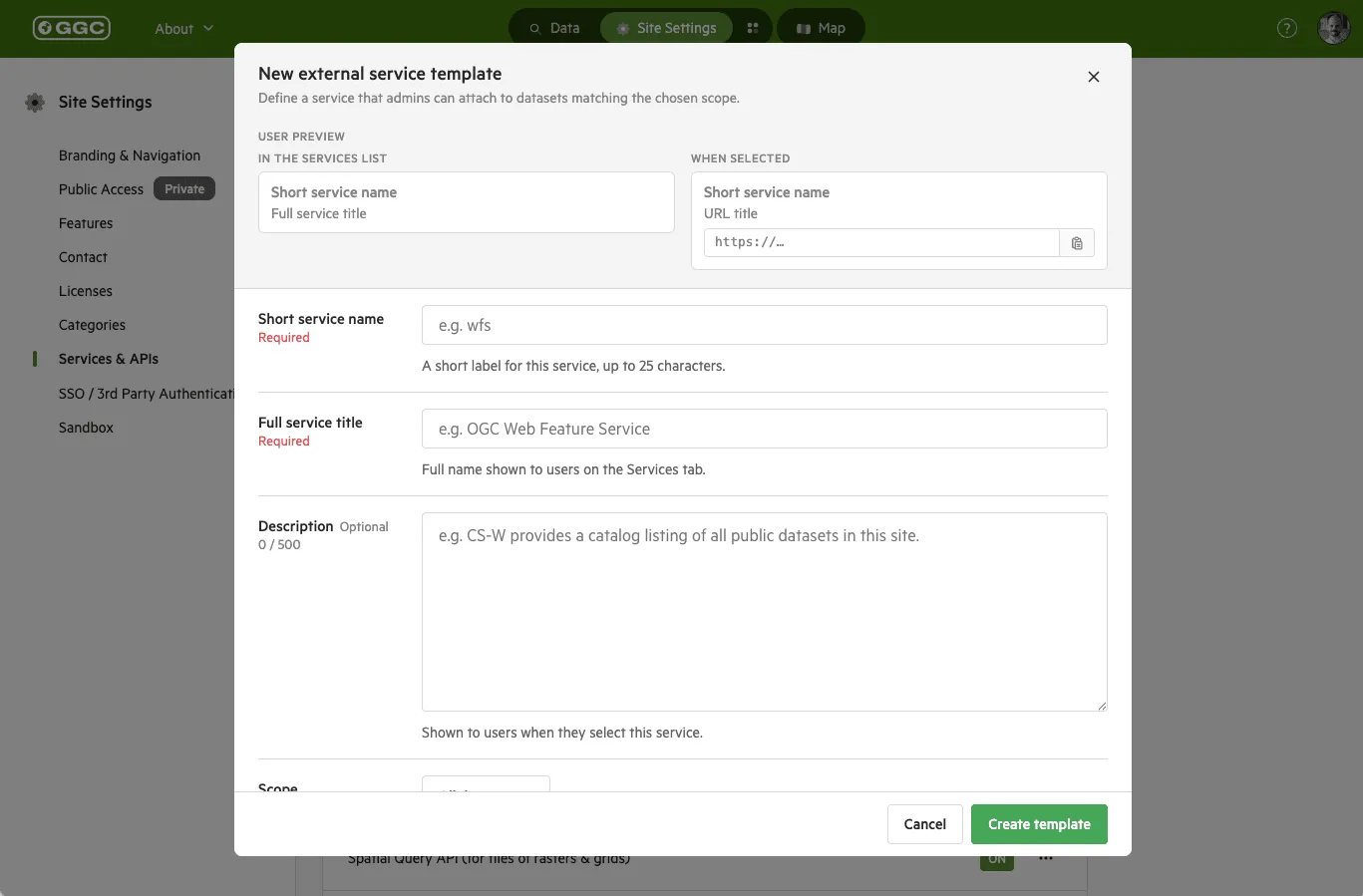
Section titled “1. Create a service template”Go to Site Settings → ‘Services & APIs’. Under ‘External and custom services’, click ‘+ New service template’ and configure the service.
2. Enable the service on a dataset
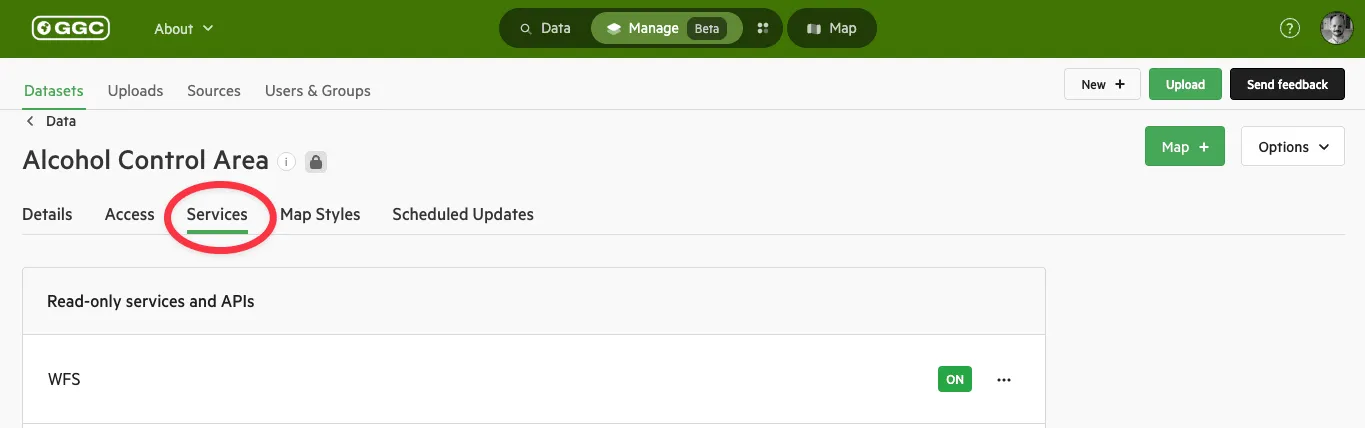
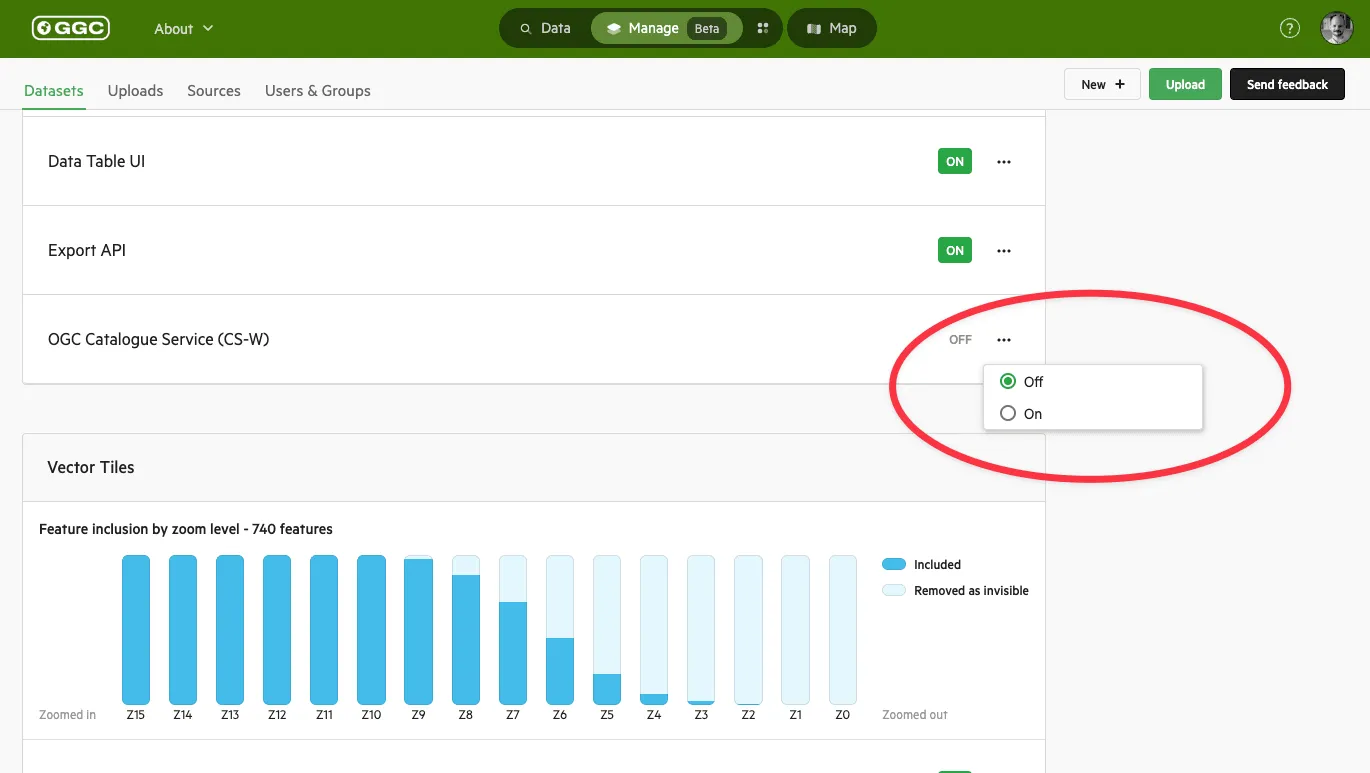
Section titled “2. Enable the service on a dataset”Go to Manage, open the dataset, and select the ‘Services’ tab. Toggle the external service to ‘On’, then click ‘Save’ at the bottom of the page.
3. View the result on the published layer
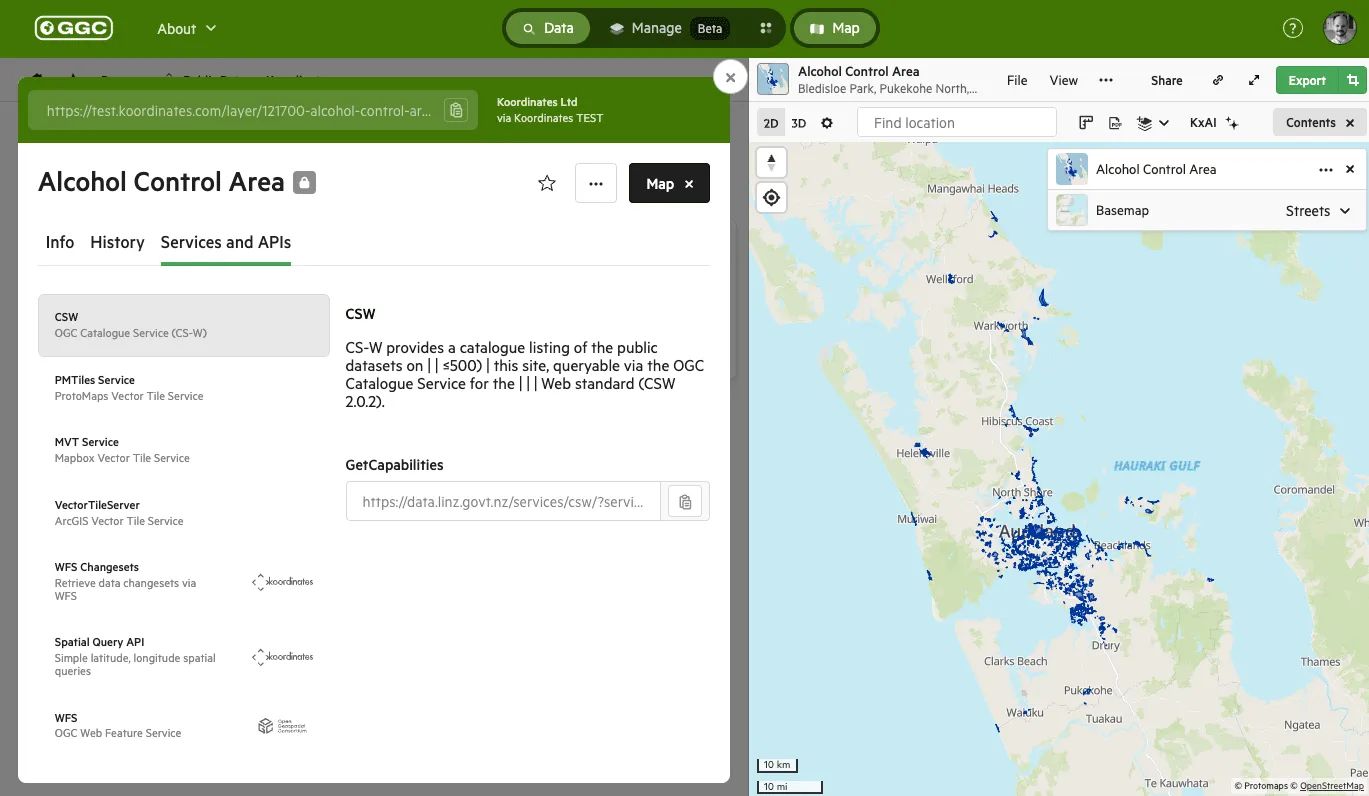
Section titled “3. View the result on the published layer”Open the Data Browser and click the dataset, then go to the ‘Services and APIs’ tab. The external service is listed with the other services available for the layer.
Additional notes
Section titled “Additional notes”- Templates are reusable — create the service once, then enable it on as many datasets as you need.
- The service is off by default on each dataset until you enable it on the dataset’s Services tab.
- Only Site Administrators can create and edit service templates.