Manually update a published dataset
In this guide, we introduce how to import data from a manual data upload.
1. Select ‘Manage’ from the top menu
Section titled “1. Select ‘Manage’ from the top menu”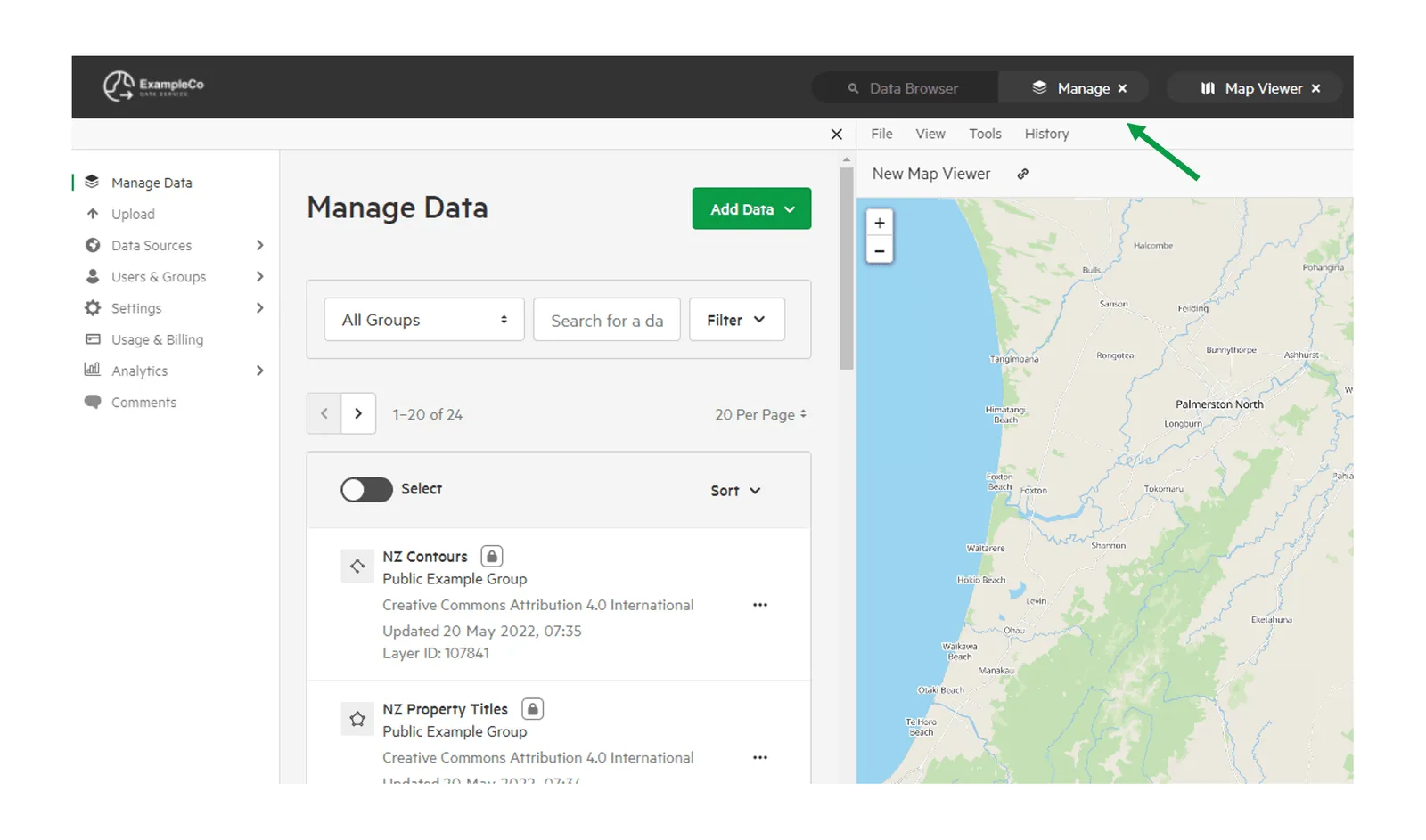
2. Select ‘Upload’
Section titled “2. Select ‘Upload’”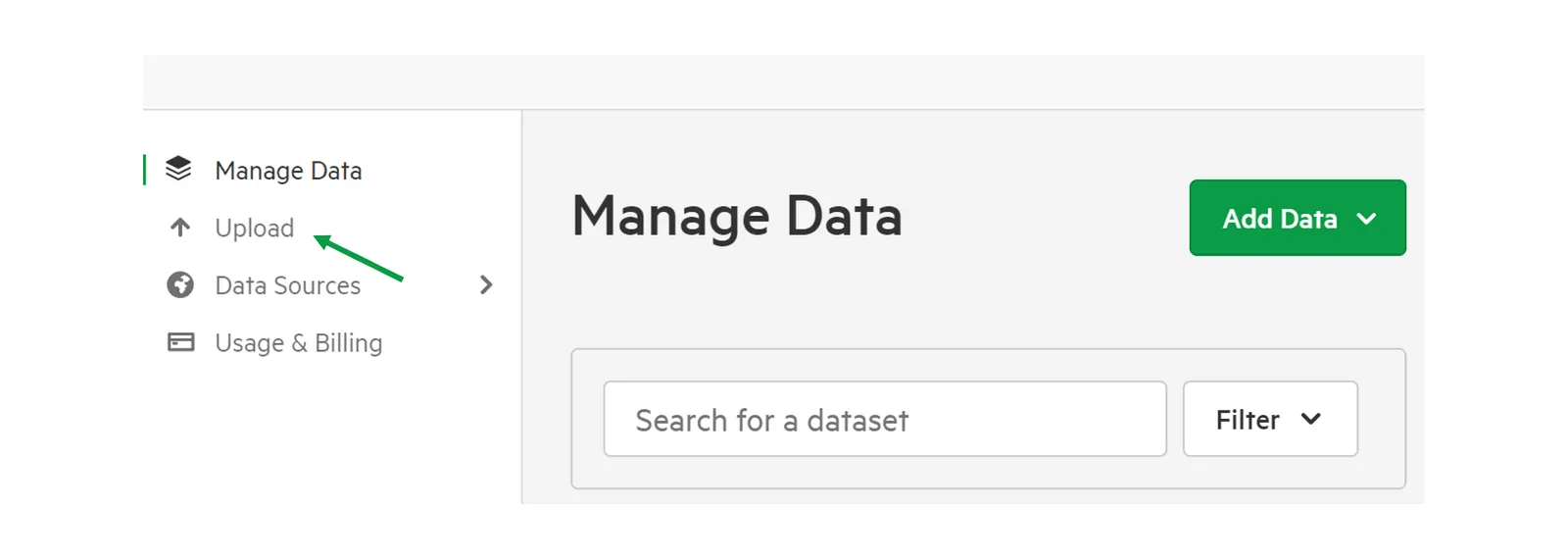
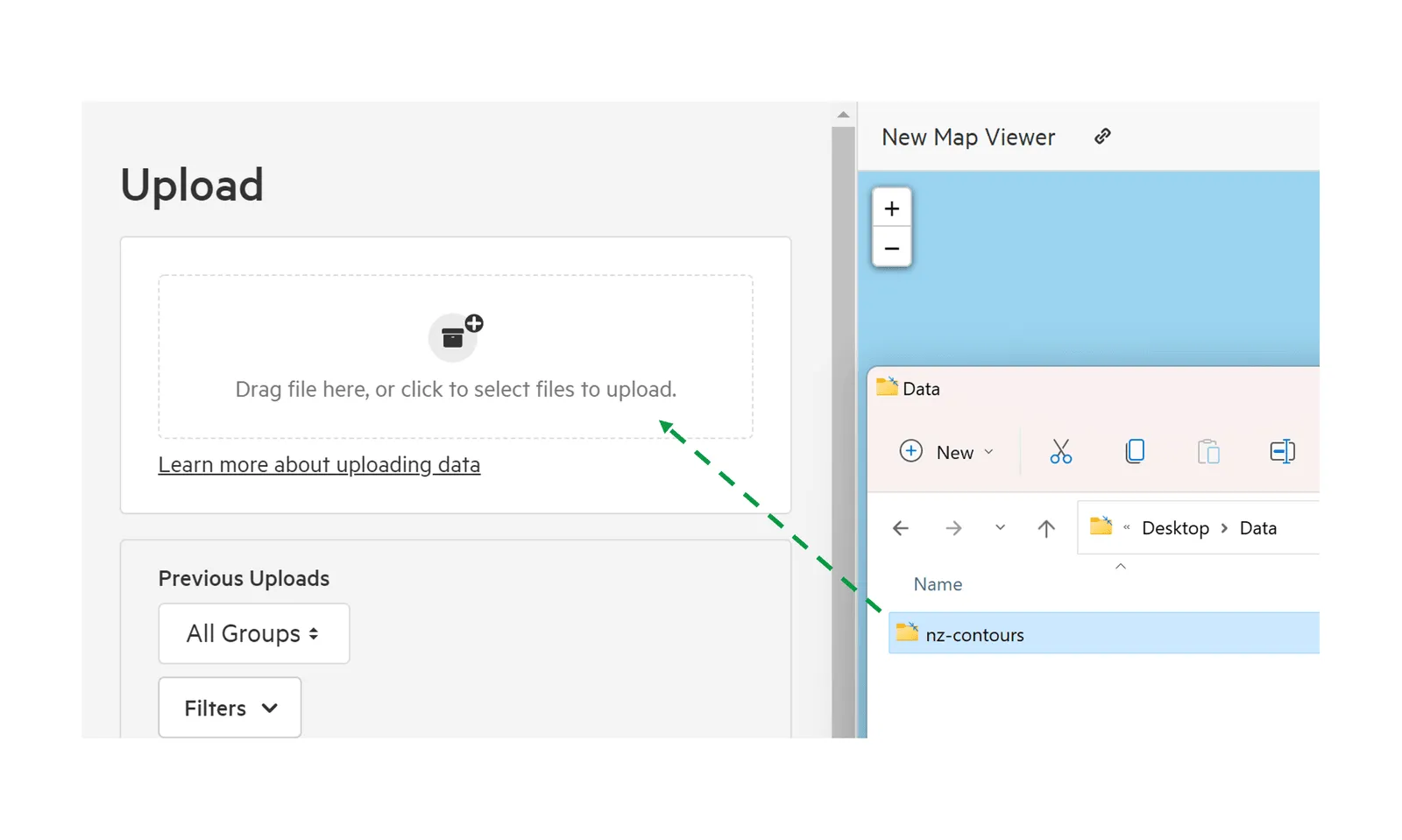
3. Upload your updated data
Section titled “3. Upload your updated data”Drag and drop your data into the marked area, or click the upload area to open your File Explorer to select the data.
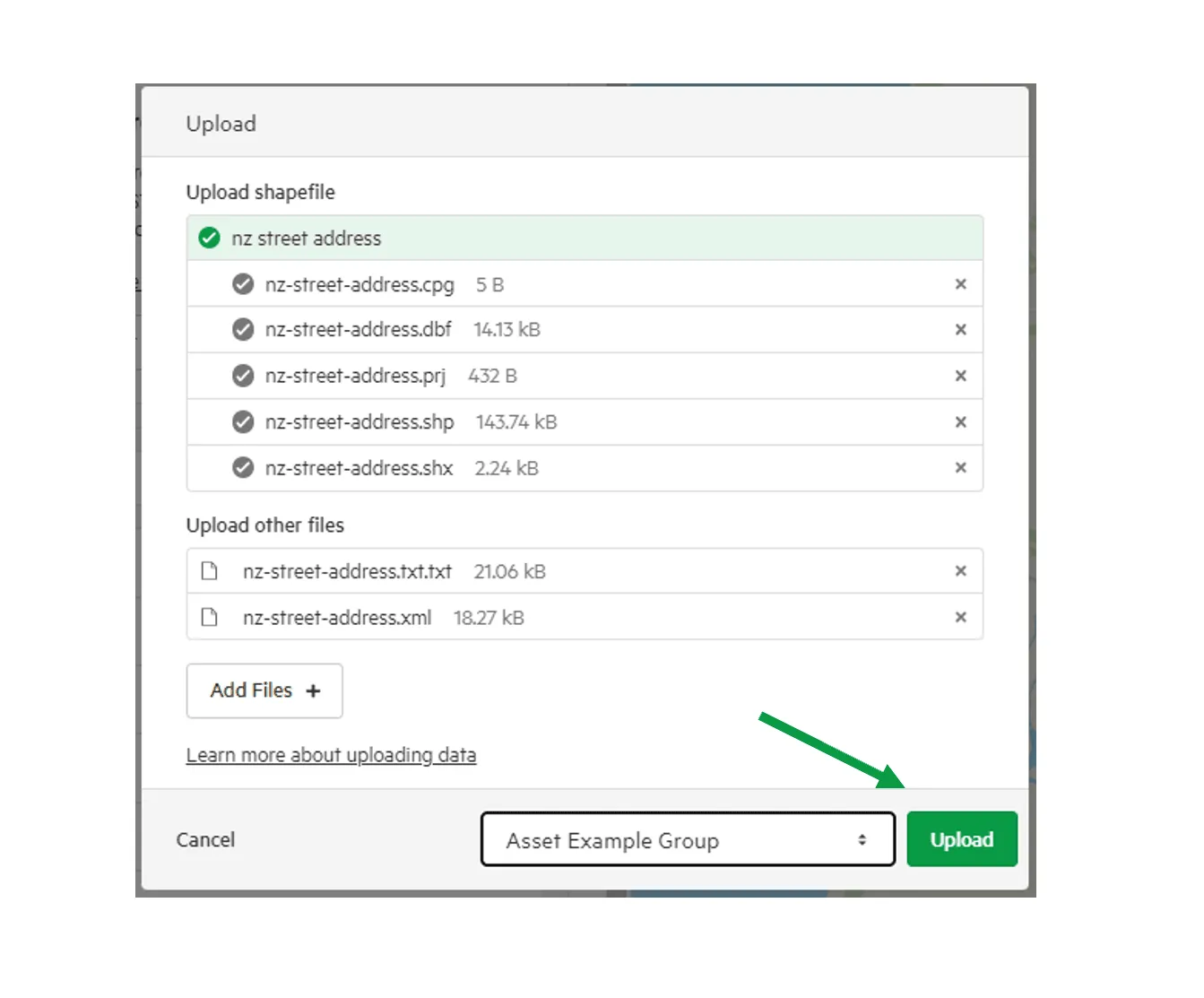
4. Review the data being upload, and click Upload.
Section titled “4. Review the data being upload, and click Upload.”You can also choose to assign the data to a Owning Group if required.
5. From the list, select the uploaded data, and select Update.
Section titled “5. From the list, select the uploaded data, and select Update.”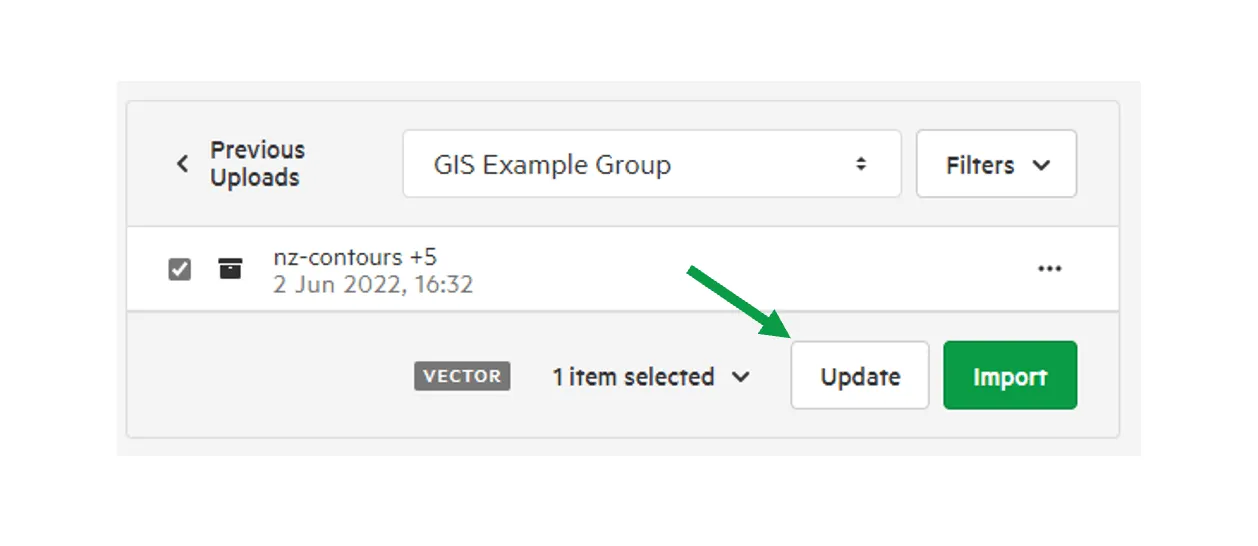
6. Filter and select the data to be updated.
Section titled “6. Filter and select the data to be updated.”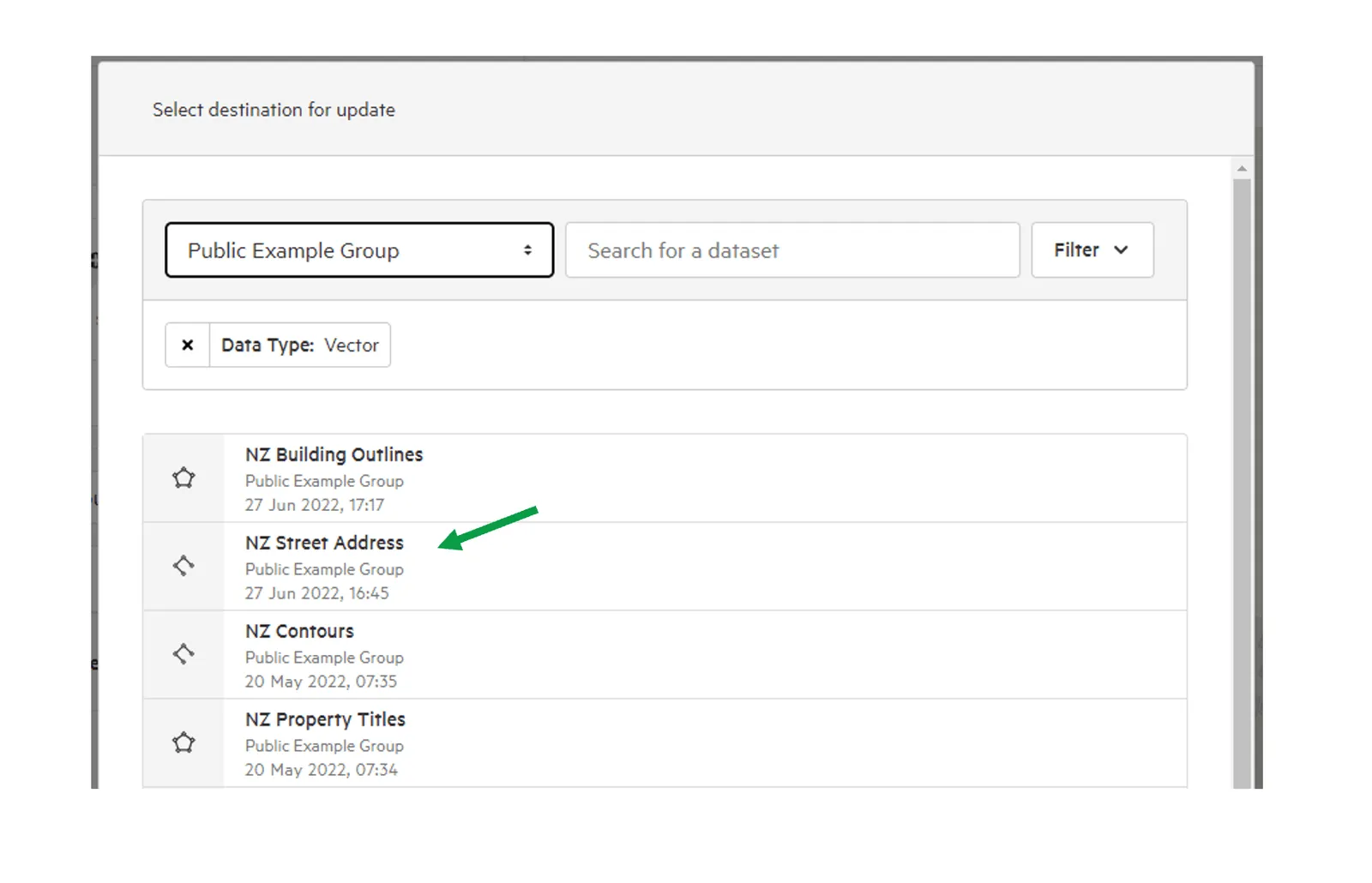
7. You have the option to edit the details of the data being updated.
Section titled “7. You have the option to edit the details of the data being updated.”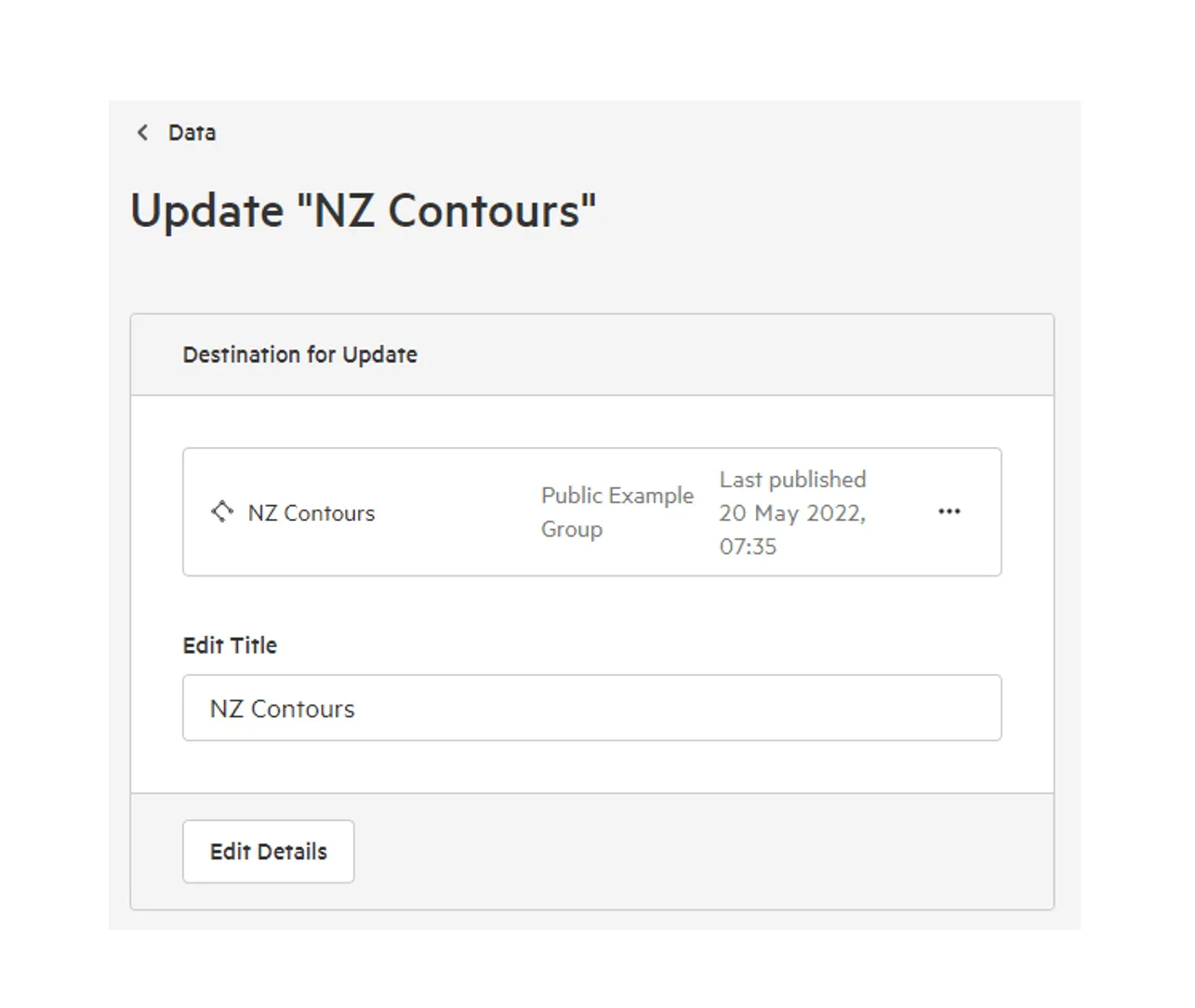
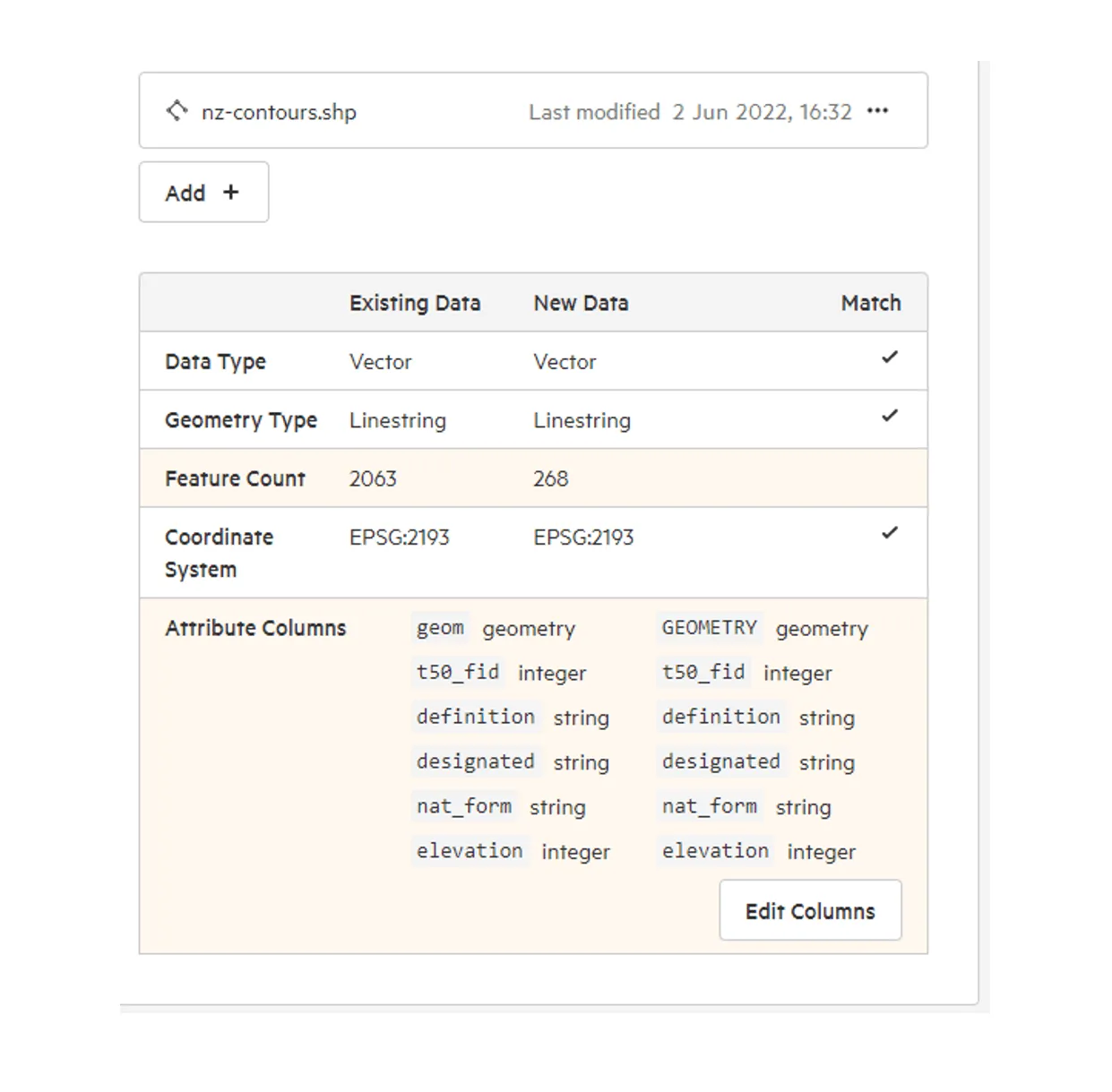
8. Review the proposed changes.
Section titled “8. Review the proposed changes.”You’ll be presented with a summary of the changes made to your chosen dataset, which you can check prior to publication.
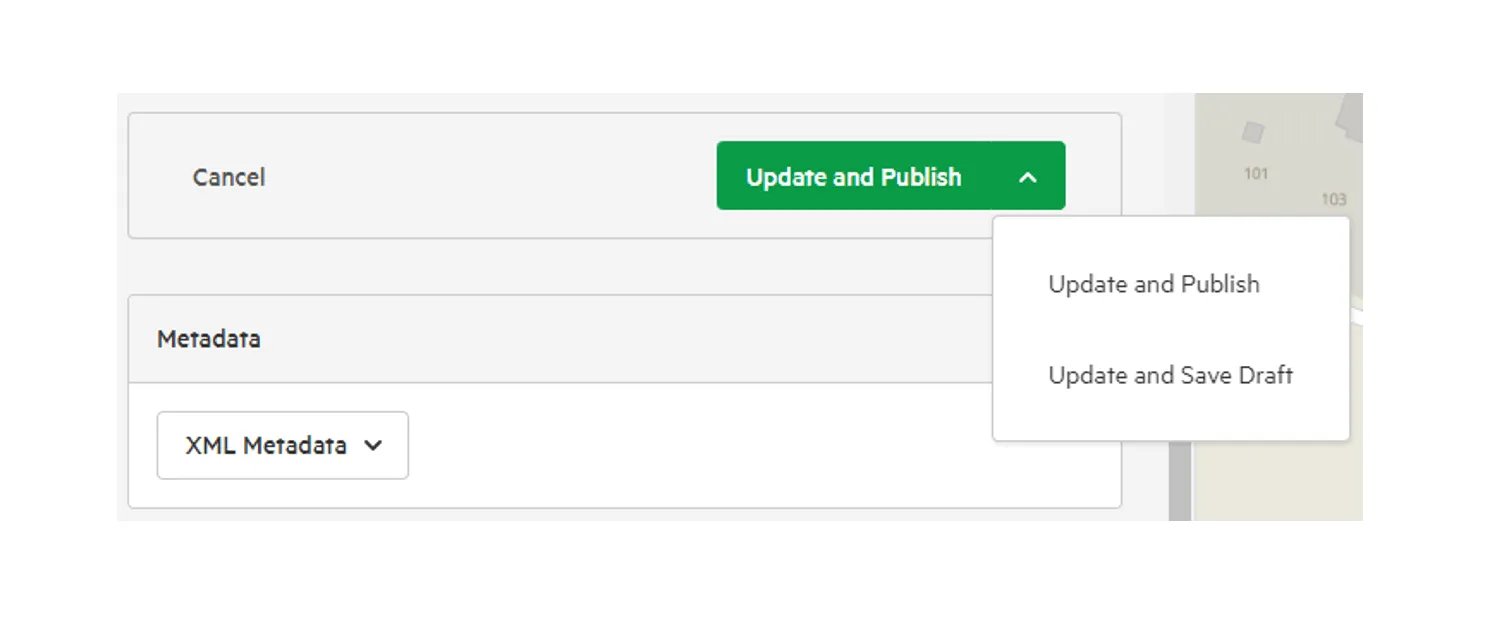
9. Choose to update and publish, or update and save as draft.
Section titled “9. Choose to update and publish, or update and save as draft.”By saving as draft, you and other users with Manage Data permissions can check updated data prior to releasing it to your users.
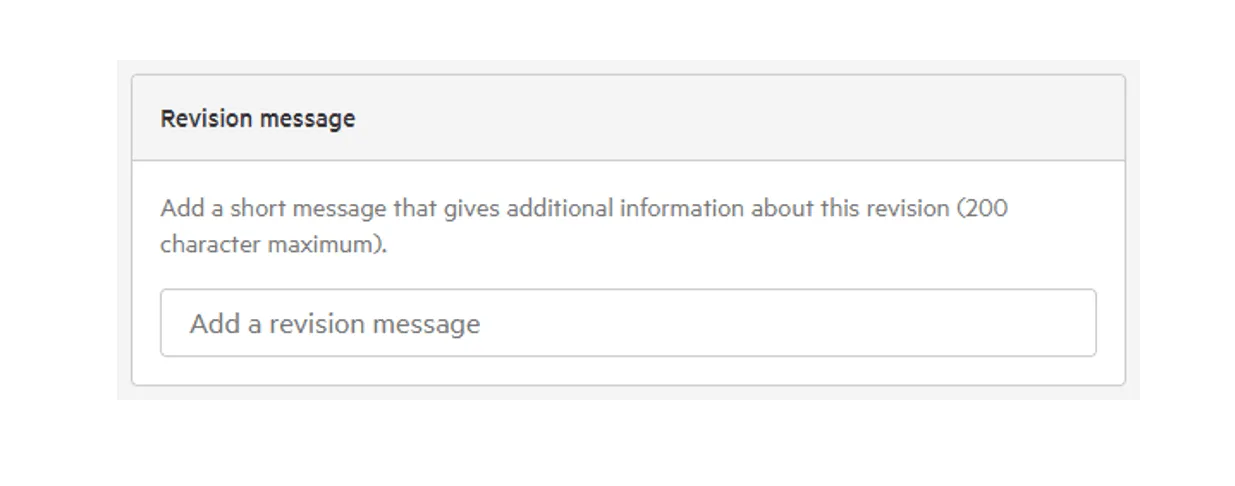
Optional. Add a short revision message.
Section titled “Optional. Add a short revision message.”