
Set permissions for your data
Once you have uploaded your data, you’ll want to set who can find, view, download and administer it.
You first set permissions when you import a dataset, and you can change them at any time.
Sharing data with groups is available on sites (Team Cloud Plan, Business Cloud Plan and Enterprise). If you’re an AI Pro User uploading data to koordinates.com, you can set the dataset’s Public Access only. See the pricing page to compare plans.
Access permissions are separate from licensing. Publicly accessible data may still have usage restrictions under its licence. For more, see Understanding licensing.
1. Select ‘Manage’ from the top menu
Section titled “1. Select ‘Manage’ from the top menu”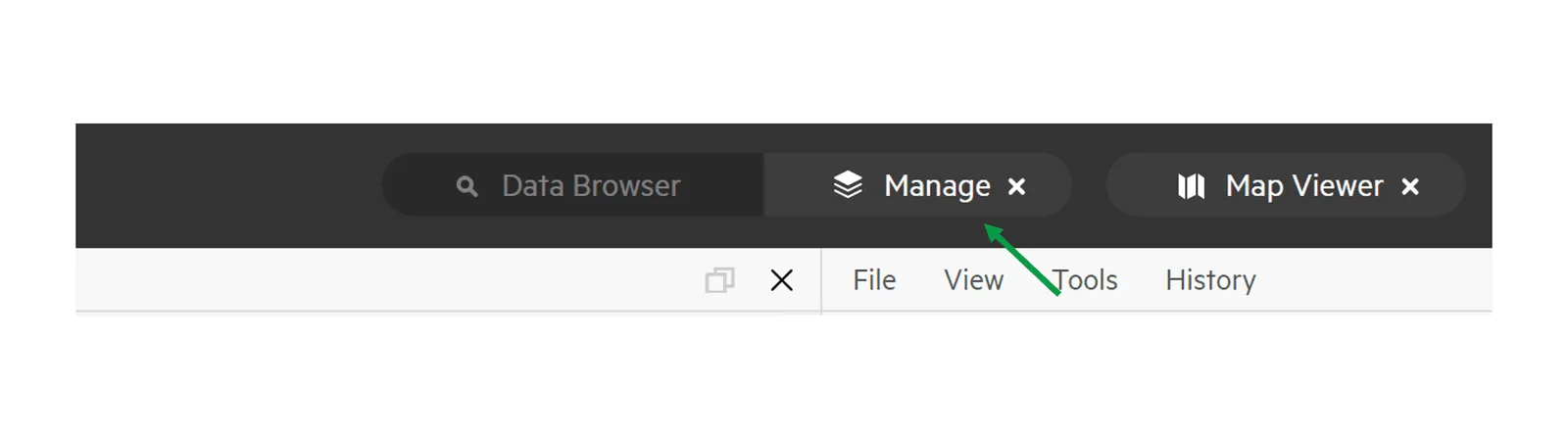
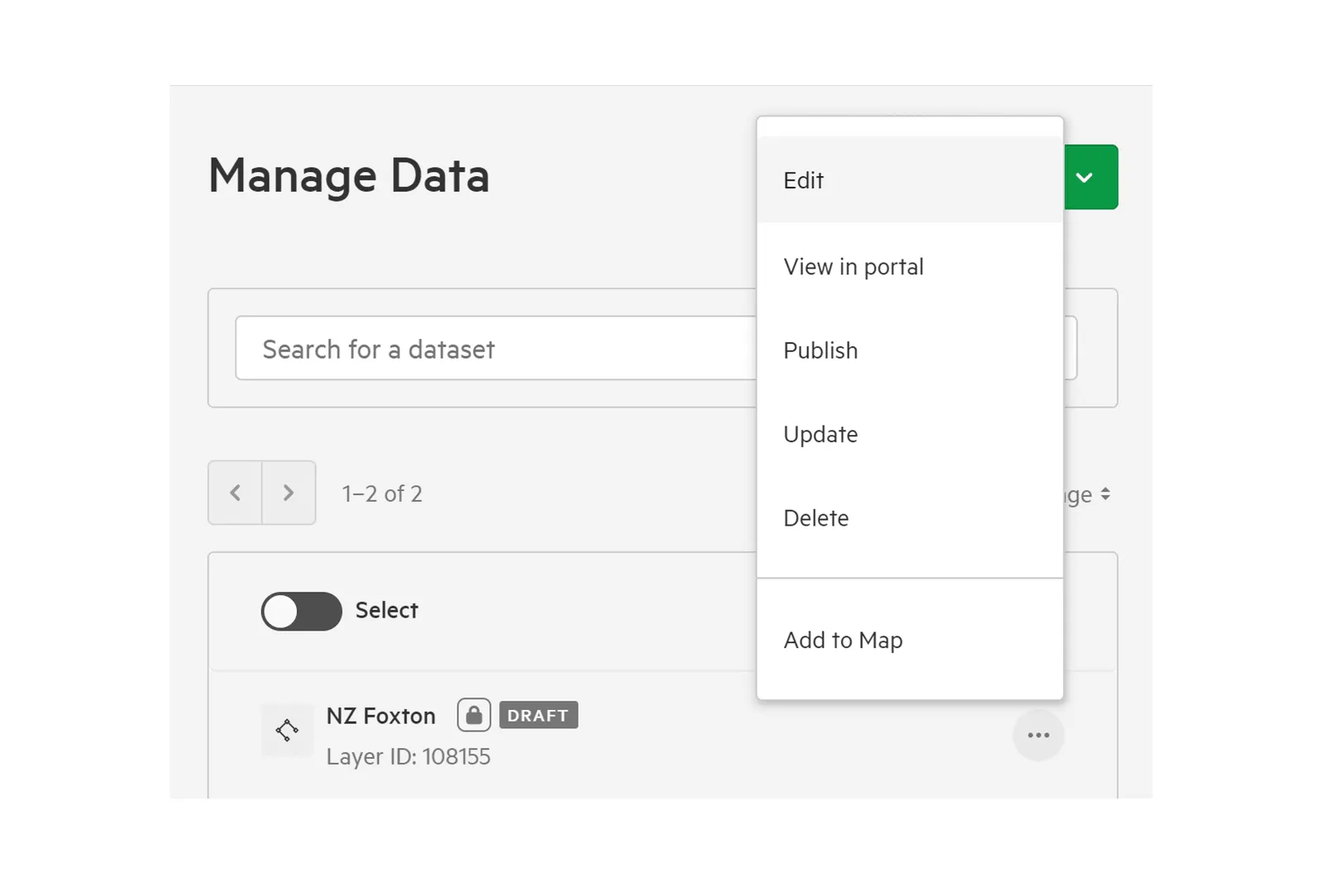
2. Find and open the dataset
Section titled “2. Find and open the dataset”Search for the dataset in the Datasets tab. On a site, you can also filter the list by group. Then select the dataset to open it.
3. Select the ‘Access’ tab
Section titled “3. Select the ‘Access’ tab”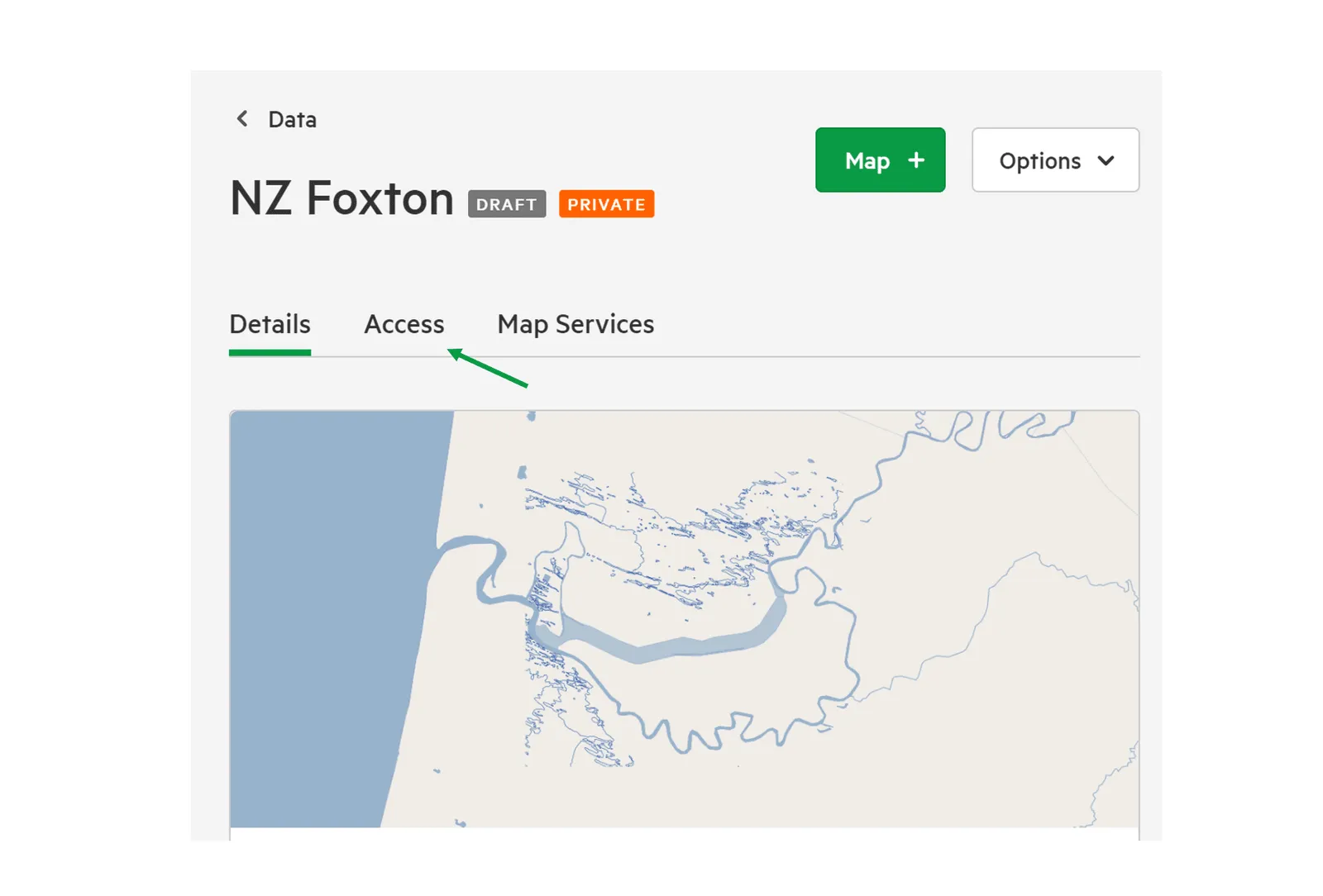
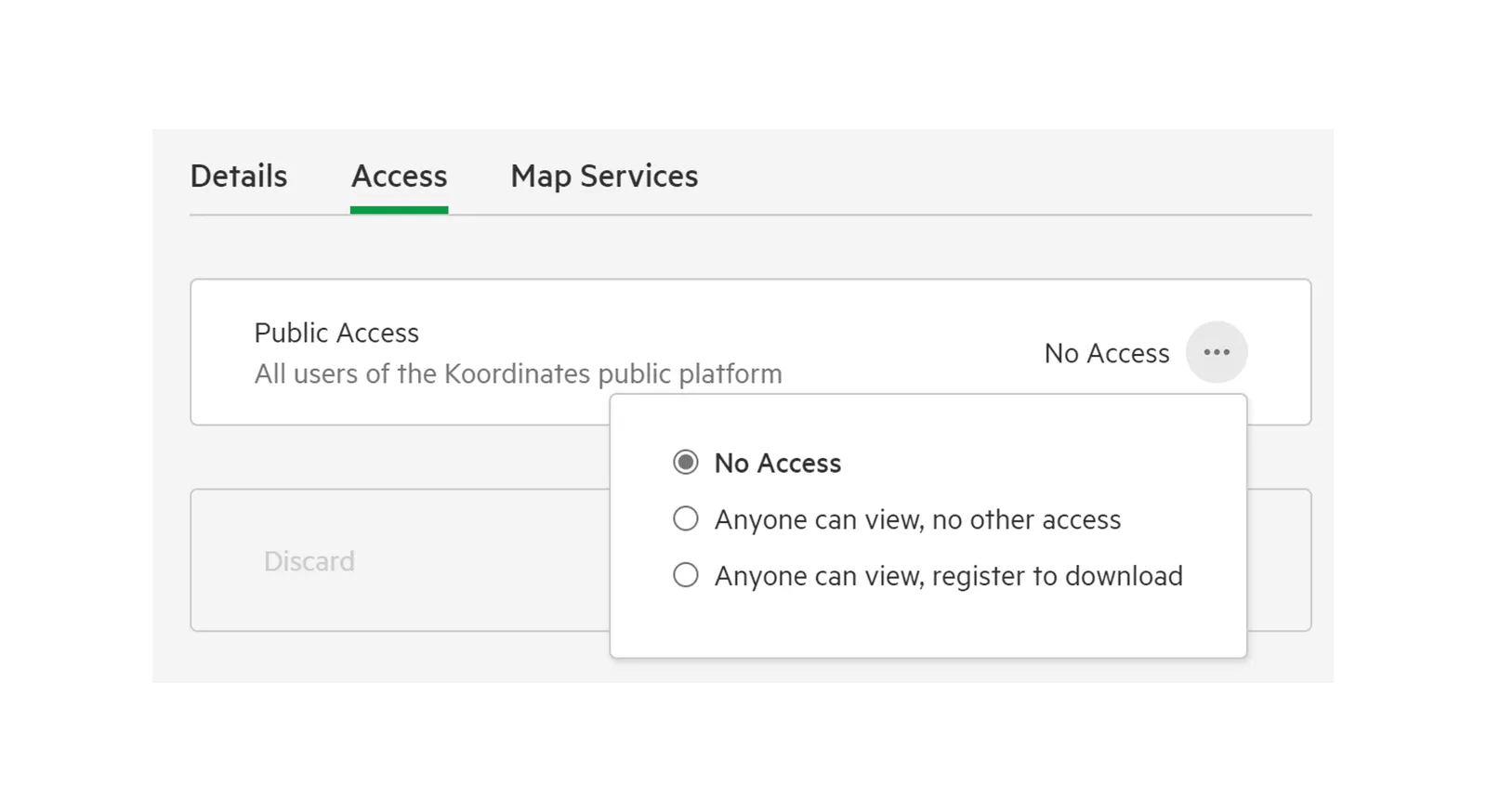
4. Choose the Public Access level
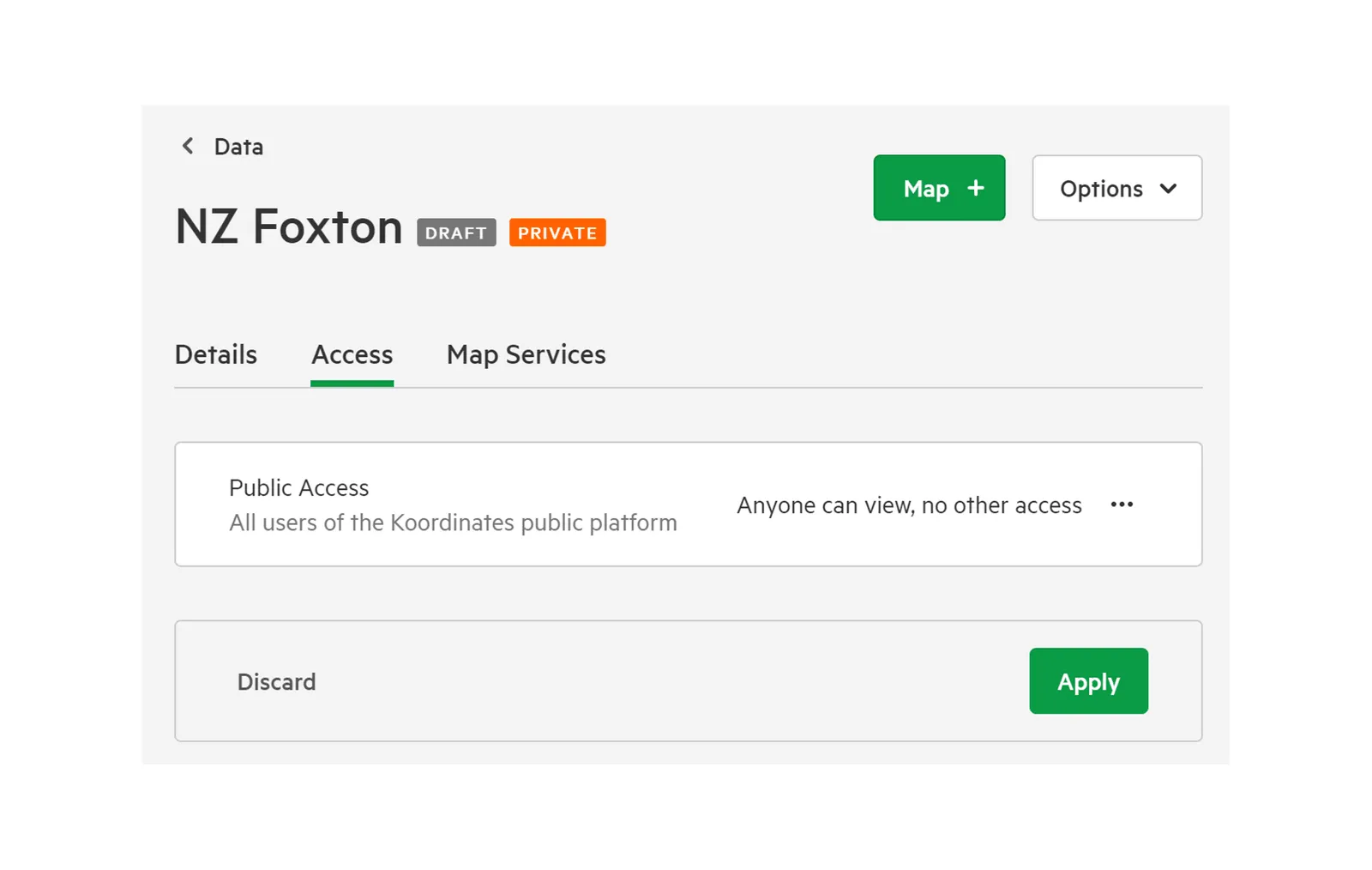
Section titled “4. Choose the Public Access level”Public Access covers all users of the Koordinates public platform, including people who aren’t signed in. Open its … menu and choose one of:
- No access: only people and groups you give access to can find or see the dataset.
- Find only: anyone can see that the dataset exists in search results, but can’t view or download it.
- Anyone can view, no other access: anyone can view the dataset, but not download it.
- Anyone can view, register to download: anyone can view the dataset, and signed-in users can download it.
Sets and catalog items don’t have a download level, so they don’t offer Anyone can view, register to download.
On a site, only site administrators can change the Public Access setting.
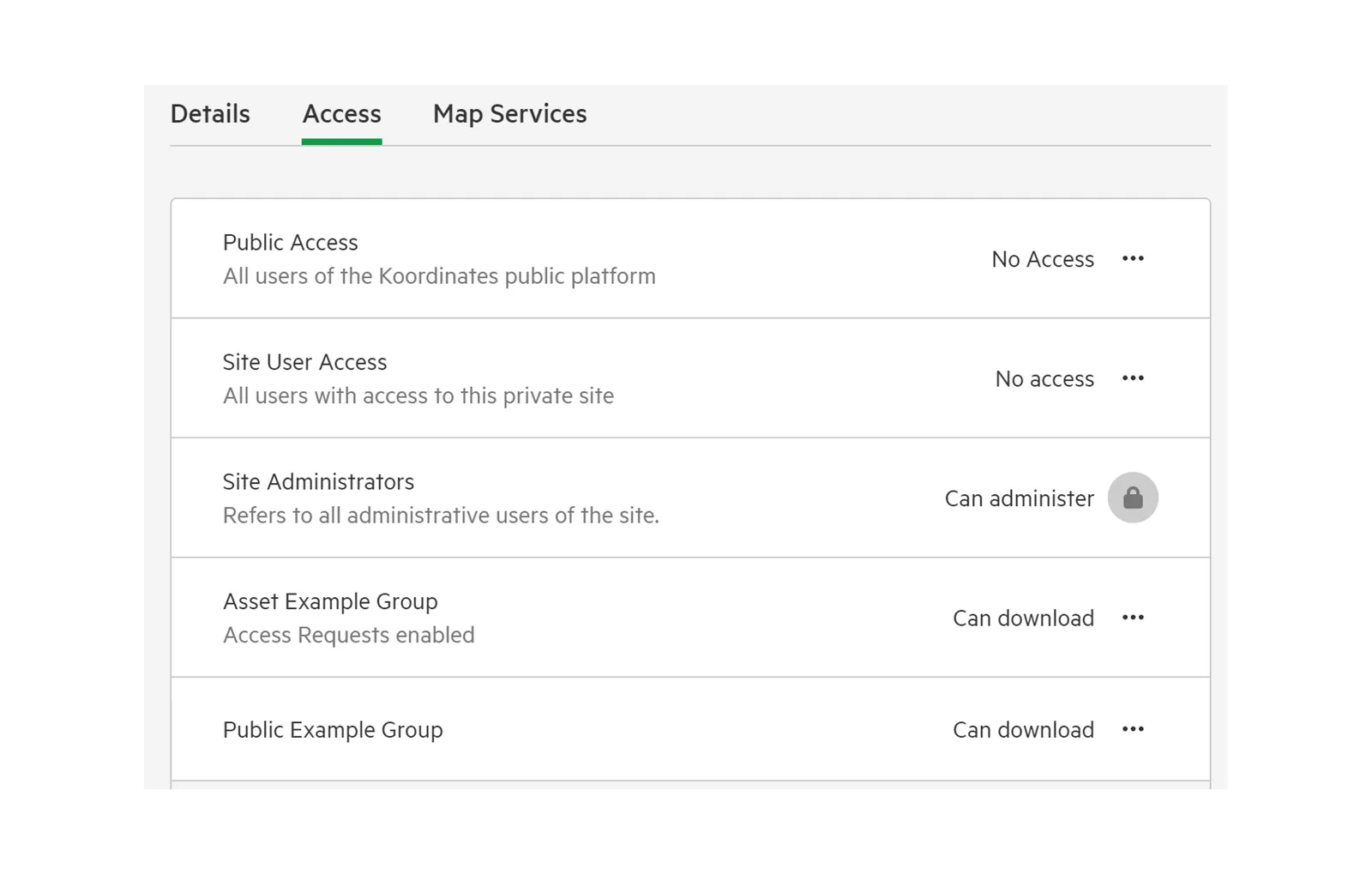
5. Set access for your site’s users and groups
Section titled “5. Set access for your site’s users and groups”On a site, the Access tab also has these rows:
- Site User Access (private sites only): all users with access to your site.
- Site Administrators: all administrative users of the site. They can always administer the dataset, so this row is locked.
- The dataset’s owning group, if it has one. Group admins and group data managers can administer the data, and all members of the group can find and access it. This row is also locked.
- Any other groups you’ve given access to.
To change a row’s access, open its … menu and choose Can find, Can view, Can download or Can administer. The levels on offer depend on the type of dataset.
To give another group access, choose it from the Add group list, select its access level, then select Set.
6. Apply your changes
Section titled “6. Apply your changes”Select Apply to save your changes, or Discard to undo them.
How permissions combine
Section titled “How permissions combine”Permissions only ever add access. Someone gets the highest level given to them by any row that applies to them. This means:
- Public Access is a minimum for everyone. For example, if Public Access is Anyone can view, no other access, every group can at least view the dataset, whatever their own row says.
- On a private site, Site User Access is a minimum for all your site’s groups in the same way.
Understanding access levels
Section titled “Understanding access levels”- Find: the user can see that the dataset exists in search results, such as its title and group, but can’t preview the data.
- View: the user can view the dataset, including its data table and a preview on the map, but can’t download it.
- Download: the user can download the dataset, and access it through enabled APIs and web services with an API key.
- Administer: the user can manage and change the dataset.
Service permissions
Section titled “Service permissions”For more on managing permissions for individual services, see Manage service permissions.