
Set up crop layers for exports
A crop layer lets people who export data on your site crop to a named region, such as a council boundary or a catchment, instead of drawing a box. You build one from a published polygon layer. Each feature in that layer becomes a region that users can choose when they export.
Crop layers are a site setting for site administrators. They’re available on the Business Cloud, Enterprise plans. On other plans the page reads Crop layers are not available under your plan - contact sales. See Features by plan.
For how users crop an export, see Crop data layers by box. On a site that has crop layers, they can choose Crop by region and pick a region.
Add a crop layer
Section titled “Add a crop layer”- Select Site Settings in the top navigation.
- Under Exports, select Crop layers.
- Select Add crop layer.
- In Source layer, search for and select a published polygon layer. The list shows polygon layers with 1000 or fewer features. A layer that already is a crop layer is marked Already a crop layer.
- In Crop label attribute, choose the text attribute that names each region, such as a district name. If the layer has no text attributes, the dialog says it has none to use as a crop label.
- Select Add.
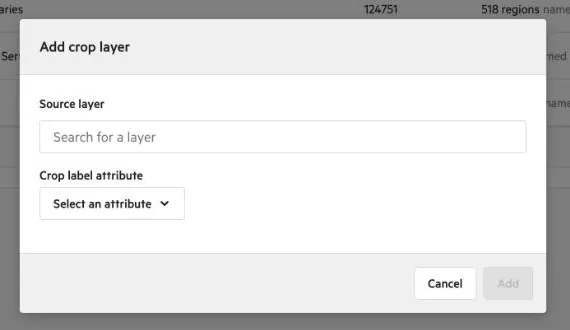
The crop layer appears in the list with Importing… while it’s built, and the list updates by itself. When it’s ready the row shows its Layer ID, the number of crop regions, and the attribute they’re named by. If it fails, the row says Import failed.
Replace a crop layer
Section titled “Replace a crop layer”A layer can have only one crop layer. If you add one for a layer that already has one, you’re asked to confirm Replace crop layer. The old crop layer keeps working until the new one finishes importing, and stays if the import fails. Once the new one is ready, the old one is deleted, and its crop URLs stop working.
Delete a crop layer
Section titled “Delete a crop layer”Open the actions menu on its row, choose Delete crop layer, then confirm Delete crop layer. Anyone using the crop layer to limit an export loses it, and its crop URLs stop working. The source layer isn’t affected, and exports that were already created keep their extent.