Update and manage point cloud layers
This page applies to customer sites: the organisation data portals on Team Cloud, Business Cloud, Enterprise plans. It explains how to change a point cloud dataset after you’ve imported it. To import one for the first time, see Importing point cloud data. For file formats, see Point Cloud.
A point cloud dataset is stored in a repository, so each change you save is recorded as a commit with a message and an email address.
Update a point cloud with new tiles
Section titled “Update a point cloud with new tiles”-
Upload the new tiles, or find them in a connected source
If your point cloud is made of several tiles, put all the tiles you want to add or replace in one ZIP file. See Manually upload and import data.
-
Open the point cloud dataset and select Options, then Update
In the Data Manager, find the dataset on the Datasets tab and open it. The update page opens.
-
Choose the new data
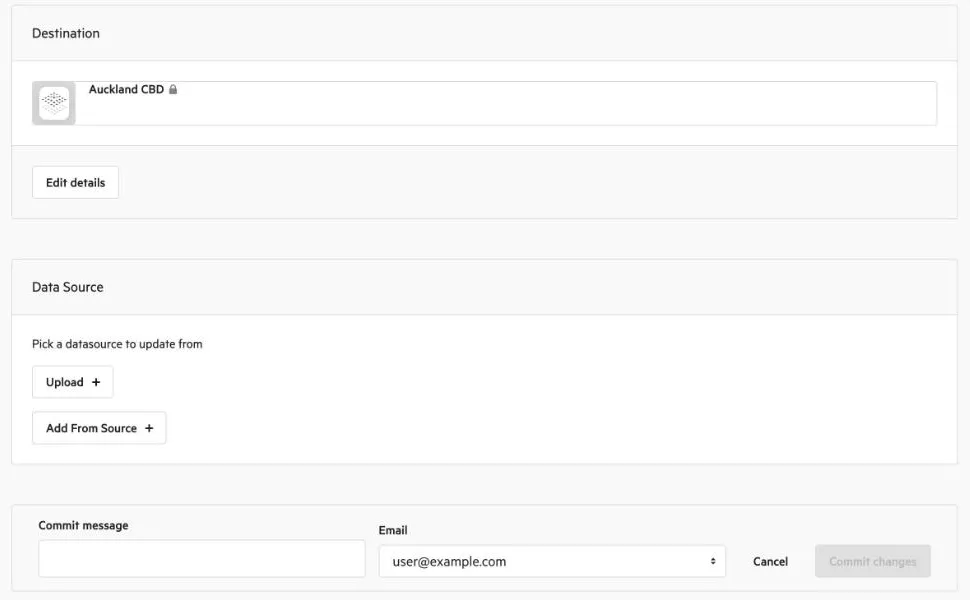
Under Data Source, select Upload to upload a file, or Add From Source to pick tiles from an earlier upload or a connected source. The Destination panel shows the dataset you’re updating. Select Edit details to change its title or other details at the same time.
-
Choose how to treat the existing tiles
Under the tile update heading, choose one of:
- Keep existing layer tiles and append/replace new tiles. Tiles that are new are added. A new tile with the same name as an existing tile replaces it. Tiles you don’t upload stay as they are.
- Clear existing tiles and only use new tiles. Tiles in the dataset that aren’t in your new data are removed. Use this when your new data is the complete set.
-
Add a commit message and select Commit changes
Enter a Commit message that says what changed, and choose the Email to record with it. Select Commit changes. The dataset shows Importing until the update finishes. Leave the page open or come back later. A large update can take a long time.
Point cloud datasets don’t have a Scheduled Updates tab. Update them by hand as above. If an import into the dataset is already running, the update page shows it. Wait for it to finish before you start another.
To import or update several tiles together, they must share the same coordinate reference system, point data record format and record length. If Koordinates says the tiles you chose can’t be combined, inspect the tiles and compare them.
Check the classes in a point cloud
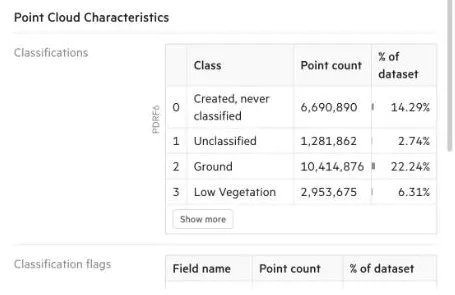
Section titled “Check the classes in a point cloud”Koordinates reads the classification of each point when it imports the data. To see the result, open the dataset’s data sheet, for example from the data browser, and look at Point Cloud Characteristics:
- Classifications lists each class: its Class code and name, the Point count, and the share of the dataset. Standard classes for the point data record format are shown first, and any custom classes are shown separately under Custom.
- Classification flags shows the number of points with each flag, and the % of dataset.
- Dimensions lists the Name and Data type of each dimension stored with the points.
You can’t edit the classes in Koordinates. To change them, reclassify the points in your own software and update the dataset with the new files.
Edit a point cloud’s details and metadata
Section titled “Edit a point cloud’s details and metadata”-
Open the dataset on the Datasets tab
The page has Details and Access tabs.
-
Change the details
On Details you can change the Title, Path, description, tags, Owning Group, Category and licence, and add attachments. If you’re not sure about Path, leave it as it is: changing it may affect connections to the repository.
-
Add, replace or clear XML metadata
In the Metadata panel, choose XML Metadata, then one of Browse Sources, Import From URL or Upload XML Metadata to add or replace it, or Clear XML Metadata to remove it. You can also edit ISO or Dublin Core metadata there. When metadata is attached, the title, description and tags can each be set to locked to XML Metadata, so they follow the metadata, or left as Custom.
-
Add a commit message and save
Enter a Commit message, choose the Email, and select Commit changes.
-
Change who can see it
Select the Access tab to set who can view or download the dataset.
See also Understanding metadata and Add XML metadata to connected sources.
Delete a point cloud
Section titled “Delete a point cloud”On the dataset’s page, select Options, then Delete. Koordinates asks you to confirm that you want to permanently delete the dataset. See Delete published data.
If a point cloud import or update fails
Section titled “If a point cloud import or update fails”- Check that the new tiles match the old ones. Tiles imported together must share a coordinate reference system, point data record format and record length.
- Check the file names. Duplicate file names in one import cause a failure.
- Check for an import that’s already running. The dataset shows Importing. Wait for it to finish before you start another.
- Contact support if it keeps failing. See Troubleshoot an import or update that is slow, stuck or failed for what to include.
To export a point cloud, see Find & export point cloud data layers. Point cloud exports can be much larger than other exports. Cropping the export to the area you need keeps it smaller.