Kart repositories: get started, clone, and manage repos and branches
This page applies to customer sites. Kart is a version control system for geospatial data. Each Kart repository keeps the full history of its datasets as commits, and lets you work on changes in branches. Point cloud datasets are always stored in a repository. Vector and table datasets can have one too. Which of these you can use depends on your site’s services and your permissions, as described below.
Create a repository
Section titled “Create a repository”-
Open the Data Manager and select New
Select Manage in the navigation menu, then New.
-
Select Kart, then Create a Kart repository
The Kart section appears only if you’re allowed to create repositories. In the New Kart repository window, enter a Repository title and choose an Owning group. You need to belong to a group to create a repository.
-
Select Create
Find repositories on the Datasets tab: select Type, then Repositories. Open a repository to change its Title, Path and Owning Group, or its access on the Access tab. Changing Path may affect connections to the repository.
Who can clone a repository
Section titled “Who can clone a repository”You can clone a repository if you’re allowed to download it. For a repository that mirrors a published vector or table dataset, your site must also offer the Kart service for that dataset. To clone a point cloud, you must be an administrator of the dataset. To push changes, you also need permission to edit it. Site administrators control these services under Kart UI and Kart Services: see Manage site services and APIs.
Add your SSH key
Section titled “Add your SSH key”Cloning over SSH needs an SSH key on your Koordinates ID.
-
Open your SSH keys
Go to id.koordinates.com/ssh-keys. You must have verified your email address before you can add a key.
-
Add a key
Select Add Public Key and paste your public key with a label, or select Retrieve Github SSH Key to copy the public keys from a public GitHub account. Use Delete to remove a key.
Clone a repository
Section titled “Clone a repository”On a dataset that can be cloned, open its actions menu, where Clone via SSH shows the SSH address to copy. It also links to Manage SSH Keys, the QGIS Koordinates Plugin and the QGIS Kart Plugin. Use the address with the Kart command line tool, or clone from QGIS: see Including Koordinates datasets in QGIS projects.
In the Koordinates Desktop App, a dataset you can clone shows a Get button, which opens a window for cloning it. This page doesn’t cover the rest of the Desktop App.
Work with branches
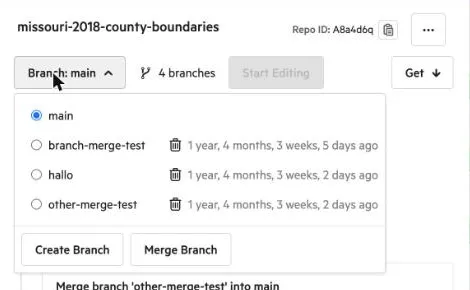
Section titled “Work with branches”Open a repository’s page to see its commit history. The Branch button shows the branch you’re viewing and lists the repository’s branches.
- Create a branch. Select Create Branch, enter a Name, and choose what to base it on: the repository’s default branch, or the branch you’re on. The name is turned into a URL-safe form, shown under the box.
- Merge a branch. Select Merge Branch (shown when there is more than one branch), choose the branch to merge into, and select Continue. Koordinates tells you how many commits the branch is ahead, creates a merge commit that keeps both histories, and lets you set its message. If there’s nothing to merge, it says so. If the branches conflict, it says so, and you resolve the conflicts by cloning the repository and merging locally.
- Merge into a published dataset. If the destination branch has a published dataset, merging into it updates that dataset and its services.
- Delete a branch. Select the bin icon beside a branch, then Delete branch. A branch with commits that haven’t been merged elsewhere loses them, and you can’t undo it. You can’t delete the default branch or the branch named
draft.
Delete a repository
Section titled “Delete a repository”Open the repository from Type, Repositories, select Options, then Delete. Deleting a repository also deletes the datasets it tracks.