
Map viewer tools: measure, Quick PDF, contours and address search
The map viewer has a set of tools for working with the map you’re looking at. They’re in the Tools menu at the top of the map viewer, and the most used ones also have buttons in the toolbar. They work on koordinates.com and on customer sites.
| Tool | What it does | Who can use it |
|---|---|---|
| Measure distance or area | Measure a line or a polygon on the map | Everyone |
| Quick PDF | Make a PDF of the map for reference or printing | Everyone. In the Tools menu it appears when you’re signed in. |
| Create Contours | Add a contours layer to the map | Users with a paid seat, an active AI Pro subscription, or any user of a site that is Invite only |
| Spatial query and Data table | Query layers by area, and browse their attributes | See Query the map and Explore with the data table |
| Address search | Zoom the map to an address or place | Everyone |
For learning your way around the map viewer in general, see Learn more about the map.
Measure distance or area
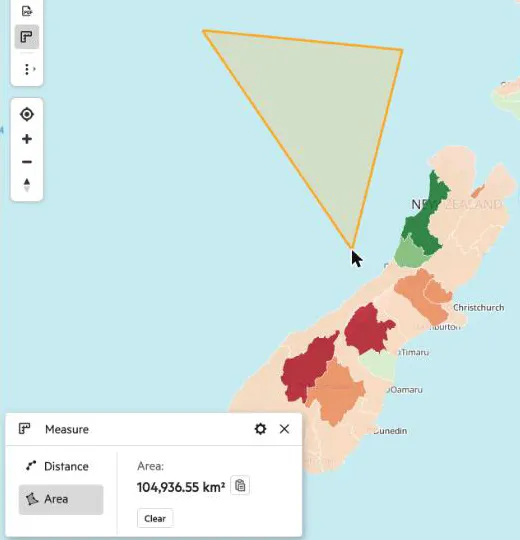
Section titled “Measure distance or area”- Select the measure button in the toolbar, or open Tools and select the measure item (Measure distances or areas in the map).
- In the Measure panel, choose Distance to measure a line or Area to measure a polygon.
- Click on the map to add points, and double-click to finish.
The panel shows the Distance or Area. Use the menu in the panel to switch between Metric and Imperial units, and Clear measurements to start again. Close the panel with Close measurements.
Quick PDF
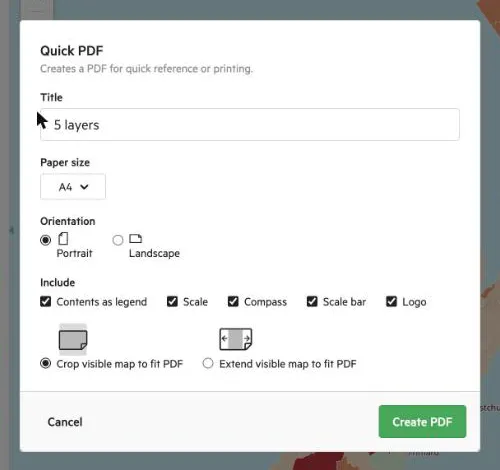
Section titled “Quick PDF”Quick PDF makes a PDF of what is on the map, for quick reference or printing. If you need a PDF with more control, or the data itself, see Export data in PDF.
- Select the Quick PDF button in the toolbar (Create a PDF of the map), or open Tools and choose Quick PDF.
- Enter a title, which defaults to the map viewer’s name.
- Choose a paper size, A4, A3 or Letter, and Portrait or Landscape.
- Choose whether to Crop visible map to fit PDF or Extend visible map to fit PDF.
- Tick what to include: Contents as legend, Scale, Compass, Scale bar and Logo.
- Select Create PDF.
If the button reads Quick PDF unavailable, there’s no map to print yet. It may still be loading, or your device may not support the map display.
Contours
Section titled “Contours”Create Contours adds a contours layer to the map viewer, and opens its appearance controls so you can adjust it. Select Remove Contours in the same place to take it away. A map viewer has one contours layer.
You only see the contours tool if you have a paid seat, an active AI Pro subscription, or you use a site that is Invite only. Other users don’t see it in the Tools menu. Reopening Appearance for the contours layer from the layer menu needs a Paid Seat.
Find an address or place
Section titled “Find an address or place”Use the search box in the map viewer’s toolbar. Start typing an address or place name, select a result, and the map zooms to it.