Style a layer: the Appearance panel or CartoCSS map styles
This page applies to customer sites. There are two ways to change how a layer looks. They do different jobs, so pick the one that matches what you want.
| Appearance panel | Map styles (CartoCSS) | |
|---|---|---|
| Where | In the map viewer, from a layer’s … menu | On the dataset’s Map Styles tab in the Data Manager |
| Who | Anyone using the map viewer, for the layers it supports | People who can manage the dataset’s service permissions |
| What it changes | How the layer looks in your map viewer | A style that’s saved and published with the dataset |
| Shared with others | Only through the map viewer you save or share | Available to everyone who can see the layer in the layer’s menu in the map viewer |
Change a layer’s look in the map viewer
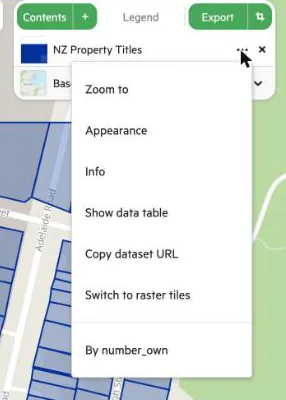
Section titled “Change a layer’s look in the map viewer”- In the map viewer, open the … menu of the layer in the layer list.
- Select Appearance. If the layer doesn’t have this entry, it can’t be styled this way. Use a map style instead.
- Change the settings in the window that opens. The settings depend on the type of layer. For example:
- A single-band grid has a colour ramp, the range of values the ramp covers, and Hide data outside this range. See Understanding grid data.
- Vector layers have colour and other drawing settings.
- Contours and point clouds have their own settings.
Appearance changes are stored with the map viewer, not as a style on the dataset. Other people see them only in a map viewer that you share. See Create a map viewer.
Pick a published map style in the map viewer
Section titled “Pick a published map style in the map viewer”If a layer has CartoCSS map styles, the … menu lists them in their own section at the bottom, below Appearance and the other items. Select one to use it in your map viewer. A single-band grid that you’ve styled with Appearance goes back to server rendering when you pick a style from that section again.
Create and publish a map style (CartoCSS)
Section titled “Create and publish a map style (CartoCSS)”Use CartoCSS when you want a consistent, published style for a layer or set: for example a house style that everyone sees by default.
- Open the dataset in the Data Manager and select the Map Styles tab.
- Create a new map style, edit its CartoCSS, save it and Publish it.
- To make it what people see first, select Make default style. Only a published style can be the default.
The full steps are in Add cartographic styles to data using CartoCSS. The Map Styles tab is available to users who can manage service permissions.
Which should I use?
Section titled “Which should I use?”- I want my map to look a certain way, for me or for a map viewer I share: use Appearance.
- I want everyone to see the layer in a particular style by default: publish a CartoCSS style and make it the default.
- A layer has no Appearance entry: use a CartoCSS map style, or ask the layer’s publisher to add one.