
Connect Claude, ChatGPT and other AI tools (MCP)
Koordinates has an MCP server (Model Context Protocol). Once you connect it to an AI tool such as Claude or ChatGPT, you can search a Koordinates site’s data, query it and build maps by chatting with the AI tool.
This applies to koordinates.com and to customer sites. You need a seat to use it.
What you need
Section titled “What you need”- A KxAI Seat or an MCP Seat on the site. A KxAI Seat adds KxAI in the map viewer and includes everything in an MCP Seat. AI Pro Users on koordinates.com have both.
- A plan with your AI tool that allows custom connectors. Koordinates’ own setup page says custom connectors need a Claude Pro, Max, Team or Enterprise plan, or a ChatGPT Plus, Pro, Business or Enterprise plan.
- Your Koordinates ID. The AI tool asks you to sign in with it the first time you use the connection, and it can only reach what your account can reach.
Find your connection URL
Section titled “Find your connection URL”- Sign in, open the Manage menu in the top navigation and select AI & MCP Tools.
- Under MCP connection information, select Copy MCP connection URL.
The URL is your site’s address followed by services/mcp/. Each site has its own connection URL.
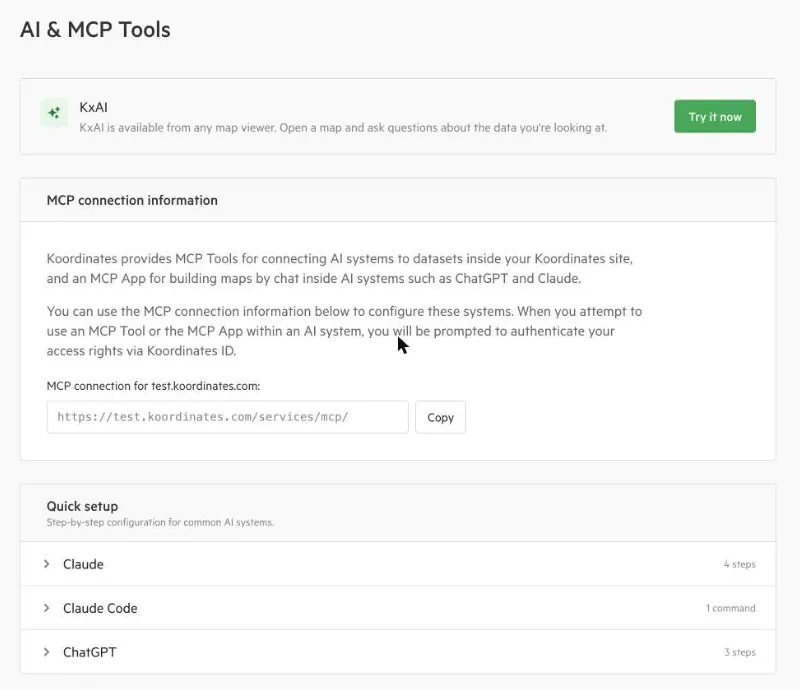
The same page has a Quick setup panel with step-by-step instructions for Claude, Claude Code and ChatGPT. The steps are repeated here.
Connect Claude
Section titled “Connect Claude”- In Claude, open Settings > Connectors and choose Add custom connector.
- Name it Koordinates and paste the connection URL.
- Select Add, then Connect. Sign in with Koordinates ID when prompted.
- Optional: add
services.koordinates.comto Additional allowed domains in Settings > Capabilities. This lets Claude retrieve and work with images made by the map image tool. On Claude Team and Enterprise plans, an organisation admin sets this.
Connect Claude Code
Section titled “Connect Claude Code”Run this command in your terminal, with your own connection URL:
claude mcp add --transport http koordinates <your connection URL>Then run /mcp inside Claude Code to sign in.
Connect ChatGPT
Section titled “Connect ChatGPT”- In ChatGPT, open Settings > Security and login and turn on Developer mode.
- Open the Plugins page at chatgpt.com/plugins. It isn’t under Settings. Select the + button at the top right (New plugin), name it Koordinates and paste the connection URL. Leave the OAuth field blank.
- Save, then enable the plugin in a chat. Sign in with Koordinates ID when prompted.
Other AI tools
Section titled “Other AI tools”Any AI tool that supports remote MCP servers can use the same connection URL. Signing in uses OAuth, and the tool registers itself automatically, so you don’t create a client or key yourself.
What the AI tool can do
Section titled “What the AI tool can do”Through the connection an AI tool can:
- search a site’s datasets by keyword, type or area. If the site allows it, this includes public data from other Koordinates sites, such as the LINZ Data Service;
- fetch details for specific layers;
- query a layer’s features, with filters and sorting. It fetches up to 10 records at a time;
- find the values at a point: features from vector layers, cell values from raster and grid layers, and points from point clouds;
- turn an address or place name into coordinates;
- search indexed data, which is layers from other organisations’ ArcGIS REST services that Koordinates has indexed but doesn’t host. This needs a data pack that includes it;
- draw a map, or make a map image.
Everything respects your permissions. The AI tool sees the data your Koordinates ID can see, and no more. AI tools can make mistakes, so check important answers against the data itself.
Troubleshooting
Section titled “Troubleshooting”- AI & MCP Tools says you need a seat. See Ask for a seat.
- You aren’t asked to sign in, or signing in fails. Remove the connector or plugin from your AI tool and add it again, checking that the URL ends in
services/mcp/. - The AI tool can’t find data you know is there. Check that you connected the right site. Each site has its own connection URL, and the AI tool only sees data on that site that your Koordinates ID can see.
Ask for a seat
Section titled “Ask for a seat”This section is for users of customer sites. AI Pro Users on koordinates.com already have KxAI and MCP, and don’t need to ask.
If you don’t have a seat, AI & MCP Tools shows You need a seat to access AI & MCP tools. Choose KxAI Seat or MCP Seat and select the button to send the request. A site administrator then reviews it, and the page shows that the request is pending until they act. You can cancel the request while it’s pending.
- If the page says AI & MCP tools aren’t available on this site, the site hasn’t been set up for KxAI or MCP seats. Contact your Koordinates account manager.
- On a site that is open to the public, only users with a Paid Seat can request an MCP Seat, and only users with a Paid Seat or an MCP Seat can request a KxAI Seat. On a private site, anyone can request either.
- If you have an MCP Seat and want KxAI as well, select Request KxAI Seat on the same page.
On a customer site, site administrators give seats to users in Users & Groups. See Find and manage registered users.