
Create a catalog item
Add external tile and map services to your data catalog as catalog items.
A catalog item lets you add an external service — such as PMTiles, TileJSON, WMTS, Esri REST, or XYZ raster tiles — to your data catalog and map viewers, without importing the underlying data. Once created, catalog items appear in your Data Browser alongside your other datasets and can be added to maps.
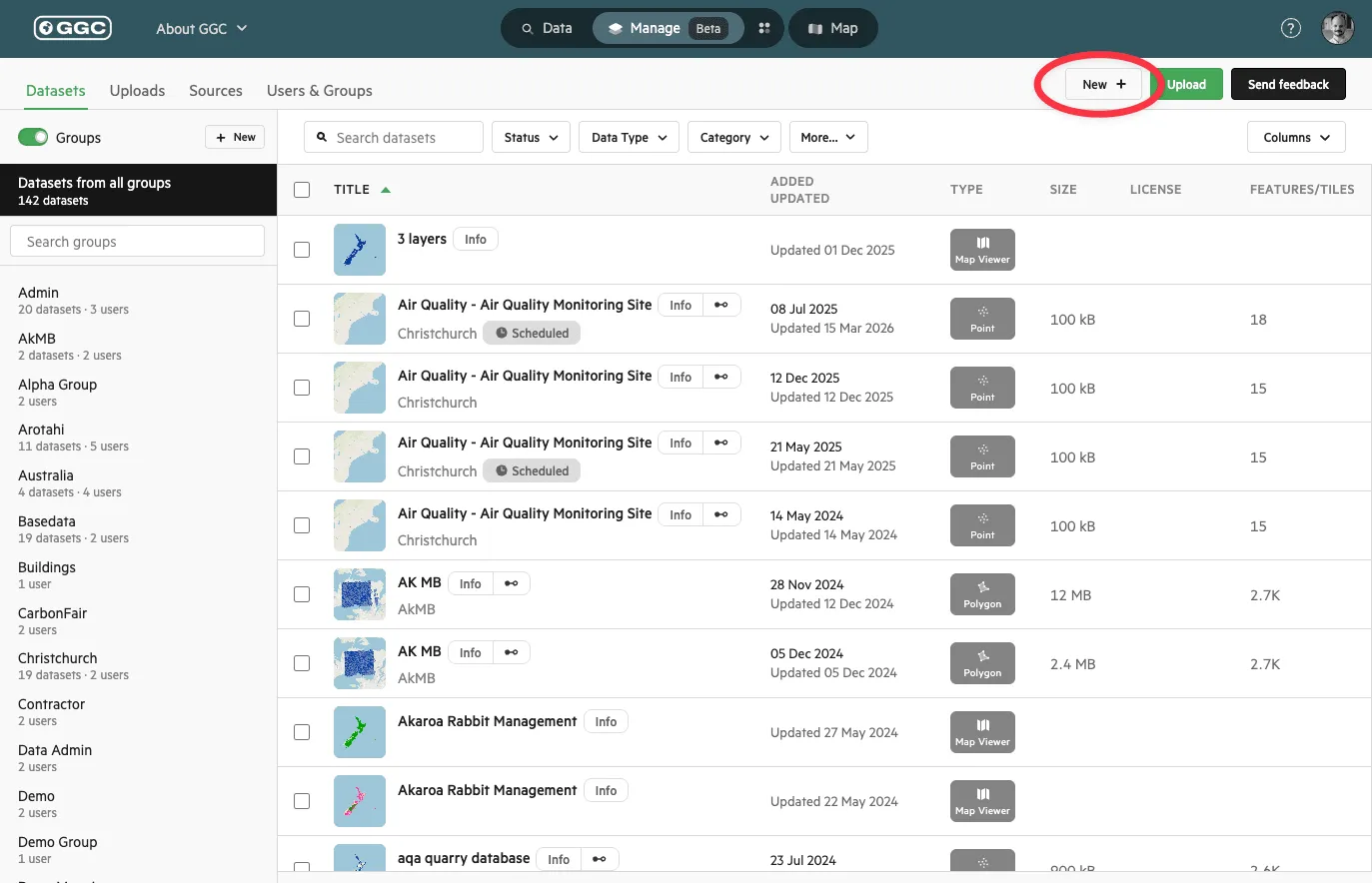
1. In the Data Manager, click ‘New +’
Section titled “1. In the Data Manager, click ‘New +’”From the top right of the Data Manager, click the ‘New +’ button to open the tools wizard.
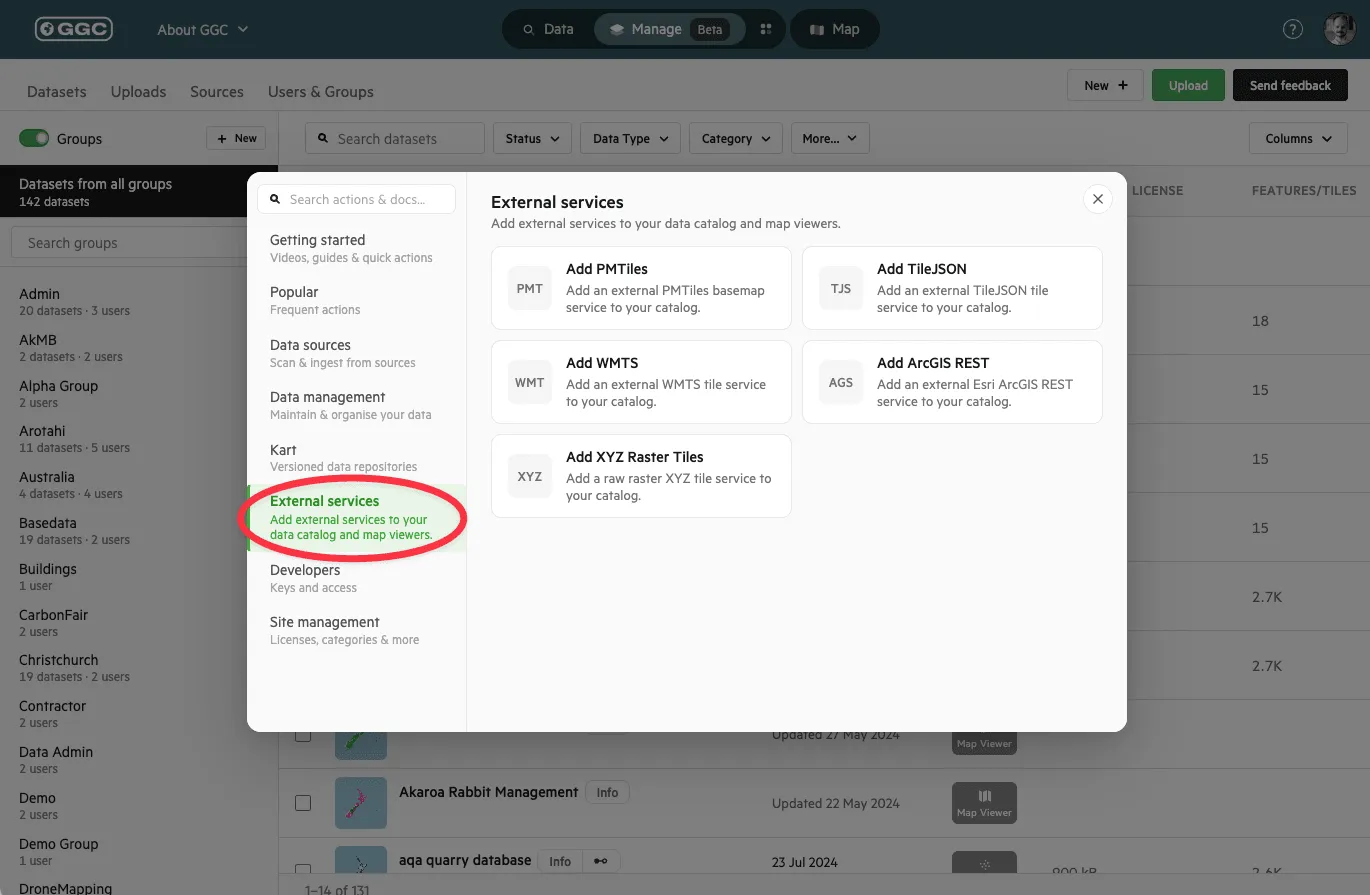
2. Select ‘External services’ and choose a service type
Section titled “2. Select ‘External services’ and choose a service type”In the wizard, navigate to ‘External services’ and select the type of service you want to add:
- PMTiles — an external PMTiles basemap service
- TileJSON — an external TileJSON tile service
- WMTS — an external WMTS tile service
- Esri REST — an external Esri ArcGIS REST service
- XYZ Raster Tiles — a raw raster XYZ tile service
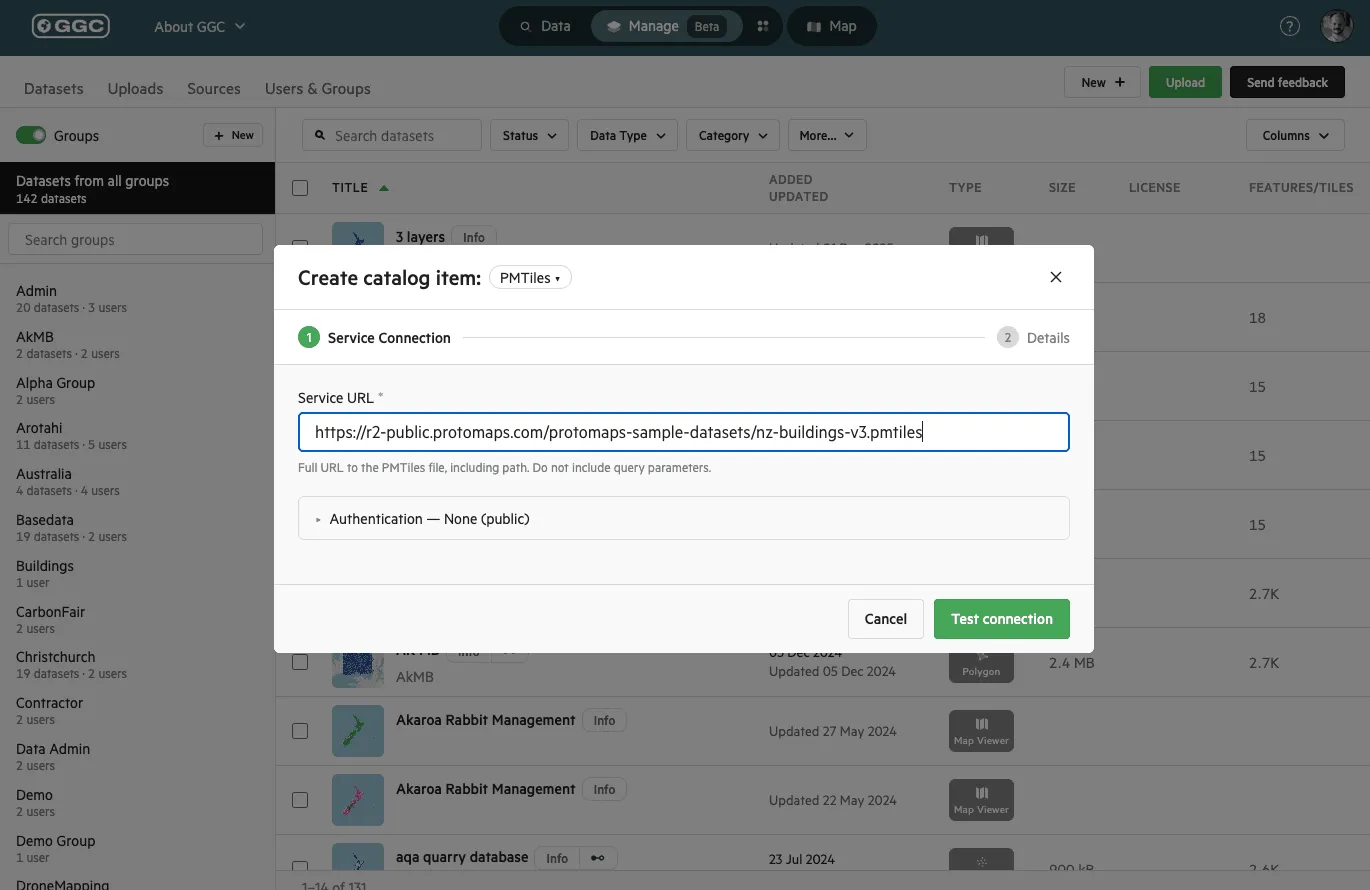
3. Enter the service connection details
Section titled “3. Enter the service connection details”Enter the full URL to the service, including the path. Don’t include query parameters.
If the service requires authentication, expand the ‘Authentication’ section and enter your credentials. The connection is tested before you can continue.
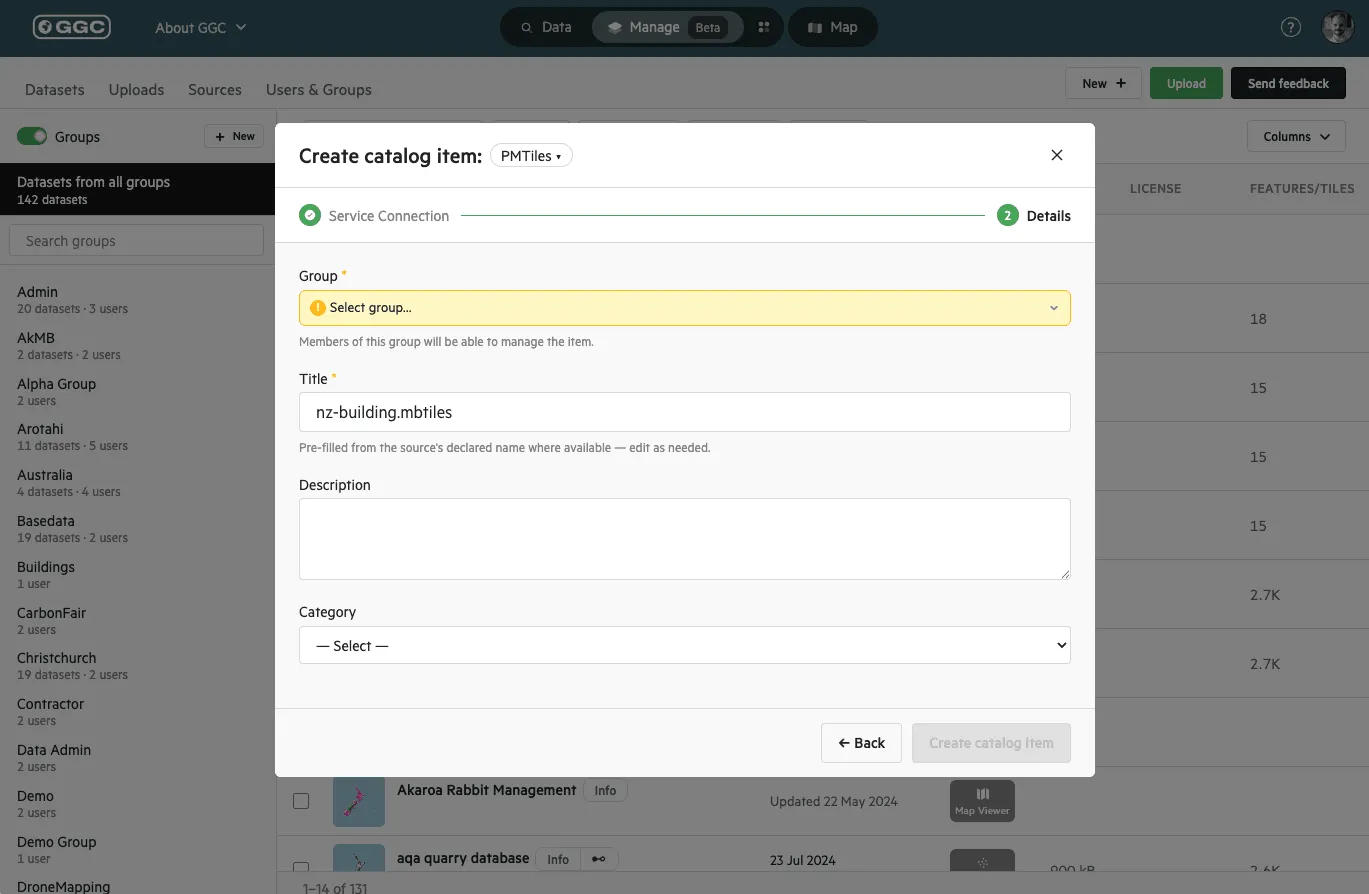
4. Add the item details and click ‘Create catalog item’
Section titled “4. Add the item details and click ‘Create catalog item’”Choose the owning group — members of this group will be able to manage the item. The title is pre-filled from the source’s declared name where available, so edit it as needed. You can also add a description and category to help users find the item.
Click ‘Create catalog item’ to finish.
Finding catalog items
Section titled “Finding catalog items”To find catalog items after they’ve been created, use the ‘Catalog Item’ data type filter in the Data Manager, or the ‘Catalog Items’ filter in the Data Browser. Catalog items are labelled ‘External Service’ in the Data Browser, and can be added to a map with the ‘Map +’ button.
Additional notes
Section titled “Additional notes”- Catalog items reference the external service directly — the data is not imported or stored on your site.
- Members of the owning group can manage the item, including editing its details.