
Pay an unpaid invoice
An invoice is unpaid when its card payment hasn’t gone through, for example because the card was declined or has expired. You can pay it yourself with Pay Now.
Pay an invoice
Section titled “Pay an invoice”Each invoice is paid on its own, so if several are unpaid, pay each one.
-
Open Usage & Billing
Open the Manage menu in the top navigation and select Usage & Billing.
-
Choose the invoice
Unpaid invoices show a red Unpaid label: in the Last Invoice panel on the Overview tab when your most recent invoice is unpaid, and in the Status column of Billing History for every unpaid invoice.
-
To pay your newest unpaid invoice, select Pay amount now in the notice under Subscription Information on the Overview tab. The notice names the invoice, its amount and the date it was due. If older invoices are unpaid too, it says how many, with a link to Billing History.
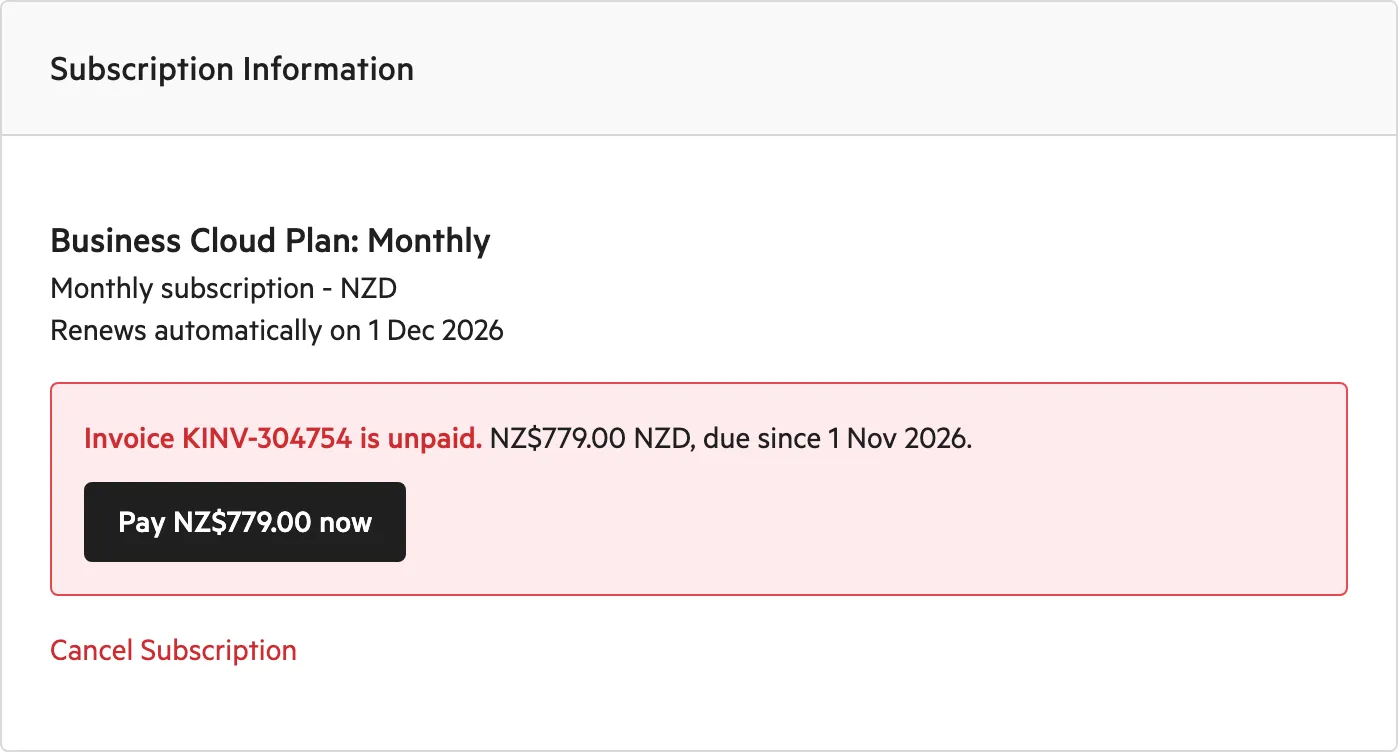
The unpaid notice on the Overview tab. -
To pay any other unpaid invoice, open the Billing History tab and select Pay Now beside it.

Pay Now on an unpaid invoice in Billing History.
-
-
Check the details
The Pay invoice …? window shows the invoice number, the Amount, the Card it will be charged to and the Invoice date. If it’s the wrong card, select Cancel and update your card first.
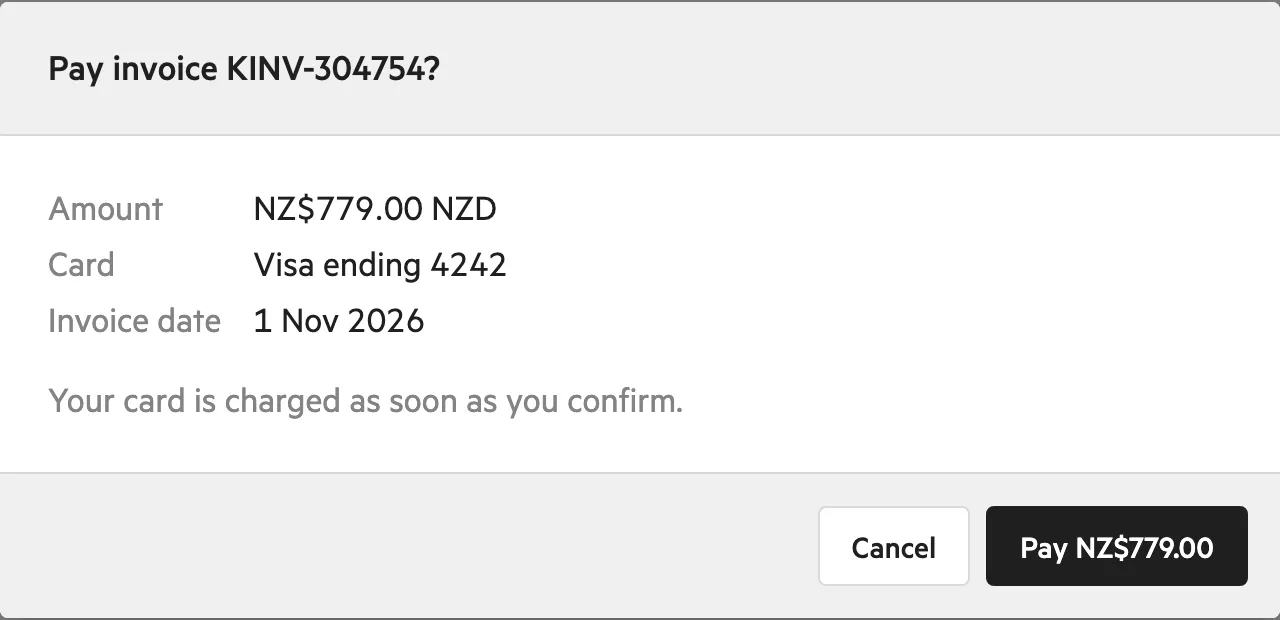
The window that opens before your card is charged. -
Pay
Select Pay amount. Your card is charged straight away.
When the payment goes through, you’ll see “Payment collected.” The invoice then shows Paid and its Pay Now button goes away.
While a payment is in progress, and for a moment afterwards while Billing History refreshes, every Pay Now button is greyed out. This stops you paying twice.
If the payment doesn’t go through
Section titled “If the payment doesn’t go through”If we can’t collect the payment, a window tells you why and what to do next.
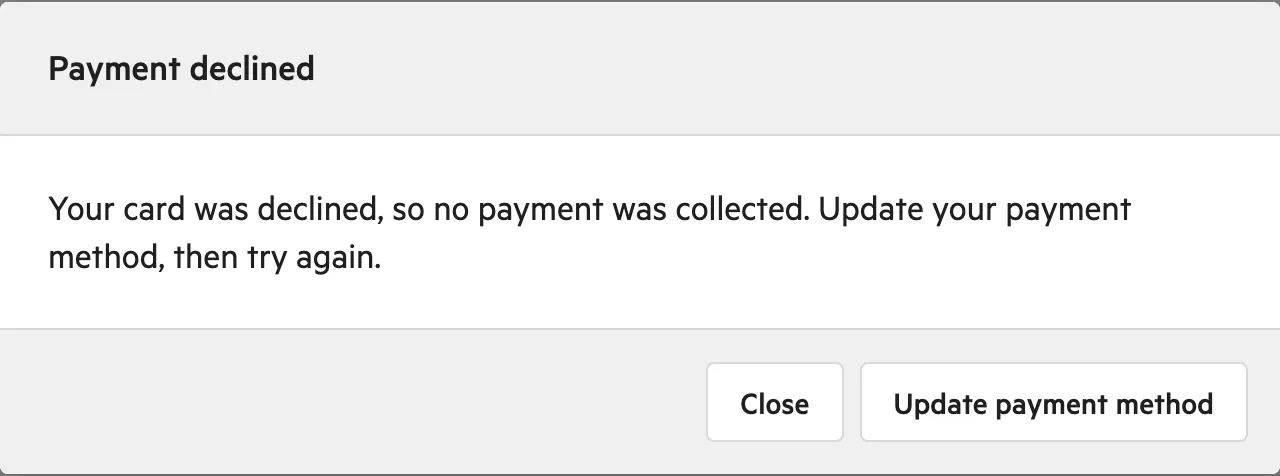
- Payment declined. Your card was declined, so no payment was collected. Select Update payment method, enter a different card, then pay again.
- Payment not collected. The payment didn’t go through, and the invoice is still unpaid. Select Update payment method and check your card, then pay again.
- Nothing to pay. The invoice has already been paid, was voided, or isn’t due yet. Select Close: Billing History refreshes to show the invoice’s current status.
- Can’t pay by card. Your site’s invoices aren’t charged to its card. Pay using the details on the invoice, or contact support.
- Too many attempts. Your network has used its 10 payment attempts for the day. Attempts by others on the same network count too. Try again tomorrow, or contact support.
- Invoice not found. We couldn’t find the invoice on your account, so nothing was charged. Reload Billing History and try again, or contact support.
- Payment not confirmed. Something went wrong, and we couldn’t confirm the payment. Check Billing History before you try again: a paid invoice shows Paid.
Update payment method opens the card editor in the Payment method panel on the Overview tab, even if you started on Billing History. Save the new card, then select Pay Now again. See Edit your billing details.
To contact support, email support@koordinates.com or raise a ticket.
Who can pay with Pay Now
Section titled “Who can pay with Pay Now”Everyone sees which invoices are Unpaid. Pay Now is only for some accounts:
| Your account | Pay Now? |
|---|---|
| Site administrator on a card-billed cloud plan, with a card on file | Yes |
| Site administrator on a card-billed cloud plan, with no card on file | No. Add a card first |
| Site administrator on a plan paid by invoice | No. Pay using the payment details on the invoice: select Download in Billing History for a copy. For help, contact your account manager or support |
| AI Pro User | No. If a payment fails, the KxAI credits panel in Usage & Billing shows Payment failed — KxAI credits paused or Recurring credit pack not renewed. Select Retry payment there. See KxAI credits |
Troubleshooting
Section titled “Troubleshooting”| What you see | Why | What to do |
|---|---|---|
| An invoice is Unpaid but has no Pay Now | Your plan is paid by invoice, there’s no card on file, or you’re an AI Pro User | See Who can pay with Pay Now |
| Pay Now is greyed out | A payment is in progress, or Billing History is refreshing after one | Wait a few seconds |
| The Pay invoice …? window shows the wrong card | The invoice is charged to the card saved on your account | Select Cancel, update your card, then pay again |
| The Pay invoice …? window closed by itself | The invoice was paid while the window was open, for example by another administrator | Nothing. Check Billing History: the invoice shows Paid |
| You paid the newest invoice, but the notice on Overview is still there | Another invoice is unpaid, and the notice now names that one | Pay that one too, or check Billing History |